WebLogic Configuration (AdminServer)
Before installing, you need to decide on some basic paths for the fusion middleware home, domains and applications. Assuming "ORACLE_BASE=/u01/app/oracle", you might use something like the following.
By default the installer will suggest the domains and applications should be placed in a directory called "user_projects" under the middleware home. This is not ideal as any upgrade will leave these configuration directories under an old middleware home.
This article gives an example of the installation process itself.
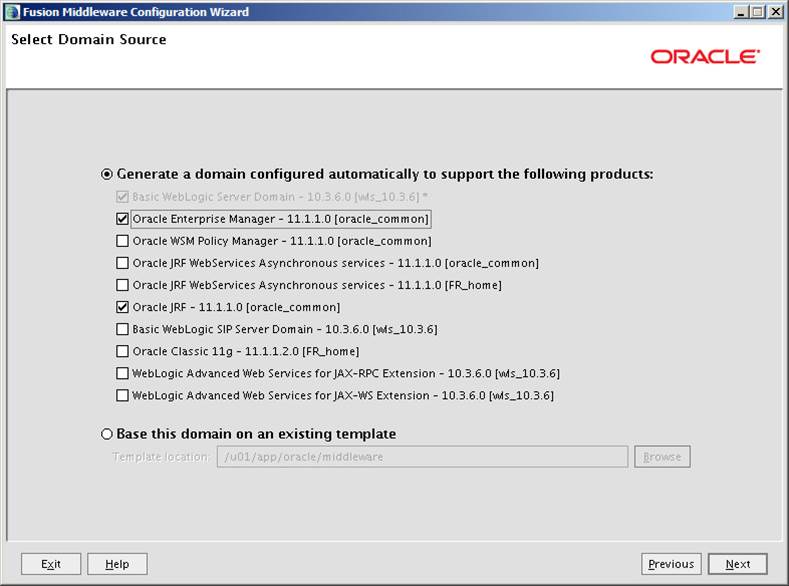
I often use the Configuration Wizard to create domains as it provides a simple GUI interface. It is started using the following command.
Basic domain management is described in these articles. There are some slight differences between WebLogic versions.
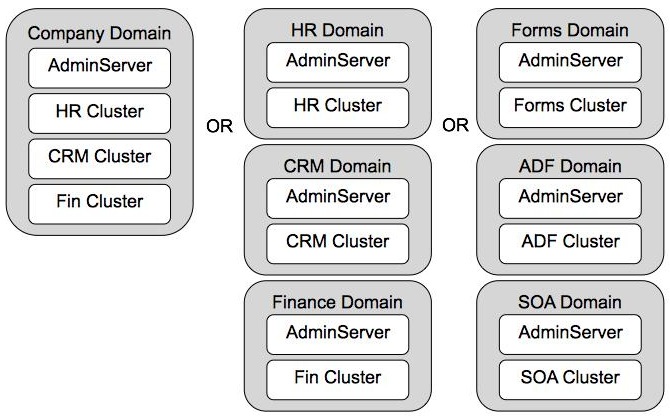
Creation of clustered domains is described in the following articles.
I would suggest always running in "Production Mode" on servers, even if they are development servers. It means you can adopt a single approach all the way through your development, test and production environments.
When a domain is created it includes several scripts allowing you to start and stop components.
Examples of their use are in the installation and configuration articles linked from this article.
Once the AdminServer of a domain is started, you have access to the web-based administration interface using the following style of URL.
- http://machine:port/console
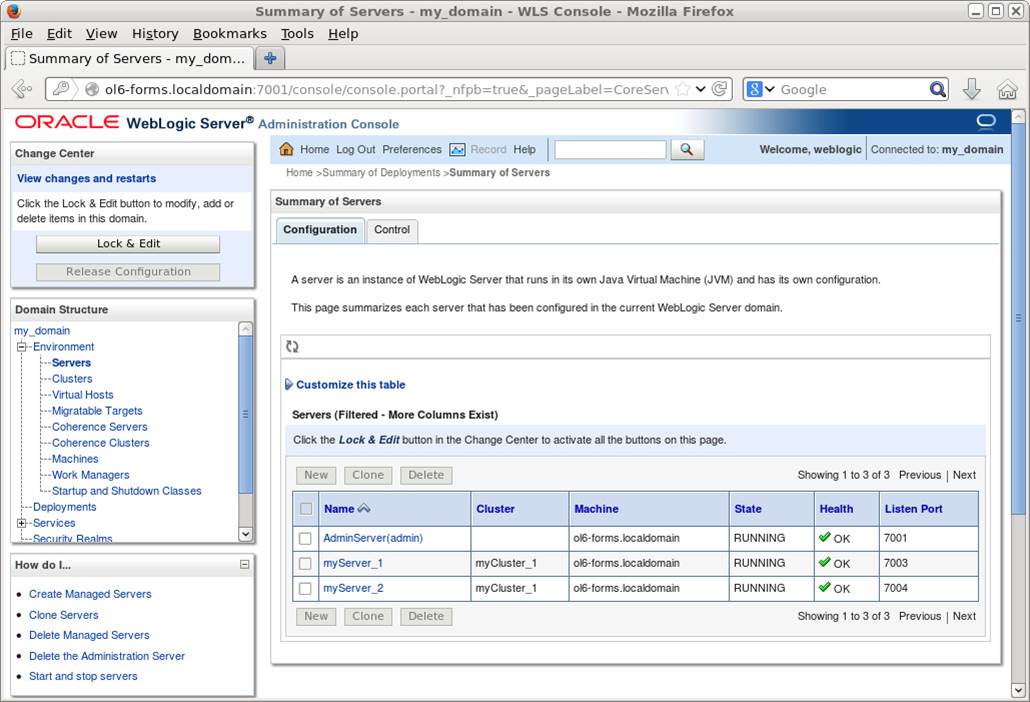
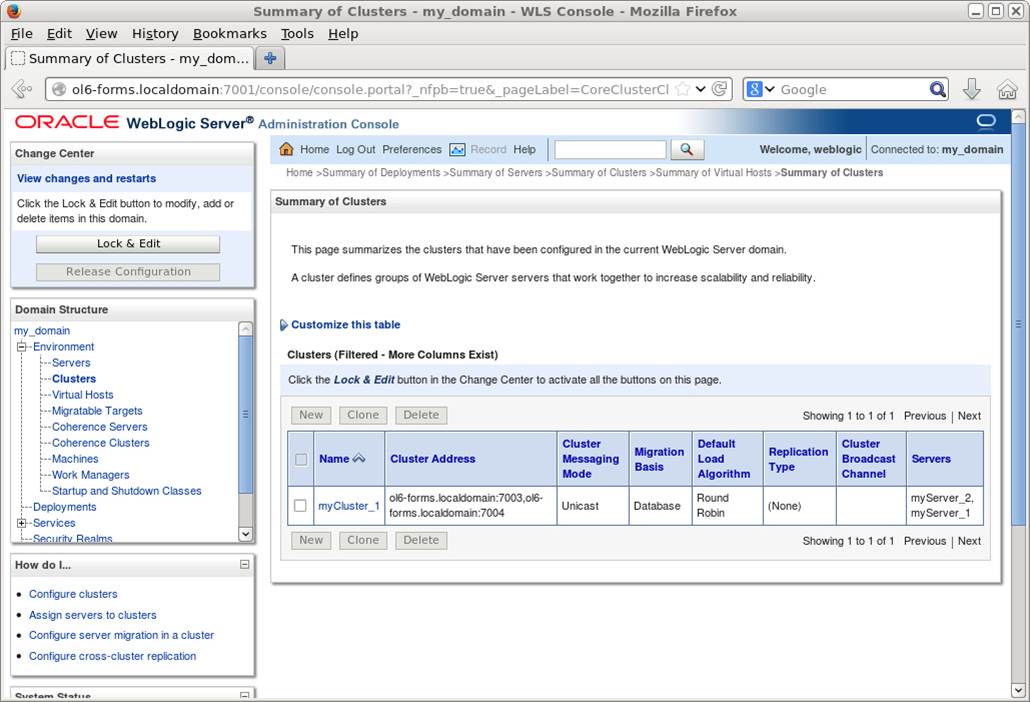
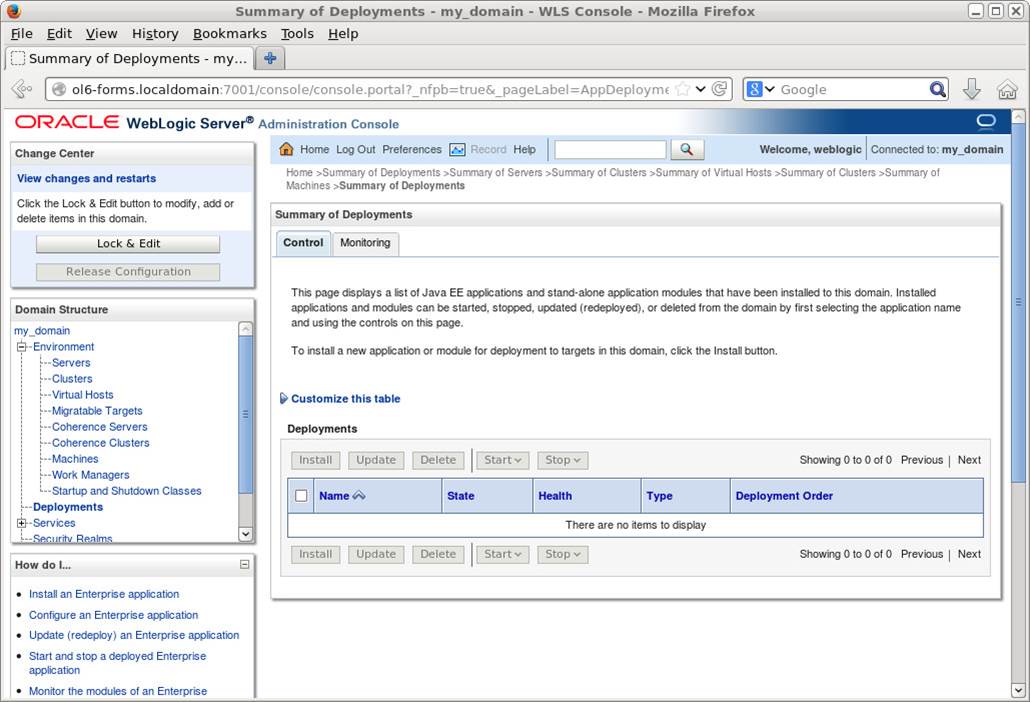
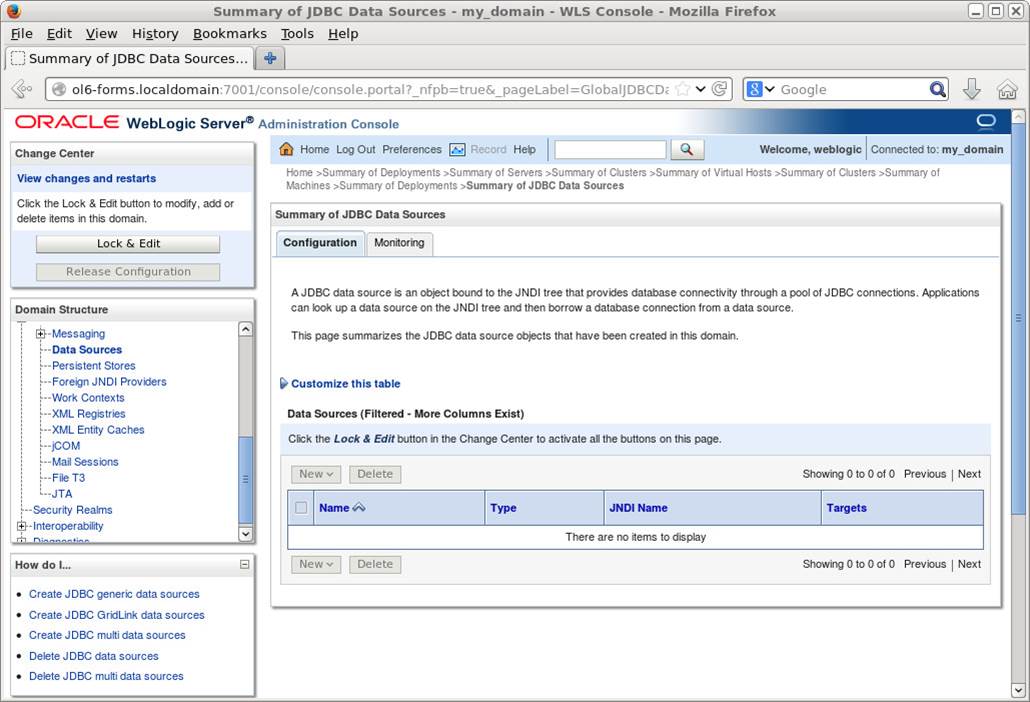
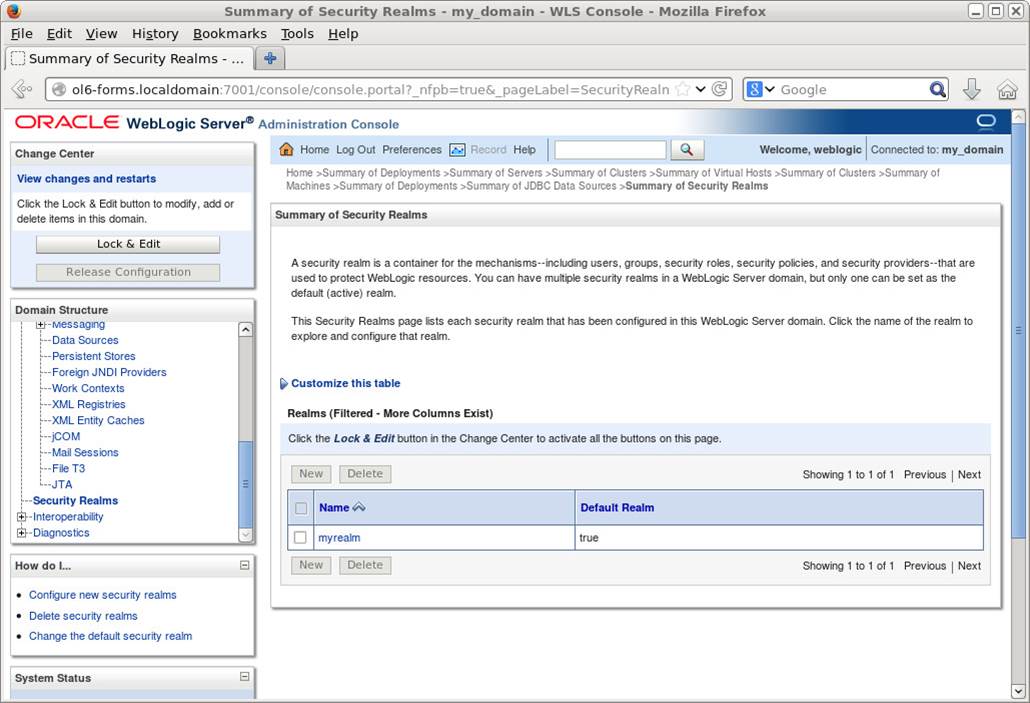
The administration interface is relatively intuitive. The pages are broken down into several sections:
- Change Center : This is situated at the top-left of every page. When running in production mode, no changes can be made to the configuration without first clicking the "Lock & Edit" button. Once the necessary changes are made, click the "Activate Changes" button and all modifications will be applied. If you decide not to apply the changes, you can click the "Release Configuration" button to revert all the changes. This effectively makes all changes transactional.
Change Center : This is situated at the top-left of every page. When running in production mode, no changes can be made to the configuration without first clicking the "Lock & Edit" button. Once the necessary changes are made, click the "Activate Changes" button and all modifications will be applied. If you decide not to apply the changes, you can click the "Release Configuration" button to revert all the changes. This effectively makes all changes transactional.
- Domain Structure : A tree with each node representing a different feature or group of configuration options. Clicking on a particular node will make the main display pane change to be relevant to that node.
Domain Structure : A tree with each node representing a different feature or group of configuration options. Clicking on a particular node will make the main display pane change to be relevant to that node.
- Main Pane : This the large section of the page that contains all the configuration details. It displays the top-level configuration for each node of the domain structure tree. This pane often contains many tabs and sub-tabs as well as drill-downs in some cases.
Main Pane : This the large section of the page that contains all the configuration details. It displays the top-level configuration for each node of the domain structure tree. This pane often contains many tabs and sub-tabs as well as drill-downs in some cases.
- How do I... : Each screen comes with context-sensitive how-to style suggestions, which can be very useful when you are first starting to use WebLogic. If in doubt, look at the suggested links in this section.
How do I... : Each screen comes with context-sensitive how-to style suggestions, which can be very useful when you are first starting to use WebLogic. If in doubt, look at the suggested links in this section.
- System Status : Each page has a top-level system status display.
System Status : Each page has a top-level system status display.
Change Center : This is situated at the top-left of every page. When running in production mode, no changes can be made to the configuration without first clicking the "Lock & Edit" button. Once the necessary changes are made, click the "Activate Changes" button and all modifications will be applied. If you decide not to apply the changes, you can click the "Release Configuration" button to revert all the changes. This effectively makes all changes transactional.
Domain Structure : A tree with each node representing a different feature or group of configuration options. Clicking on a particular node will make the main display pane change to be relevant to that node.
Main Pane : This the large section of the page that contains all the configuration details. It displays the top-level configuration for each node of the domain structure tree. This pane often contains many tabs and sub-tabs as well as drill-downs in some cases.
How do I... : Each screen comes with context-sensitive how-to style suggestions, which can be very useful when you are first starting to use WebLogic. If in doubt, look at the suggested links in this section.
System Status : Each page has a top-level system status display.
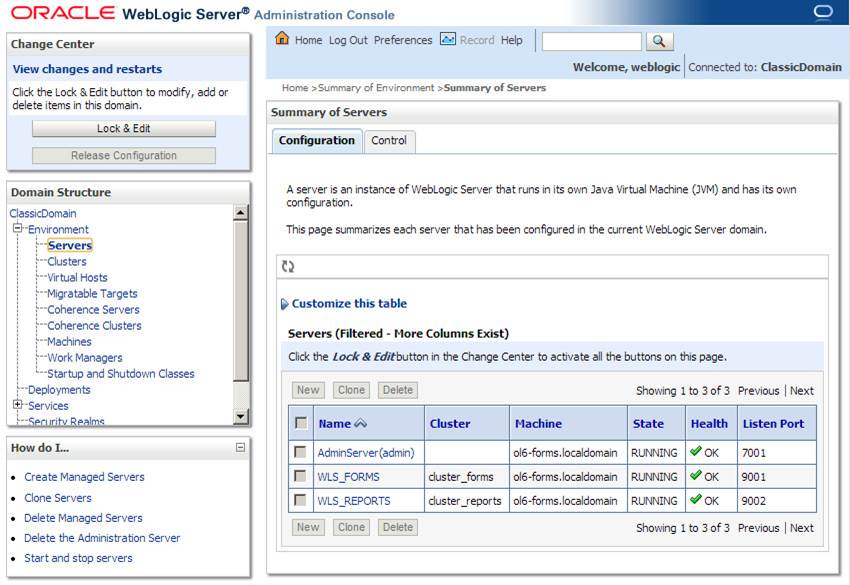
Clicking on the "Servers" node displays the current status of the AdminServer and all the managed servers. The "Configuration" tab allows you to create, clone or delete managed servers, while the "Control" tab allows you to start and stop them. Clicking on the managed server name allows you to drill down into the detailed configuration options.