Web Start
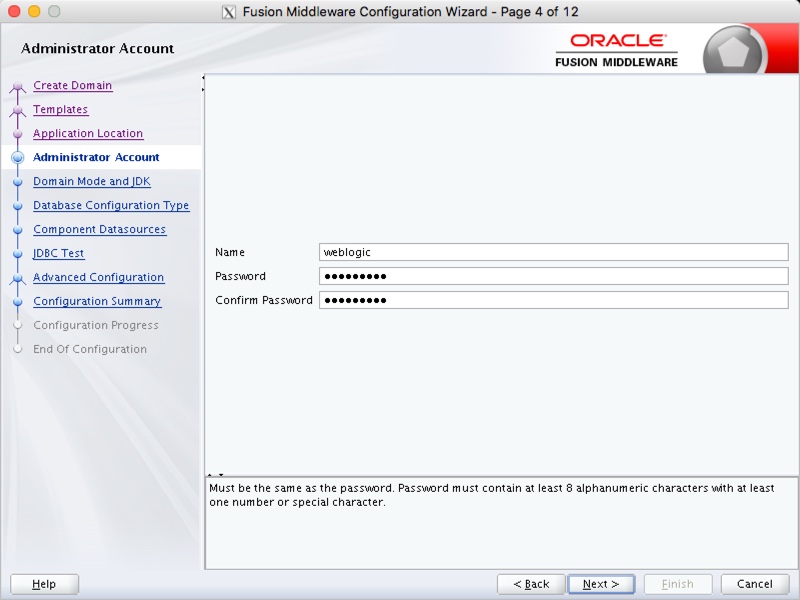
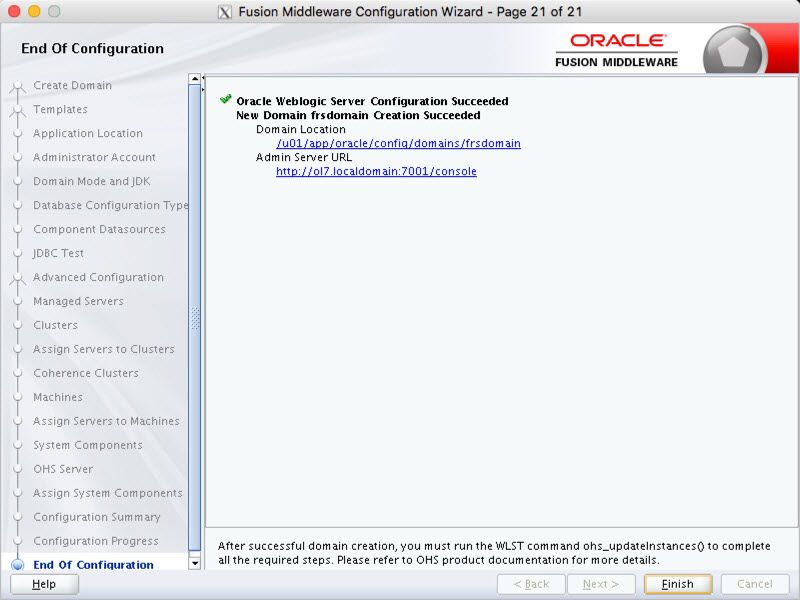
If you've not configured the node manager credentials during the domain creation, the following steps show you how to do it once the AdminServer has been started.
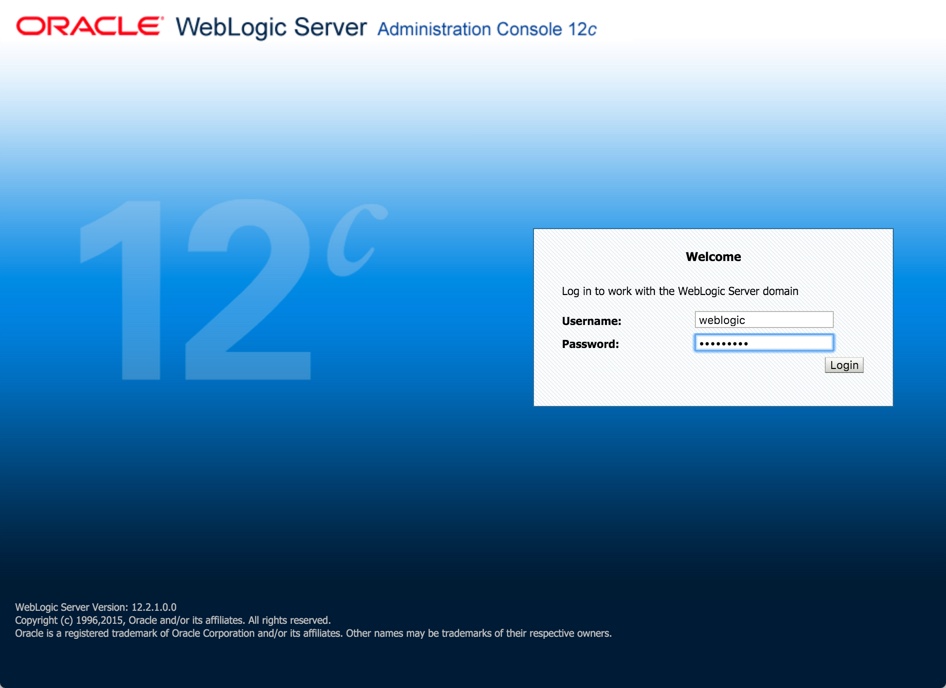
- Log in to the administration server (http://ol7.localdomain:7001/console).
- In the "Domain Structure" tree on the left, click on the domain name (frsdomain).
- Click on the "Security" tab. This should automatically put you in the "General" sub-tab.
- Click the "Advanced" link towards the bottom of the screen.
- If you are running in production mode, click the "Lock & Edit" button.
- Enter the "NodeManager Username", "NodeManager Password" and "Confirm NodeManager Password", then click the "Save" button.
- If you are running in production mode, click the "Activate Changes" button.
The node manager password has now been reset.
If you only have a single node manager on the server, this only needs to be done once per server. If you are using domain-specific node managers, you will need to do this for every new domain.
Since OPMN is no longer used, starting the HTTP Server must be done using WLST or the Enterprise Manager console. The process for starting it using EM is shown below.
- Log into the Enterprise Manager console (http://ol7.localdomain:7001/em).
- Click on the "Target Navigation" icon.
- Expand the "HTTP Server" node.
- Click on the "ohs1" instance.
- The resulting page has "Start Up" and "Shut Down" links at the top.
If you have any problems starting the OHS, it's likely that the NodeManager is not running. Make sure this is started and try again.
The HTTP Server must be started once, for the directories associated with "ohs1" instance to be created. The web tier is not configured by default, so you will need to do the following.
Edit the "$ORACLE_HOME/forms/templates/config/forms.conf" file to contain the following.
Edit the "$ORACLE_HOME/reports/conf/reports_ohs.conf" file to contain the following.
Copy the config files to the "moduleconf" directory under the "ohs1" instance.
You shouldn't need to make any changes to the "$OHS_INST/httpd.conf" file.
Restart the HTTP Server, as described above, for the configuration changes to take effect.
To start the HTTP Server from the command line, issue the following command and type the node manager password when prompted.
Subsequent stop and start calls can be made without the extra parameter and without specifying any node manager password.
You will see this used in the following section.
The following scripts are useful. They assume the following.
- A "boot.properies" file has been created for the AdminServer and the WLS_FORMS and WLS_REPORTS managed servers.
- The node manager credentials have been set and saved, as described previously.
- The database holding the repository is already started.
To start up the whole WebLogic and FRS stack, issue the following commands.
To stop the whole WebLogic and FRS stack, issue the following commands.
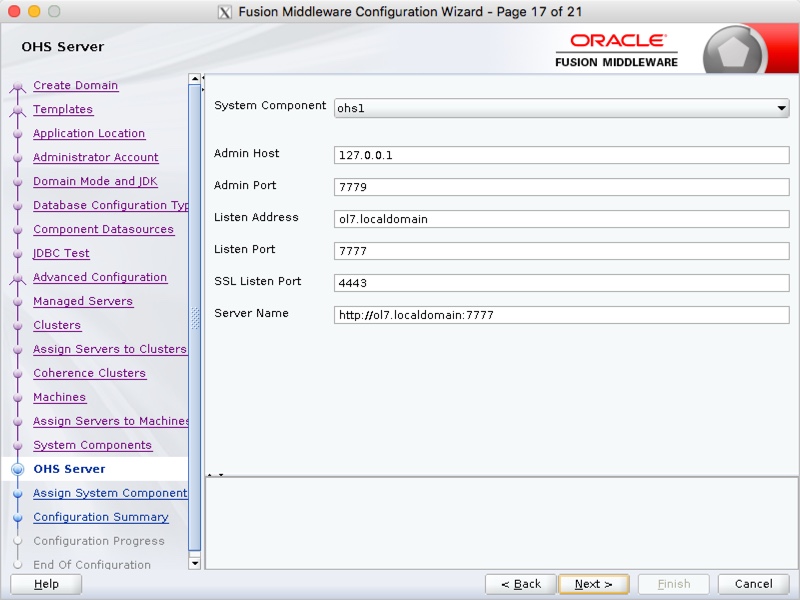
The basic URLs of importance are shown below. Ports may vary between installations.
- http://localhost:7001/console (Console)
- http://localhost:7001/em (Enterprise Manager)
- http://localhost:9001/forms/frmservlet (Forms Base URL)
- http://localhost:9002/reports/rwservlet (Reports Base URL)
- http://localhost:7777/forms/frmservlet (Base HTTP URL you would normally use to initiate Forms)
- http://localhost:7777/reports (Base HTTP URL you would normally use to initiate Reports)
- https://localhost:4443/forms/frmservlet (Base HTTPS URL you would normally use to initiate Forms)
- https://localhost:4443/reports (Base HTTPS URL you would normally use to initiate Reports)
Before you can start using Forms and Reports Services you will need to do some environment configuration, which is discussed here.
Oracle Forms can easily be run using Java Web Start, freeing you from issues with browser compatibility. For this to work, you need a Java 8 JRE installed on the PC. To run using Web Start for the first time, simply issue the URL in the following form.
Depending on your browser, the Web Start version of the URL will either just run, or will ask you to save a ".jnlp" file on your computer. Once saved, you can double click on the file and it will launch Forms directly from the PC as a Web Start application, without using a browser.
For more information see:
Hope this helps. Regards Tim...