DBA Hub

📋Steps in this guide1/8

Oracle Data Integrator (ODI) 12c (12.2.1.2.6) Silent Installation on Oracle Linux 6 and 7 (OL6 and OL7)

This article demonstrates how to perform a silent installation of Oracle Data Integrator (ODI) 12c (12.2.1.2.6) on Oracle Linux (OL6 or OL7) using Oracle Database 12cR2 (12.2) for the repository created by the Repository Creation Utility (RCU).

oracle 12cconfigurationintermediate
by OracleDba
14 views
1

ODI Agent Config

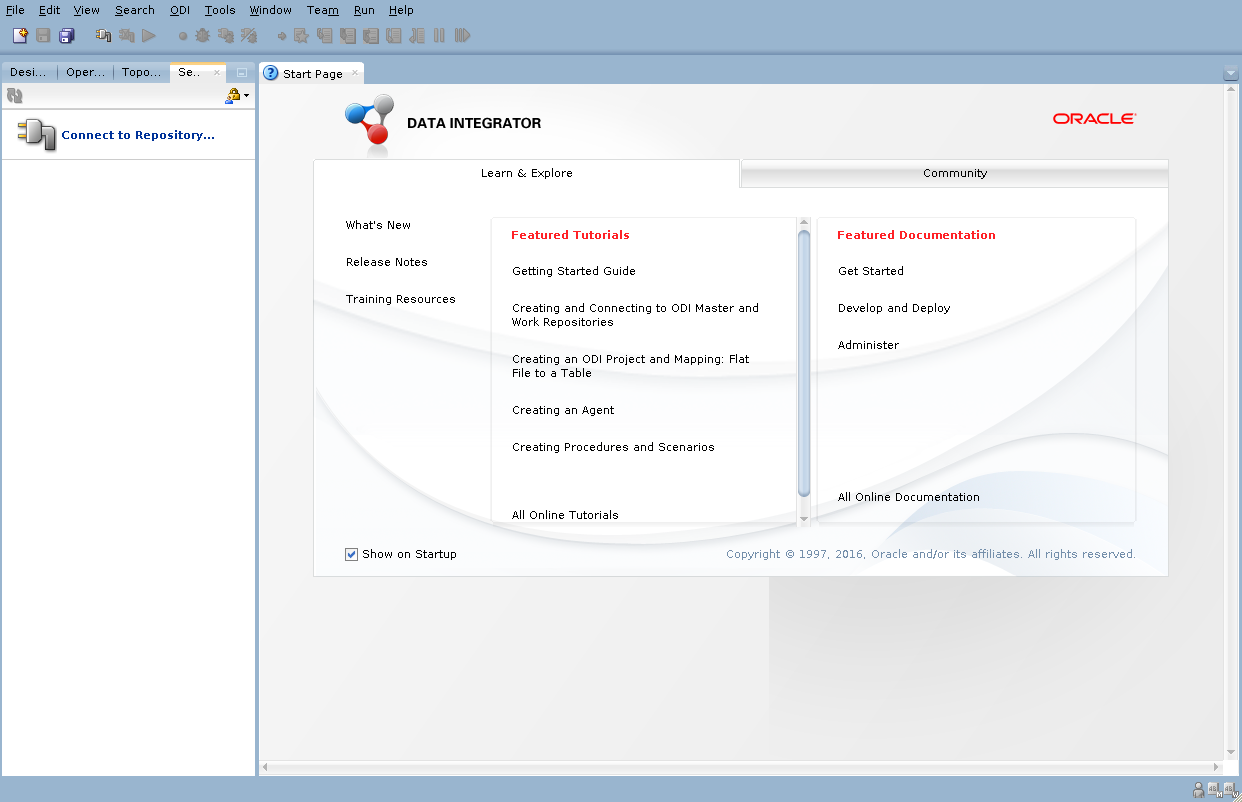
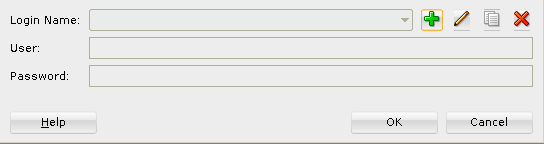
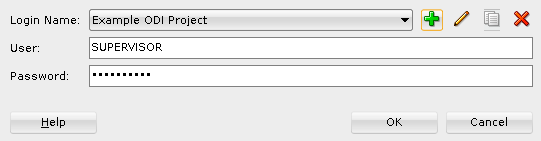
This article demonstrates how to perform a silent installation of Oracle Data Integrator (ODI) 12c (12.2.1.2.6) on Oracle Linux 6 and 7 (OL6 and OL7) using Oracle Database 12c Release 1 (12.1) for the repository created by the Repository Creation Utility (RCU). - Assumptions - Downloads - Additional OS Packages - Database Software Installation - Database Creation - Response Files - Prepare Response Files - WebLogic Installation - ODI Installation - Repository Configuration Utility (RCU) - ODI Configuration - ODI Agent Config - Startup/Shutdown - ODI URLs - Domain Cleanup Related articles. - Silent Installation and Configuration : OUI, DBCA, WebLogic To keep this article as brief as possible I'm going to make the following assumptions. I don't work with ODI, but I do have to provide basic support of some infrastructure that runs it (database and WebLogic). There is a lot of software to download before you can begin. I've purposely not included the latest critical updates. Install the following package for the Fusion Middleware prerequisites to be met. Many of them will already be present because of the database prerequisites. Assuming you have completed all the OS prerequisites for a database installation, you can install the database software as follows. Unzip the software. Install the database software in silent mode. When prompted, run the root scripts. Start the listener. Create the database using the Database Creation Assistant (DBCA) in silent mode. Set minimum parameter levels and make sure the pluggable database starts when the instance starts. The following response files are necessary for the silent installations of ODI shown below. The values we are going to amend during the build are shown in bold. We have used generic response files containing placeholders for build-specific parameters. Here we will replace the placeholders with the values for our build. If you want to adjust them later, remember to switch back to the original response files before running the commands again. Set the required environment variables. Install JDK8. Create the middleware location. Unzip the WebLogic software. Install WebLogic in silent mode. Unzip the software. Install the ODI software in silent mode. Use the following command to run the RCU in silent mode. Create a file called "create_odi_domain.py" in the "/u01/software" directory with the following contents. This is a generic file that uses placeholders which we will replace later. Replace the placeholders with the settings we defined earlier. The following command creates a new ODI domain. Make sure the "AdminServer" and "ODI_Server1" servers can start/stop without credentials by creating "boot.properties" files. The installation is now complete, but the agent definition must be created in the Master Repository, which must be done using the ODI Studio GUI tool. This can be done on the server using X, or from your client PC client, connecting to the repository database. The example in the next section is done using X on the server. If we started the "ODI_server1" managed server now we would see the following type of error in the "ODI_server1.log" file. We have created the physical agent, but we need to create the agent in the Master Repository using the ODI Studio. Click the "Connect to Repository..." link. Click the "+" button.
Step 1
2

ODI Agent Config

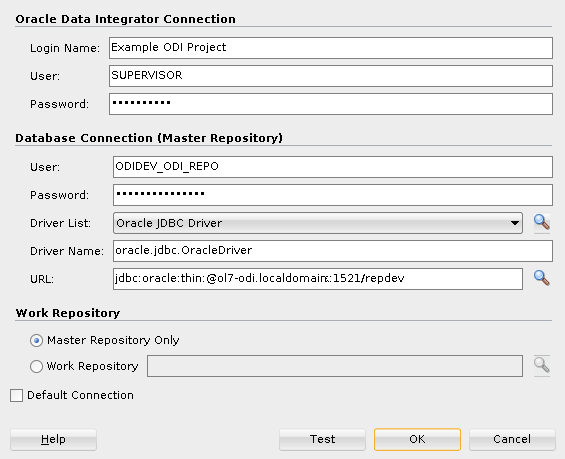
Enter the connection information and click the "Test" button. If successful, click the "OK" button.
Step 2
3

ODI Agent Config

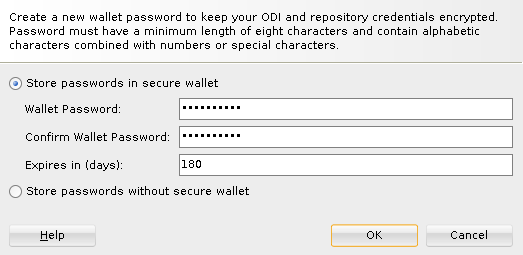
Enter a wallet password and click the "OK" button.
Step 3
4

ODI Agent Config

The credentials should now be set, so click the "OK".
Step 4
5

ODI Agent Config

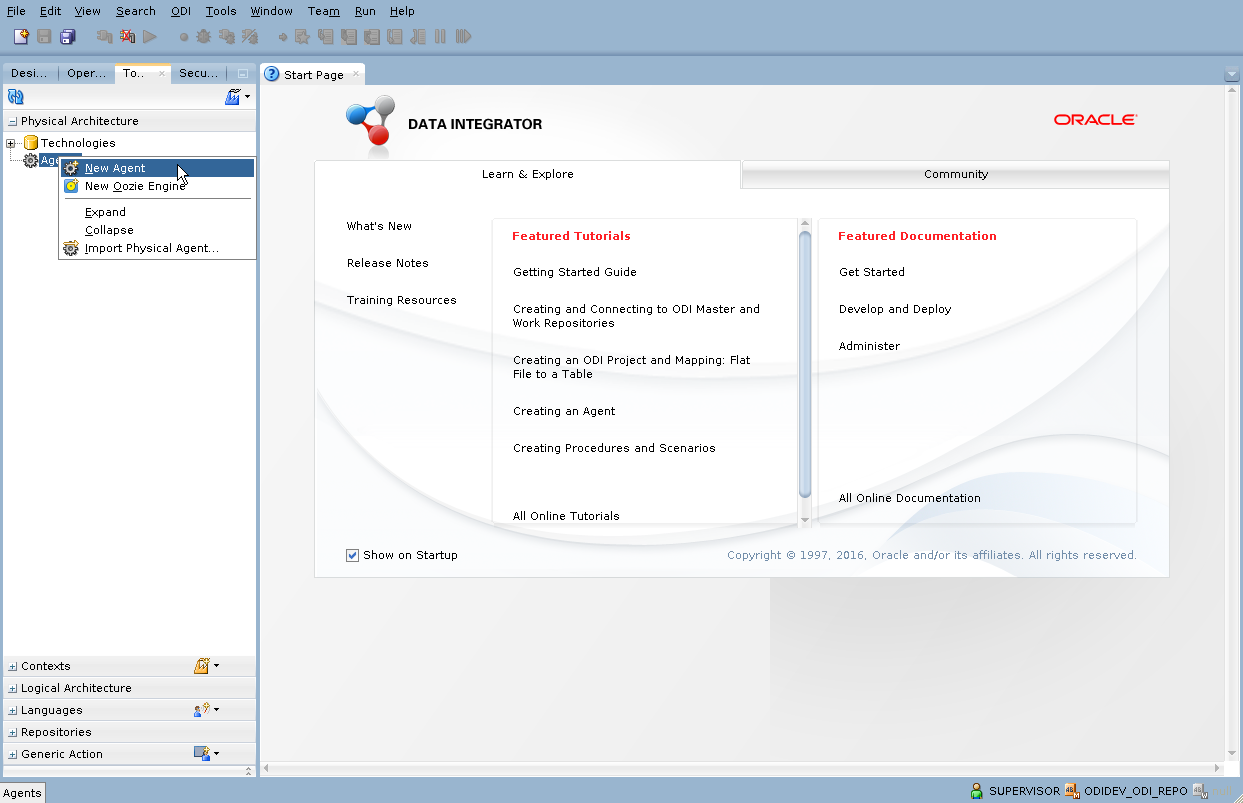
Click on the "Topology" tab. Right-click on the "Agents" node and select the "New Agent" menu option.
Step 5
6

ODI Agent Config

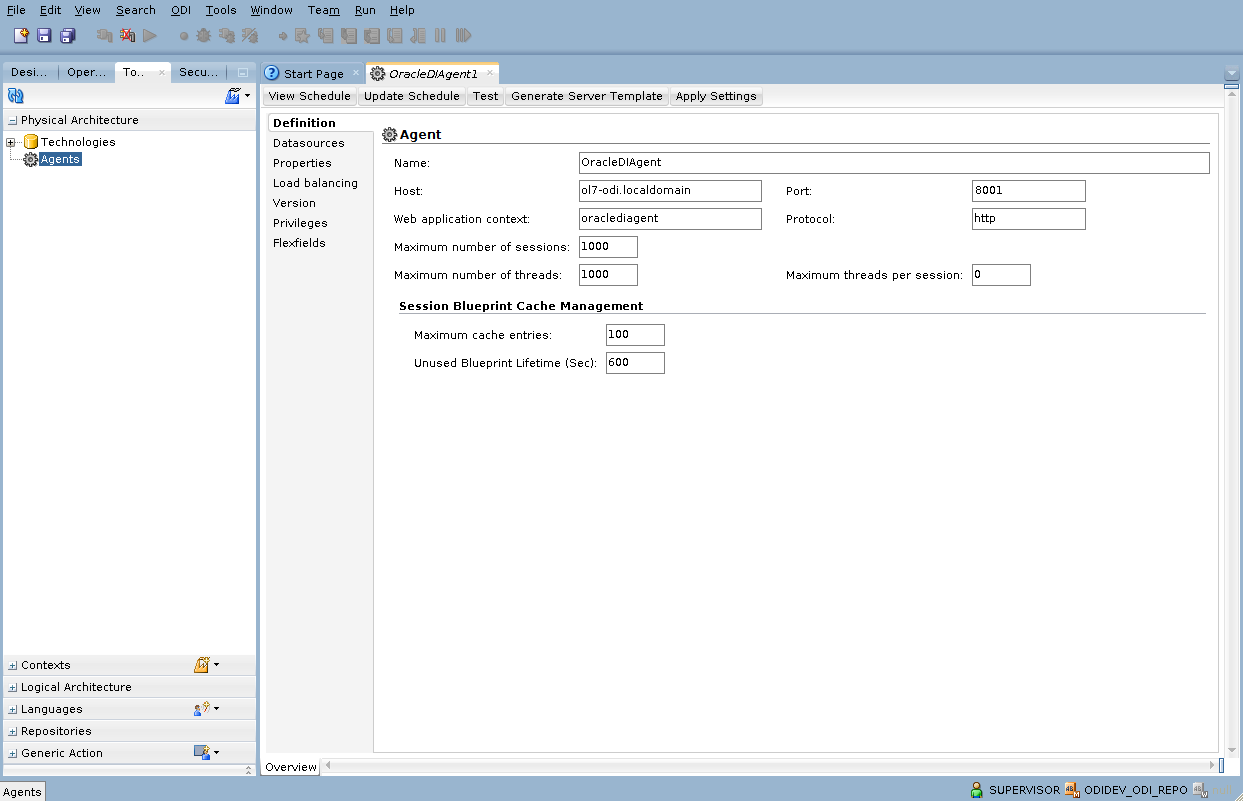
Set the agent name to "OracleDIAgent", not "OracleDIAgent1" that may be shown by default. Set the host (ol7-odi.localdomain) host and port (8001) values to be consistent with the physical agent definition in the domain. Click the "Save All" icon in the top toolbar.
Step 6
7

ODI Agent Config

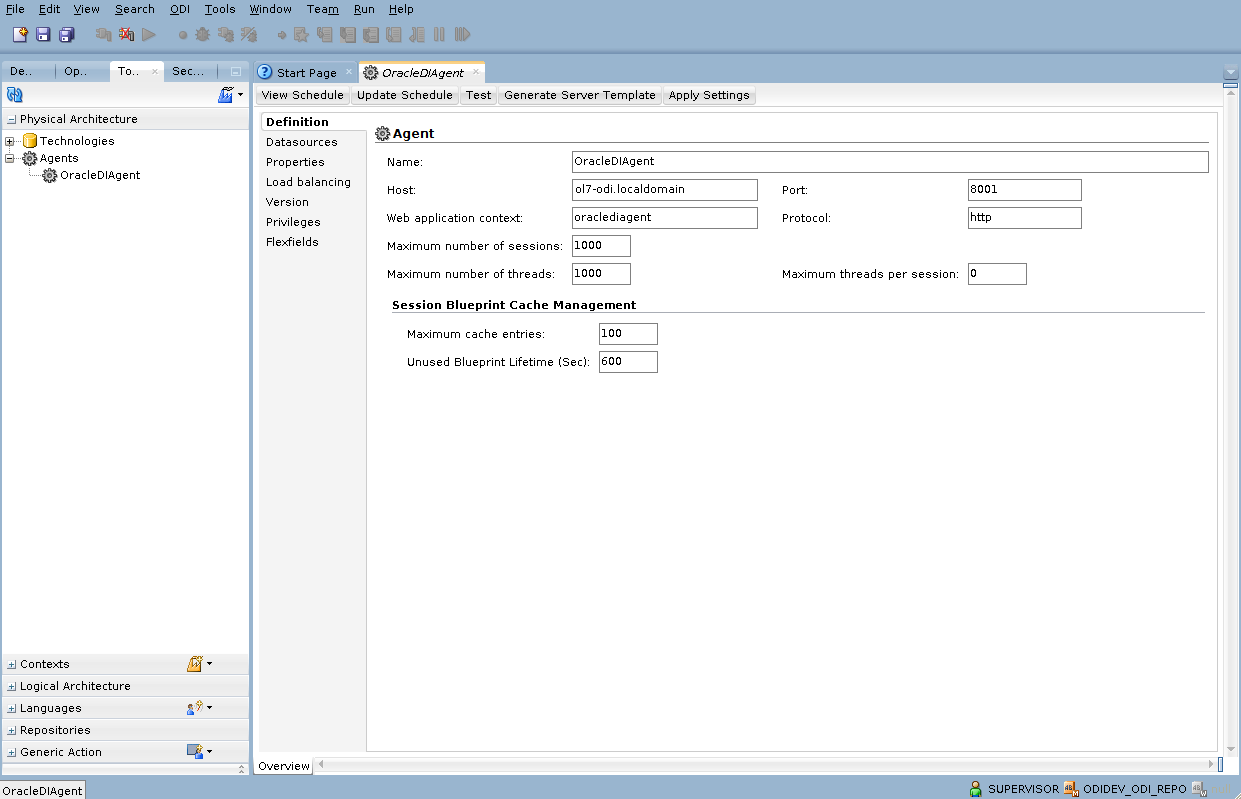
The agent will now be visible in the tree.
Step 7
8

Domain Cleanup

Now the agent topology matches the physical agent definition in the domain, we can start the domain components as described below. The database is started and stopped in the normal way. Make sure you have the environment set correctly. With then environment in place we can start, check the status and stop OBIEE using the following commands. Check out the log files here. Once the domain is running the main URLs you will need on the server are as follows. - WebLogic Console : http://ol7-odi.localdomain:7001/console - WebLogic Enterprise Manager: http://ol7-odi.localdomain:7001/em - ODI Console: http://ol7-odi.localdomain:8001/odiconsole During the process of working out the WLST build of the domain I had to recreate the domain several times. This is how I cleaned up between attempts. Now repeat the process from running the RCU onward. For more information see: Hope this helps. Regards Tim...
Step 8

Comments (0)

Please to add comments

No comments yet. Be the first to comment!