DBA Hub

📋Steps in this guide1/55

Oracle Database 12c Release 1 (12.1) RAC On Oracle Linux 7 Using VirtualBox

This article describes the installation of Oracle Database 12c Release 1 (12.1) RAC on Oracle Linux 7 using VirtualBox with no additional shared disk devices.

oracle 12cconfigurationintermediate
by OracleDba
11 views
1

VirtualBox Network Setup

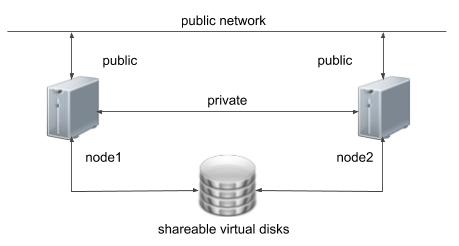
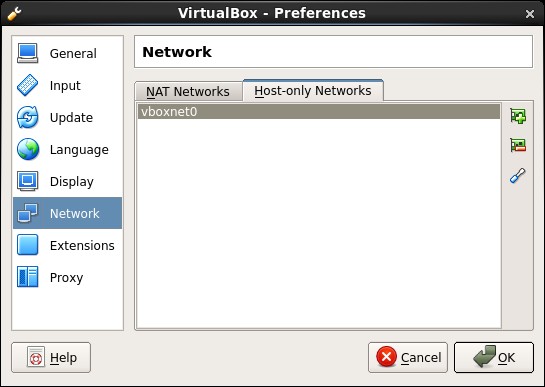
This article describes the installation of Oracle Database 12c release 1 (12.1 64-bit) RAC on Linux (Oracle Linux 7 64-bit) using VirtualBox (5.0.4) with no additional shared disk devices. - TL;DR - Introduction - Download Software - VirtualBox Installation - VirtualBox Network Setup - Virtual Machine Setup - Guest Operating System Installation - Oracle Installation Prerequisites Automatic Setup Manual Setup Additional Setup - Automatic Setup - Manual Setup - Additional Setup - Install Guest Additions - Create Shared Disks - Clone the Virtual Machine - Install the Grid Infrastructure - Install the Database Software - Create a Database - Check the Status of the RAC - Automatic Setup - Manual Setup - Additional Setup If you are comfortable with VirtualBox, Vagrant and RAC you might want to jump straight to the GitHub repository and use the basic instructions here , rather than working through a manual build. One of the biggest obstacles preventing people from setting up test RAC environments is the requirement for shared storage. In a production environment, shared storage is often provided by a SAN or high-end NAS device, but both of these options are very expensive when all you want to do is get some experience installing and using RAC. A cheaper alternative is to use a FireWire disk enclosure to allow two machines to access the same disk(s), but that still costs money and requires two servers. A third option is to use virtualization to fake the shared storage. Using VirtualBox you can run multiple Virtual Machines (VMs) on a single server, allowing you to run both RAC nodes on a single machine. In addition, it allows you to set up shared virtual disks, overcoming the obstacle of expensive shared storage. Before you launch into this installation, here are a few things to consider. I've used this procedure successfully on a Linux and Windows host. Where applicable, I've included both the Linux and Windows commands to be run on the host, so pick the relevant ones. Download the following software. Depending on your version of VirtualBox and Oracle Linux, there may be some slight variation in how the screen shots look. First, install the VirtualBox software. On RHEL and its clones you do this with the following type of command as the root user. On windows, just run the ".exe". The package name will vary depending on the host distribution you are using. Once complete, VirtualBox is started from the menu. We need to make sure a host-only network is configured and check/modify the IP range for that network. This will be the public network for our RAC installation. - Start VirtualBox from the menu. Start VirtualBox from the menu. - Select the "File > Preferences" menu option. Select the "File > Preferences" menu option. - Click "Network" in the left pane and click the "Host-only Networks" tab. Click "Network" in the left pane and click the "Host-only Networks" tab. - Click the "Adds new host-only network" button on the right size of the screen. Depending on the host OS, a network called "vboxnet0" or "VirtualBox Host-Only Ethernet Adapter" will be created. Click the "Edits selected host-only network." button on the right size of the screen. Click the "Adds new host-only network" button on the right size of the screen. Depending on the host OS, a network called "vboxnet0" or "VirtualBox Host-Only Ethernet Adapter" will be created. Click the "Edits selected host-only network." button on the right size of the screen. - If you want to use a different subnet for your public addresses you can change the network details here. Just make sure the subnet you choose doesn't match any real subnets on your network. I've decided to stick with the default, which for me is "192.168.56.X". If you want to use a different subnet for your public addresses you can change the network details here. Just make sure the subnet you choose doesn't match any real subnets on your network. I've decided to stick with the default, which for me is "192.168.56.X". - Use the "OK" buttons to exit out of this screen and the previous one. Start VirtualBox from the menu. Select the "File > Preferences" menu option. Click "Network" in the left pane and click the "Host-only Networks" tab. Click the "Adds new host-only network" button on the right size of the screen. Depending on the host OS, a network called "vboxnet0" or "VirtualBox Host-Only Ethernet Adapter" will be created.
Step 1
2

VirtualBox Network Setup

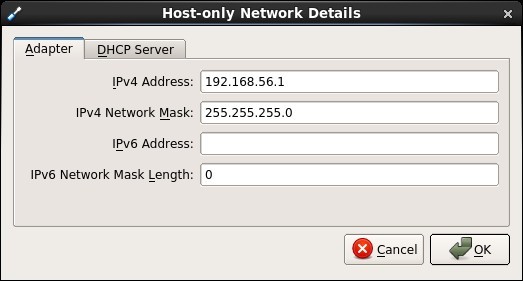
Click the "Edits selected host-only network." button on the right size of the screen. If you want to use a different subnet for your public addresses you can change the network details here. Just make sure the subnet you choose doesn't match any real subnets on your network. I've decided to stick with the default, which for me is "192.168.56.X".
Step 2
3

Virtual Machine Setup

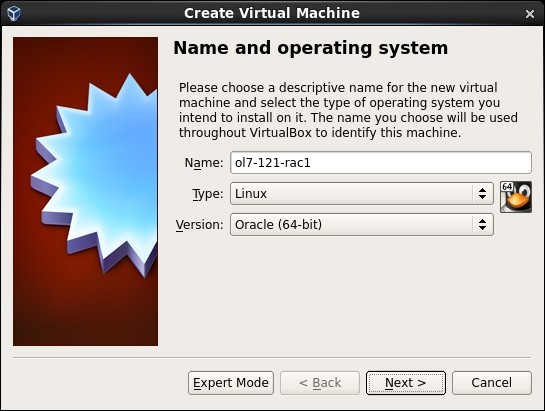
Now we must define the two virtual RAC nodes. We can save time by defining one VM, then cloning it when it is installed. Start VirtualBox and click the "New" button on the toolbar. Enter the name "ol7-121-rac1", OS "Linux" and Version "Oracle (64 bit)", then click the "Next" button.
Step 3
4

Virtual Machine Setup

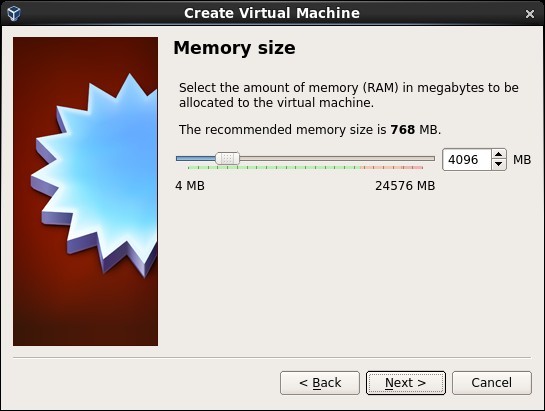
Enter "4096" as the base memory size, then click the "Next" button. Use more memory if you have enough physical memory on your machine as it will make the process much quicker!
Step 4
5

Virtual Machine Setup

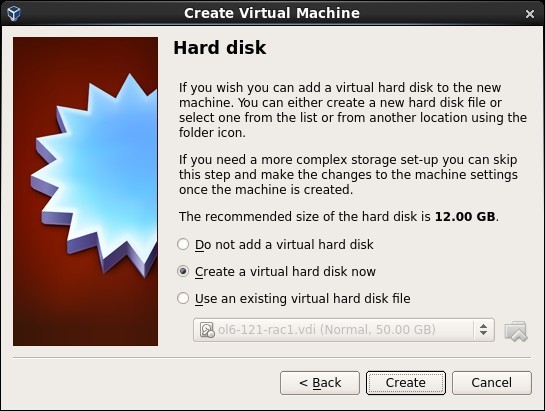
Accept the default option to create a new virtual hard disk by clicking the "Create" button.
Step 5
6

Virtual Machine Setup

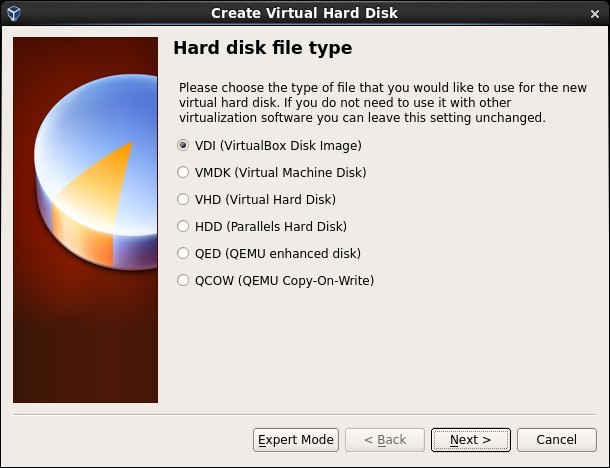
Acccept the default hard drive file type by clicking the "Next" button.
Step 6
7

Virtual Machine Setup

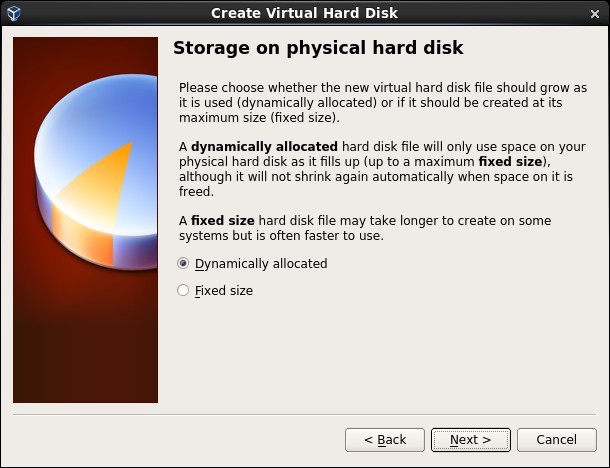
Acccept the "Dynamically allocated" option by clicking the "Next" button.
Step 7
8

Virtual Machine Setup

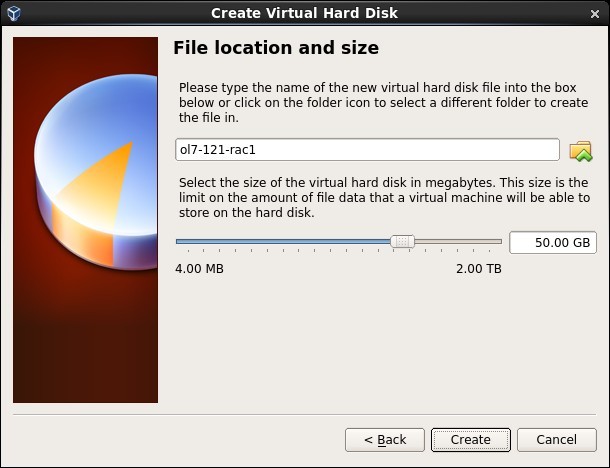
Accept the default location and set the size to "50G", then click the "Create" button. If you can spread the virtual disks onto different physical disks, that will improve performance.
Step 8
9

Virtual Machine Setup

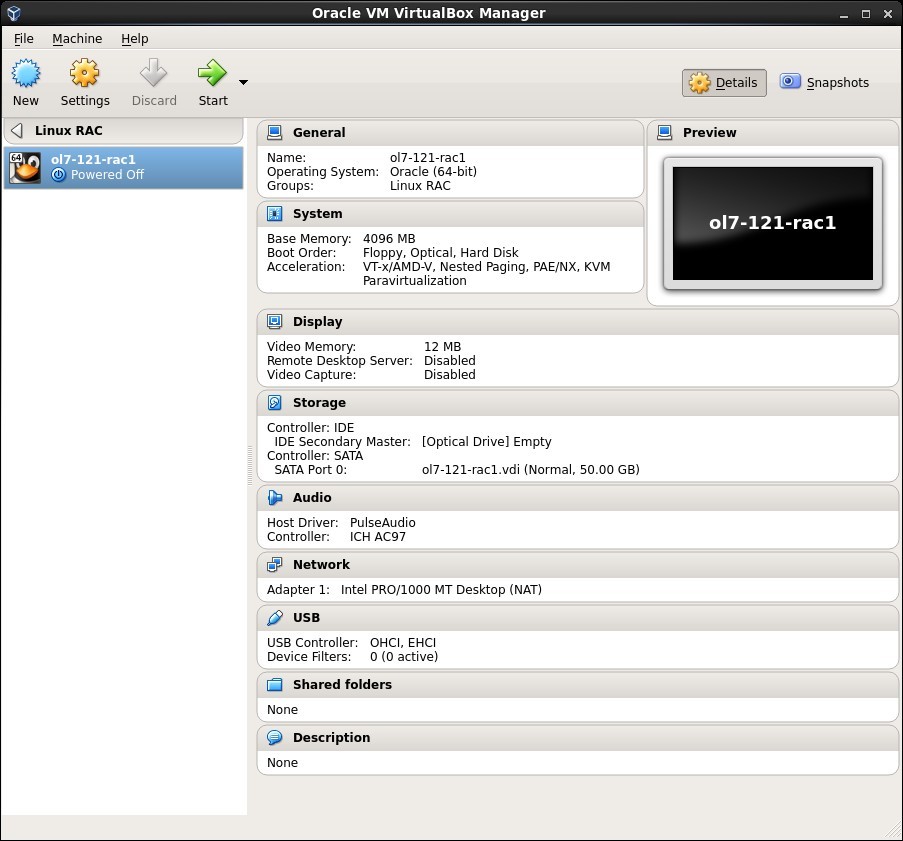
The "ol7-121-rac1" VM will appear on the left hand pane. Scroll down the details on the right and click on the "Network" link.
Step 9
10

Virtual Machine Setup

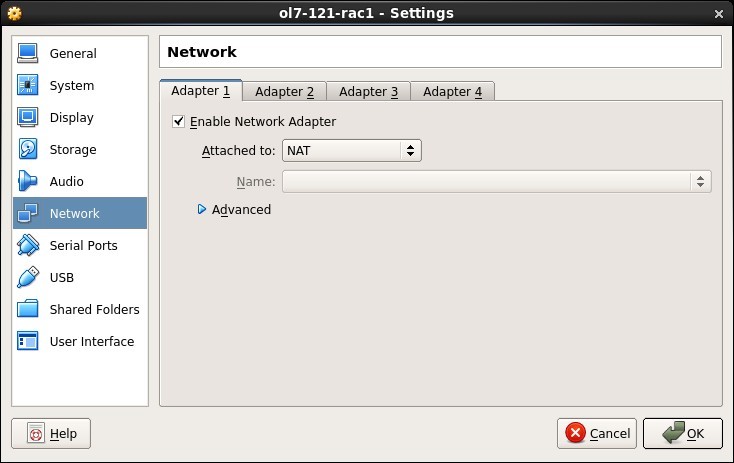
Make sure "Adapter 1" is enabled, set to "NAT", then click on the "Adapter 2" tab.
Step 10
11

Virtual Machine Setup

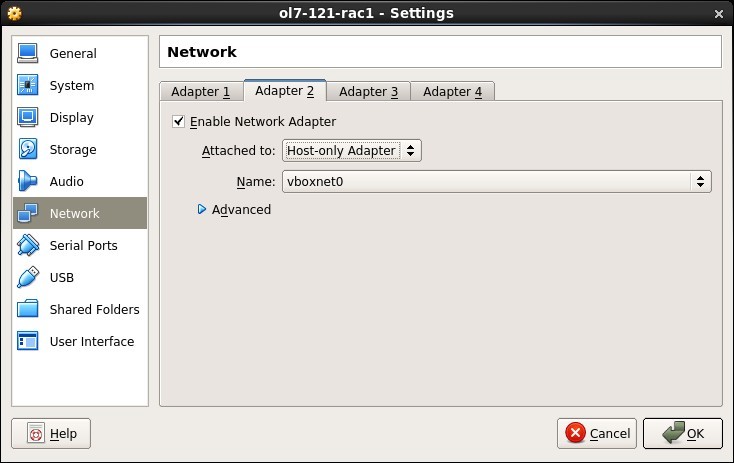
Make sure "Adapter 2" is enabled, set to "Host-only Adapter", then click on the "Adapter 3" tab.
Step 11
12

Virtual Machine Setup

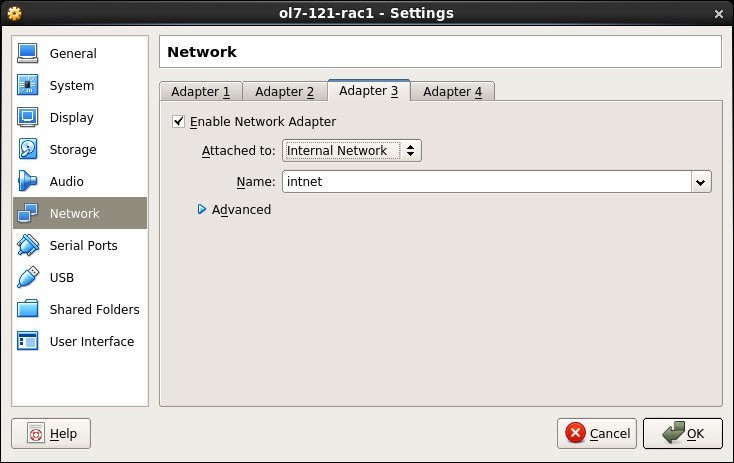
Make sure "Adapter 3" is enabled, set to "Internal Network", then click on the "System" section.
Step 12
13

Virtual Machine Setup

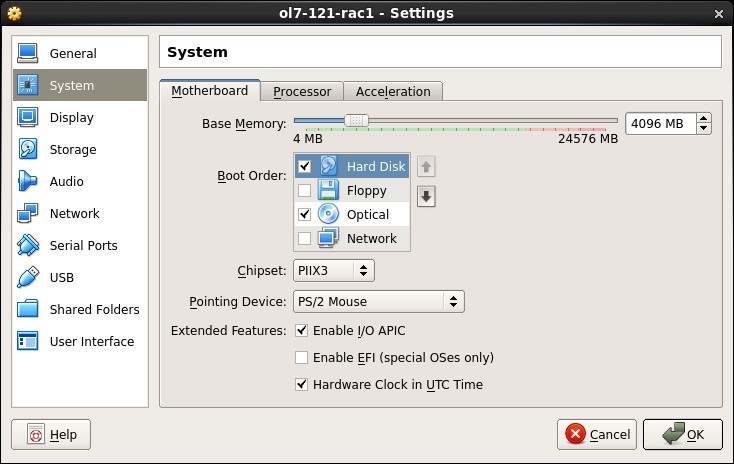
Move "Hard Disk" to the top of the boot order and uncheck the "Floppy" option, then click the "OK" button.
Step 13
14

Guest Operating System Installation

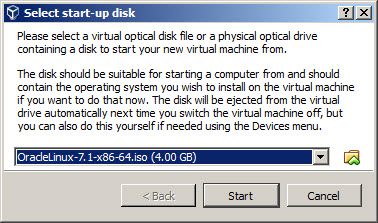
The virtual machine is now configured so we can start the guest operating system installation. With the new VM highlighted, click the "Start" button on the toolbar. On the "Select start-up disk" screen, choose the relevant Oracle Linux ISO image and click the "Start" button.
Step 14
15

Guest Operating System Installation

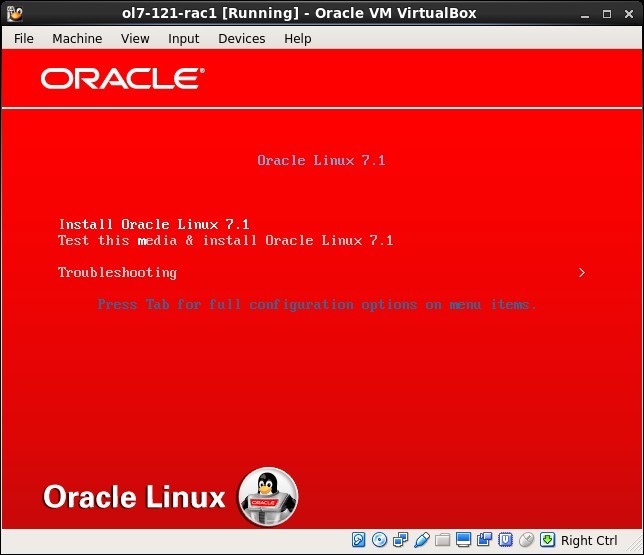
If a "Select start-up disk" screen doesn't appear, use the "Devices > Optical Drives > Choose disk image..." menu option to select the relevant ISO image, then restart the VM using the "Machine > Reset" menu option. The resulting console window will contain the Oracle Linux boot screen.
Step 15
16

Install Guest Additions

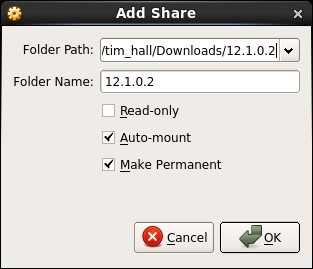
Continue through the Oracle Linux 7 installation as you would for a basic server. A general pictorial guide to the installation can be found here . More specifically, it should be a server installation with a minimum of 4G+ swap, firewall disabled, SELinux set to permissive and the following package groups installed: - Server with GUI - Hardware Monitoring Utilities - Large Systems Performance - Network file system client - Performance Tools - Compatibility Libraries - Development Tools To be consistent with the rest of the article, the following information should be set during the installation. - hostname: ol7-121-rac1.localdomain - enp0s3 (eth0): DHCP (Connect Automatically) - enp0s8 (eth1): IP=192.168.56.101, Subnet=255.255.255.0, Gateway=192.168.56.1, DNS=192.168.56.1, Search=localdomain (Connect Automatically) - enp0s9 (eth2): IP=192.168.1.101, Subnet=255.255.255.0, Gateway=<blank>, DNS=<blank>, Search=<blank> (Connect Automatically) You are free to change the IP addresses to suit your network, but remember to stay consistent with those adjustments throughout the rest of the article. Likewise, this article I will refer to the network adapters as enp0s3, enp0s8 and enp0s9, In previous Linux versinos they would have been eth0, eth1 and eth2 respectively. Perform either the Automatic Setup or the Manual Setup to complete the basic prerequisites. The Additional Setup is required for all installations. If you plan to use the "oracle-rdbms-server-12cR1-preinstall" package to perform all your prerequisite setup, issue the following command. Earlier versions of Oracle Linux required manual setup of the Yum repository by following the instructions at http://public-yum.oracle.com . It is probably worth doing a full update as well, but this is not strictly speaking necessary. If you have not used the "oracle-rdbms-server-12cR1-preinstall" package to perform all prerequisites, you will need to manually perform the following setup tasks. Add the following lines to the "/etc/sysctl.conf" file, or in a file called "/etc/sysctl.d/98-oracle.conf". Run one of the following commands to change the current kernel parameters, depending on which file you edited. Add the following lines to a file called "/etc/security/limits.d/oracle-rdbms-server-12cR1-preinstall.conf" file. In addition to the basic OS installation, the following packages must be installed whilst logged in as the root user. This includes the 64-bit and 32-bit versions of some packages. Create the new groups and users. Uncomment the extra groups you require. The following steps must be performed, whether you did the manual or automatic setup. Perform the following steps whilst logged into the "ol7-121-rac1" virtual machine as the root user. Set the password for the "oracle" user. Apart form the localhost address, the "/etc/hosts" file can be left blank, but I prefer to put the addresses in for reference. The SCAN address is commented out of the hosts file because it must be resolved using a DNS, so it can round-robin between 3 addresses on the same subnet as the public IPs. The DNS can be configured on the host machine using BIND or Dnsmasq , which is much simpler. If you are using Dnsmasq, put the RAC-specific entries in the hosts machines "/etc/hosts" file, with the SCAN entries uncommented, and restart Dnsmasq. Make sure the "/etc/resolv.conf" file includes a nameserver entry that points to the correct nameserver. Also, if the "domain" and "search" entries are both present, comment out one of them. For this installation my "/etc/resolv.conf" looked like this. The changes to the "resolv.conf" will be overwritten by the network manager, due to the presence of the NAT interface. For this reason, this interface should now be disabled on startup. You can enable it manually if you need to access the internet from the VMs. Edit the "/etc/sysconfig/network-scripts/ifcfg-enp0s3" (eth0) file, making the following change. This will take effect after the next restart. There is no need to do the restart now. You can just run the following command. Remember to amend the adapter name if yours are named differently. At this point, the networking for the first node should look something like the following. Notice that enp0s3 (eth0) has no associated IP address because it is disabled. With this in place and the DNS configured the SCAN address is being resolved to all three IP addresses. Change the setting of SELinux to permissive by editing the "/etc/selinux/config" file, making sure the SELINUX flag is set as follows. If you have the Linux firewall enabled, you will need to disable or configure it, as shown here or here . The following is an example of disabling the firewall. Either configure NTP, or make sure it is not configured so the Oracle Cluster Time Synchronization Service (ctssd) can synchronize the times of the RAC nodes. If you want to deconfigure NTP do the following, which is what I did for this installation. If your RAC is going to be permanently connected to your main network and you want to use NTP, you must add the "-x" option into the following line in the "/etc/sysconfig/ntpd" file. Then restart NTP. Create the directories in which the Oracle software will be installed. Log in as the "oracle" user and add the following lines at the end of the "/home/oracle/.bash_profile" file. Create a file called "/home/oracle/grid_env" with the following contents. Create a file called "/home/oracle/db_env" with the following contents. Once the "/home/oracle/.bash_profile" has been run, you will be able to switch between environments as follows. We've made a lot of changes, so it's worth doing a reboot of the VM at this point to make sure all the changes have taken effect. Click on the "Devices > Install Guest Additions" menu option at the top of the VM screen. If you get the option to auto-run take it. If not, then run the following commands. Add the "oracle" user into the "vboxsf" group so it has access to shared drives. Unzip the grid and database software on the host machine. Create a shared folder (Devices > Shared Folders) on the virtual machine, pointing to the directory on the host where the Oracle software was unzipped. Check the "Auto-mount" and "Make Permanent" options before clicking the "OK" button.
Step 16
17

Clone the Virtual Machine

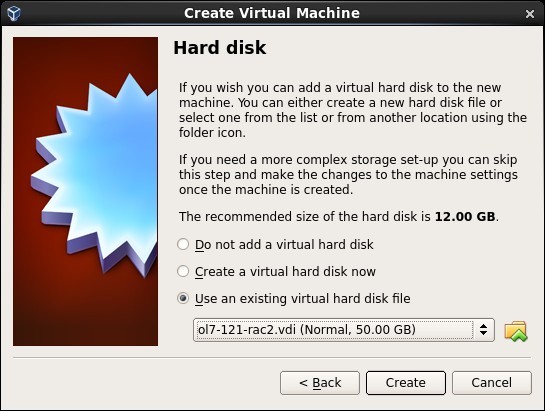
The VM will need to be restarted for the guest additions to be used properly. The next section requires a shutdown so no additional restart is needed at this time. Once the VM is restarted, the shared folder called "/media/sf_12.1.0.2" will be accessible by the "oracle" user. Shut down the "ol7-121-rac1" virtual machine using the following command. On the host server, create 4 sharable virtual disks and associate them as virtual media using the following commands. You can pick a different location, but make sure they are outside the existing VM directory. If you are using a Windows host, you will have to modify the paths, but the process is the same. Start the "ol7-121-rac1" virtual machine by clicking the "Start" button on the toolbar. When the server has started, log in as the root user so you can configure the shared disks. The current disks can be seen by issuing the following commands. Use the "fdisk" command to partition the disks sdb to sde. The following output shows the expected fdisk output for the sdb disk. In each case, the sequence of answers is "n", "p", "1", "Return", "Return" and "w". Once all the disks are partitioned, the results can be seen by repeating the previous "ls" command. Configure your UDEV rules, as shown here . Add the following to the "/etc/scsi_id.config" file to configure SCSI devices as trusted. Create the file if it doesn't already exist. The SCSI ID of my disks are displayed below. Using these values, edit the "/etc/udev/rules.d/99-oracle-asmdevices.rules" file adding the following 4 entries. All parameters for a single entry must be on the same line. Load updated block device partition tables. Test the rules are working as expected. Reload the UDEV rules. The disks should now be visible and have the correct ownership using the following command. If they are not visible, your UDEV configuration is incorrect and must be fixed before you proceed. The shared disks are now configured for the grid infrastructure. Later versions of VirtualBox allow you to clone VMs, but these also attempt to clone the shared disks, which is not what we want. Instead we must manually clone the VM. Shut down the "ol7-121-rac1" virtual machine using the following command. Manually clone the "ol7-121-rac1.vdi" disk using the following commands on the host server. Create the "ol7-121-rac2" virtual machine in VirtualBox in the same way as you did for "ol7-121-rac1", with the exception of using an existing "ol7-121-rac2.vdi" virtual hard drive.
Step 17
18

Install the Grid Infrastructure

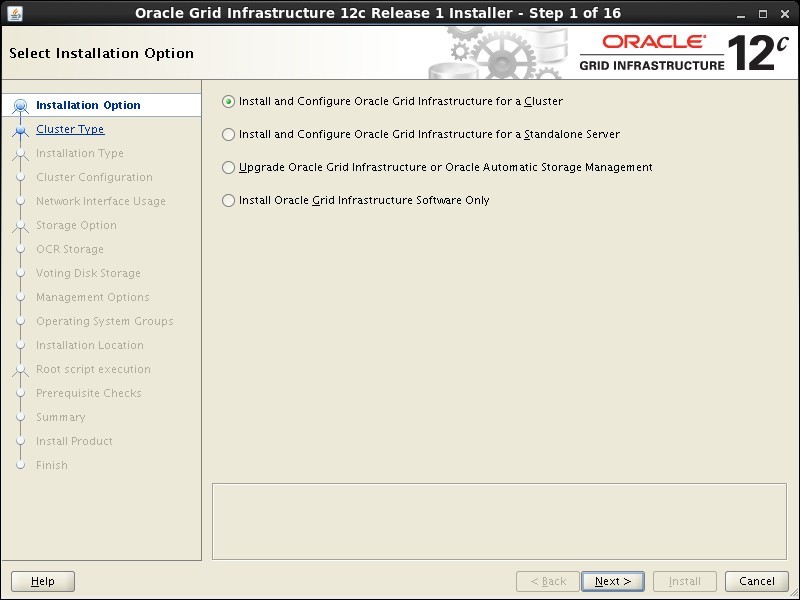
Remember to add the three network adaptor as you did on the "ol7-121-rac1" VM. When the VM is created, attach the shared disks to this VM. Start the "ol7-121-rac2" virtual machine by clicking the "Start" button on the toolbar. Ignore any network errors during the startup. Log in to the "ol7-121-rac2" virtual machine as the "root" user so we can reconfigure the network settings to match the following. - hostname: ol7-121-rac2.localdomain - enp0s3 (eth0): DHCP (*Not* Connect Automatically) - enp0s8 (eth1): IP=192.168.56.102, Subnet=255.255.255.0, Gateway=192.168.56.1, DNS=192.168.56.1, Search=localdomain (Connect Automatically) - enp0s9 (eth2): IP=192.168.1.102, Subnet=255.255.255.0, Gateway=<blank>, DNS=<blank>, Search=<blank> (Connect Automatically) Amend the hostname in the "/etc/hostname" file. Unlike previous Linux versions, we shouldn't have to edit the MAC address associated with the network adapters, but we will have to alter their IP addresses. Edit the "/etc/sysconfig/network-scripts/ifcfg-eth1" (enp0s8), amending only the IPADDR settings as follows and deleting the UUID entry. Edit the "/etc/sysconfig/network-scripts/ifcfg-eth2" (enp0s9), amending only the IPADDR settings as follows and deleting the UUID entry. Restart the virtual machines. At this point, the networking for the second node should look something like the following. Notice that enp0s3 (eth0) has no associated IP address because it is disabled. Edit the "/home/oracle/.bash_profile" file on the "ol7-121-rac2" node to correct the ORACLE_SID and ORACLE_HOSTNAME values. Also, amend the ORACLE_SID setting in the "/home/oracle/db_env" and "/home/oracle/grid_env" files. Restart the "ol7-121-rac2" virtual machine and start the "ol7-121-rac1" virtual machine. When both nodes have started, check they can both ping all the public and private IP addresses using the following commands. Check the SCAN address is still being resolved properly on both nodes. At this point the virtual IP addresses defined in the "/etc/hosts" file will not work, so don't bother testing them. Check the UDEV rules are working on both machines. In previous versions of OL7 the "/etc/udev/rules.d/99-oracle-asmdevices.rules" file copied between servers during the clone without any issues. For some reason, this doesn't seem to happen on my OL7.1 installations, so you may need to repeat the UDEV configuration on the second node if the output of the following command is not consistent on both nodes. Prior to 11gR2 we would probably use the "runcluvfy.sh" utility in the clusterware root directory to check the prerequisites have been met. If you are intending to configure SSH connectivity using the installer this check should be omitted as it will always fail. If you want to setup SSH connectivity manually , then once it is done you can run the "runcluvfy.sh" with the following command. If you get any failures be sure to correct them before proceeding. The virtual machine setup is now complete. Before moving forward you should probably shut down your VMs and take snapshots of them. If any failures happen beyond this point it is probably better to switch back to those snapshots, clean up the shared drives and start the grid installation again. An alternative to cleaning up the shared disks is to back them up now using zip and just replace them in the event of a failure. Make sure both virtual machines are started. Install the following package from the Oracle grid media as the "root" user. Login to "ol7-121-rac1" as the "oracle" user and start the Oracle installer. Select the "Install and Configure Oracle Grid Infrastructure for a Cluster" option, then click the "Next" button.
Step 18
19

Install the Grid Infrastructure

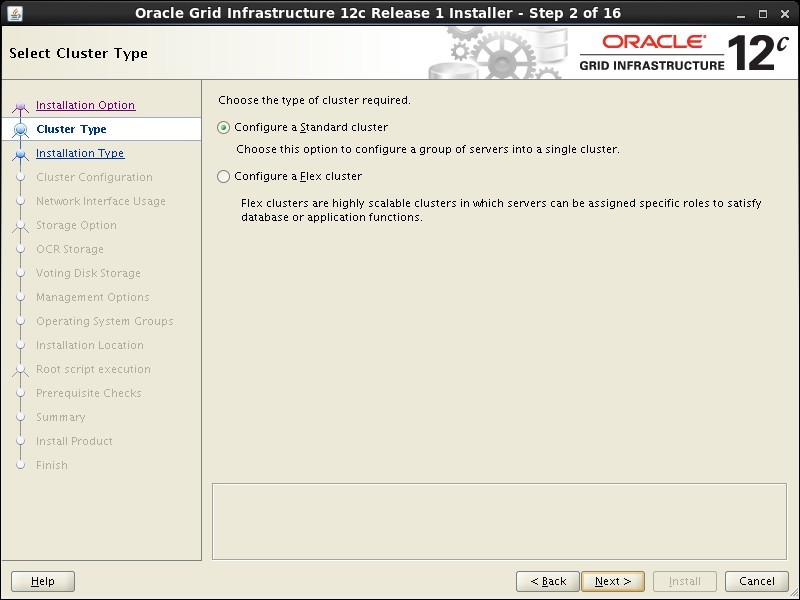
Accept the "Configure a Standard cluster" option by clicking the "Next" button.
Step 19
20

Install the Grid Infrastructure

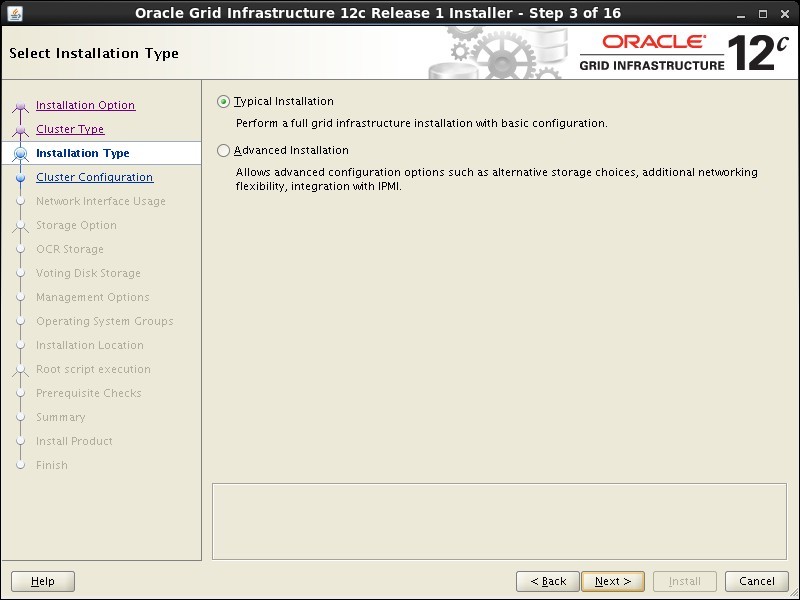
Select the "Typical Installation" option, then click the "Next" button.
Step 20
21

Install the Grid Infrastructure

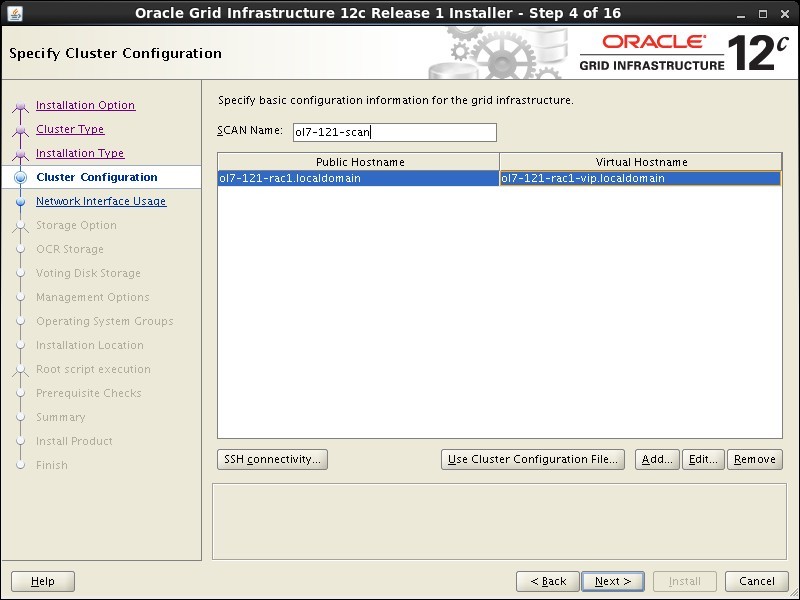
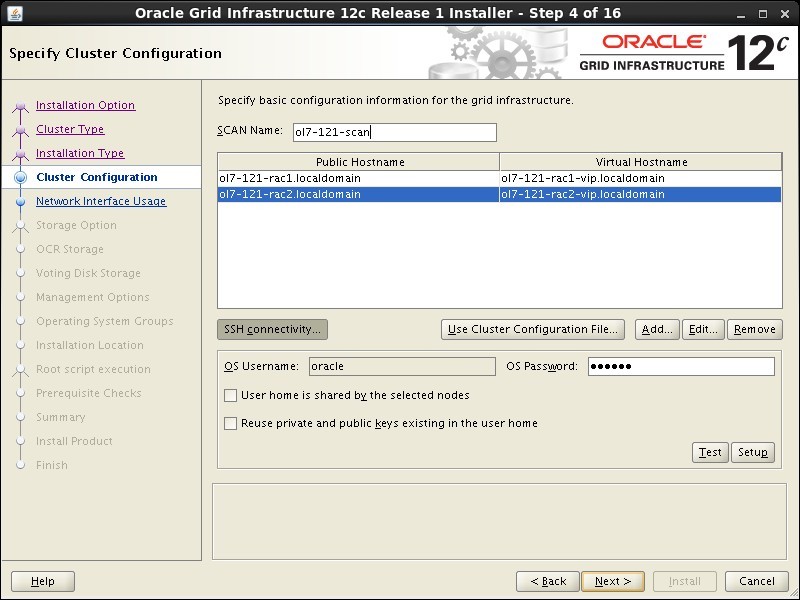
On the "Specify Cluster Configuration" screen, enter the correct SCAN Name and click the "Add" button.
Step 21
22

Install the Grid Infrastructure

Enter the details of the second node in the cluster, then click the "OK" button.
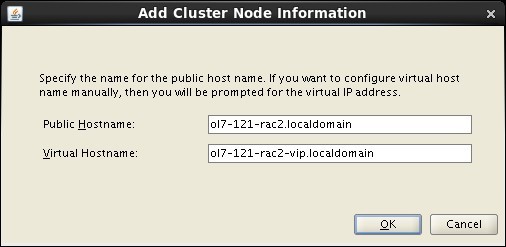
Step 22
23

Install the Grid Infrastructure

Click the "SSH Connectivity..." button and enter the password for the "oracle" user. Click the "Setup" button to configure SSH connectivity, and the "Test" button to test it once it is complete. Once the test is complete, click the "Next" button.
Step 23
24

Install the Grid Infrastructure

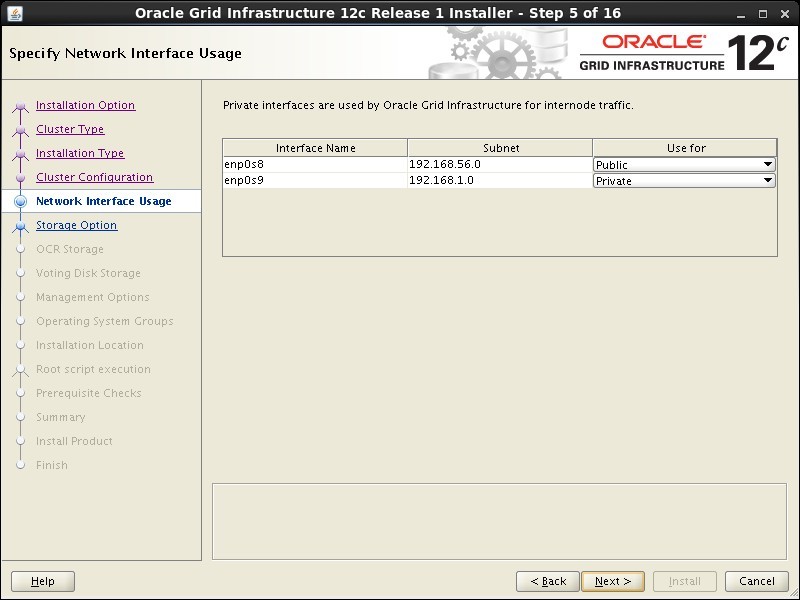
If you are doing a 12.1.0.1 installation, you will have to click the "Identify network interfaces" button, but in 12.1.0.2 this is on the following screen. Check the public and private networks are specified correctly. If the NAT interface is displayed, remember to mark it as "Do Not Use". Click the "Next" button.
Step 24
25

Install the Grid Infrastructure

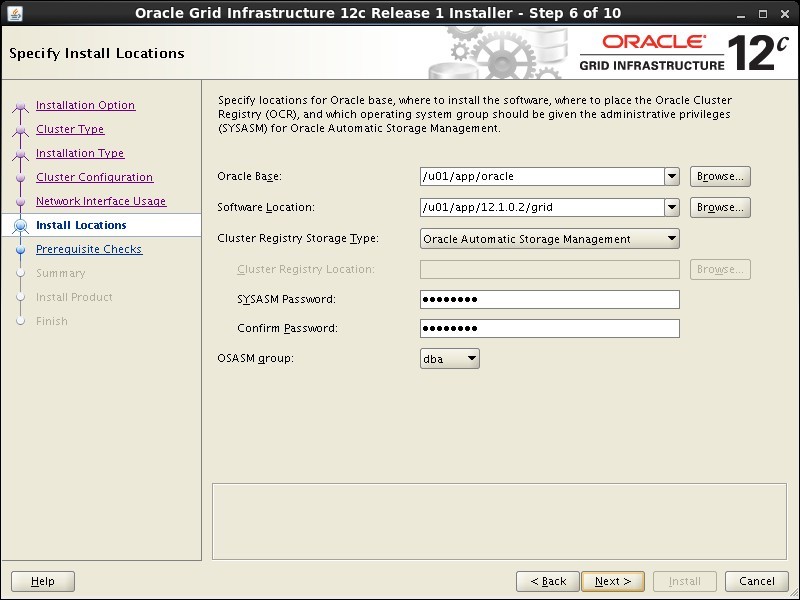
Enter "/u01/app/12.1.0.2/grid" as the software location and "Automatic Storage Manager" as the cluster registry storage type. Enter the ASM password, select "dba" as the group and click the "Next" button.
Step 25
26

Install the Grid Infrastructure

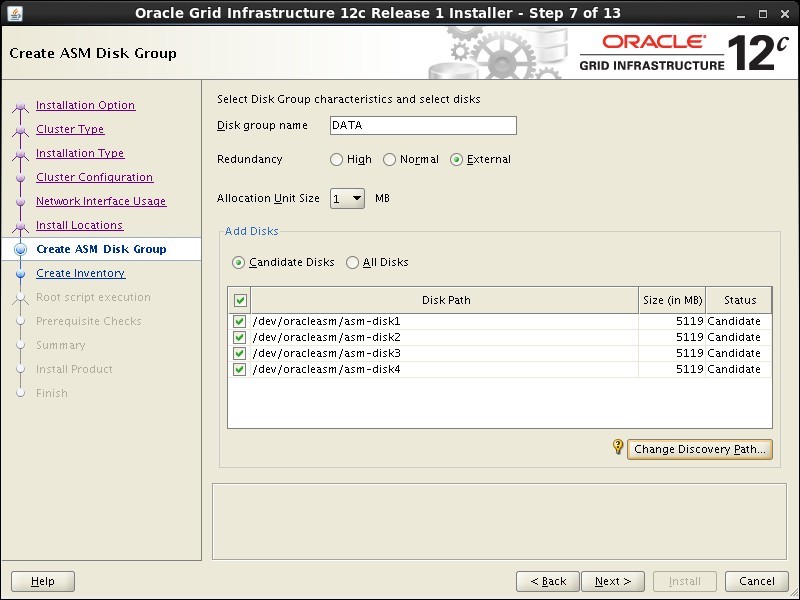
Set the redundancy to "External", click the "Change Discovery Path" button and set the path to "/dev/oracleasm/*". Return the main screen and select all 4 disks and click the "Next" button.
Step 26
27

Install the Grid Infrastructure

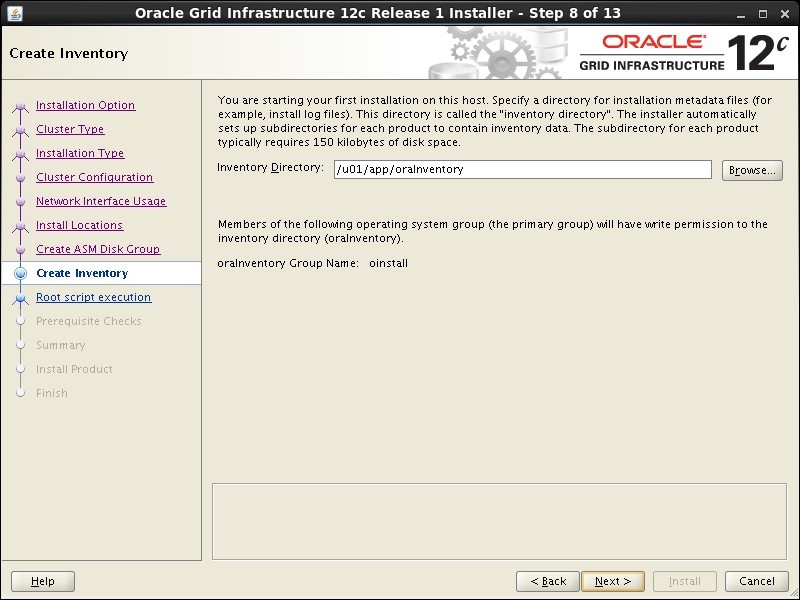
Accept the default inventory directory by clicking the "Next" button.
Step 27
28

Install the Grid Infrastructure

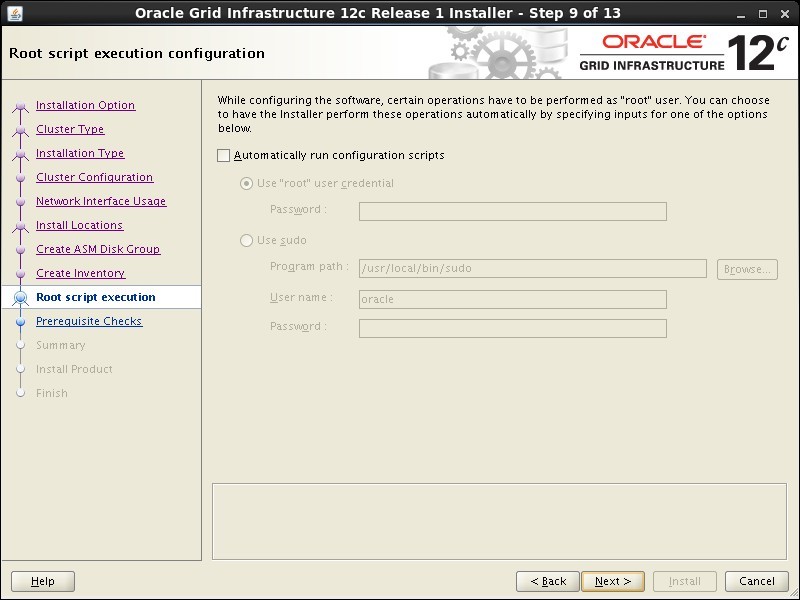
If you want the root scripts to run automatically, enter the relevant credentials. I prefer to run them manually. Click the "Next" button.
Step 28
29

Install the Grid Infrastructure

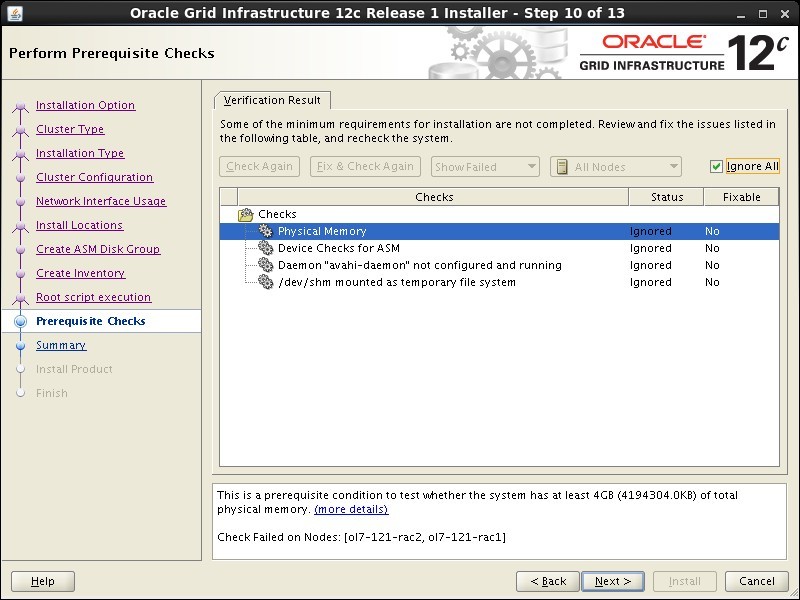
Wait while the prerequisite checks complete. If you have any issues use the "Fix & Check Again" button. Once possible fixes are complete, check the "Ignore All" checkbox and click the "Next" button. It is likely the "Physical Memory" and "Device Checks for ASM" tests will fail for this type of installation. This is OK.
Step 29
30

Install the Grid Infrastructure

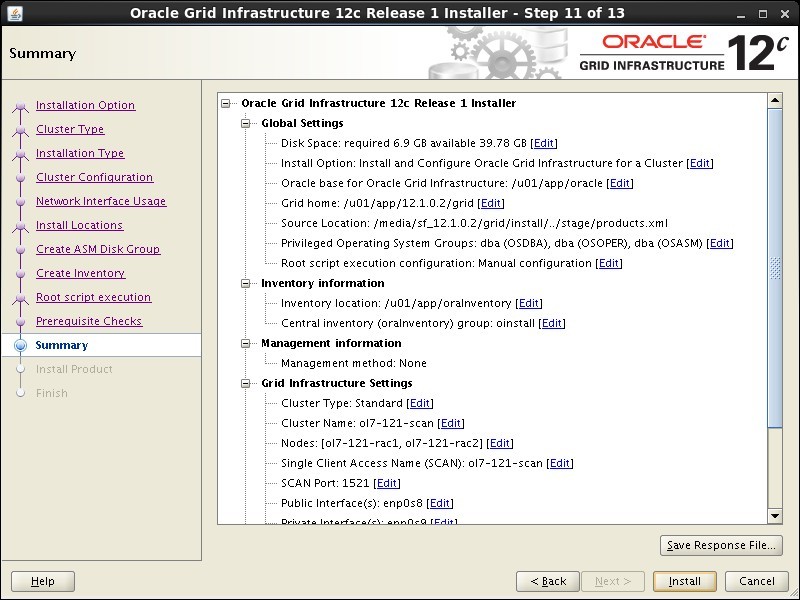
If you are happy with the summary information, click the "Install" button.
Step 30
31

Install the Grid Infrastructure

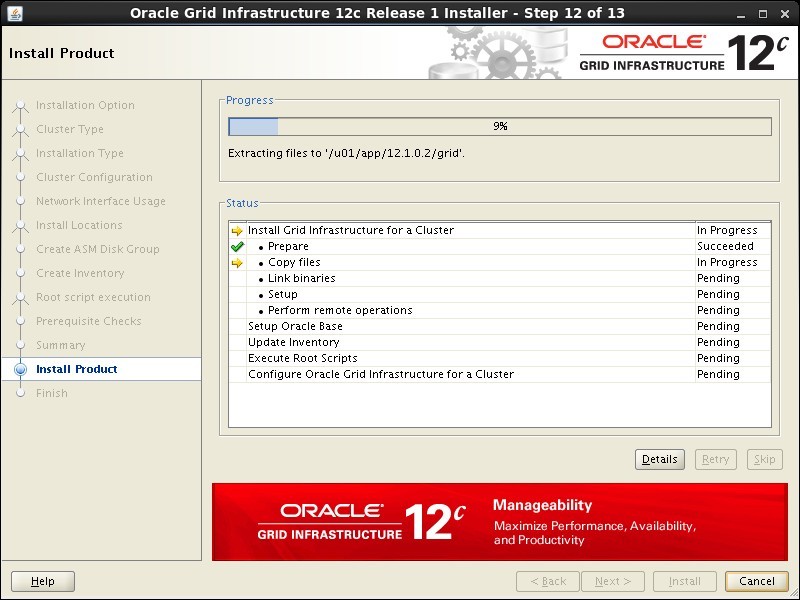
Wait while the installation takes place.
Step 31
32

Install the Grid Infrastructure

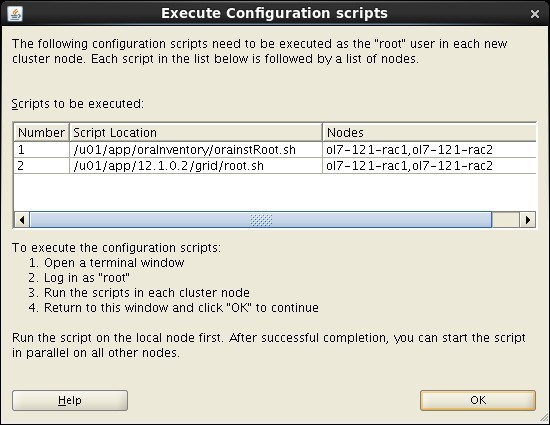
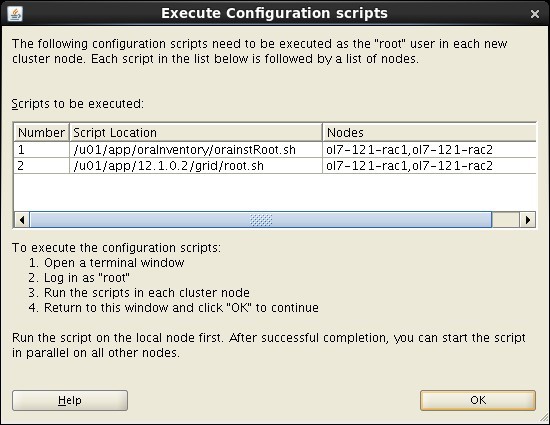
When prompted, run the configuration scripts on each node.
Step 32
33

Install the Grid Infrastructure

The output from the "orainstRoot.sh" file should look something like that listed below. The output of the "root.sh" will vary a little depending on the node it is run on. Example output can be seen here ( Node1 , Node2 ). Once the scripts have completed, return to the "Execute Configuration Scripts" screen on "ol7-121-rac1" and click the "OK" button.
Step 33
34

Install the Grid Infrastructure

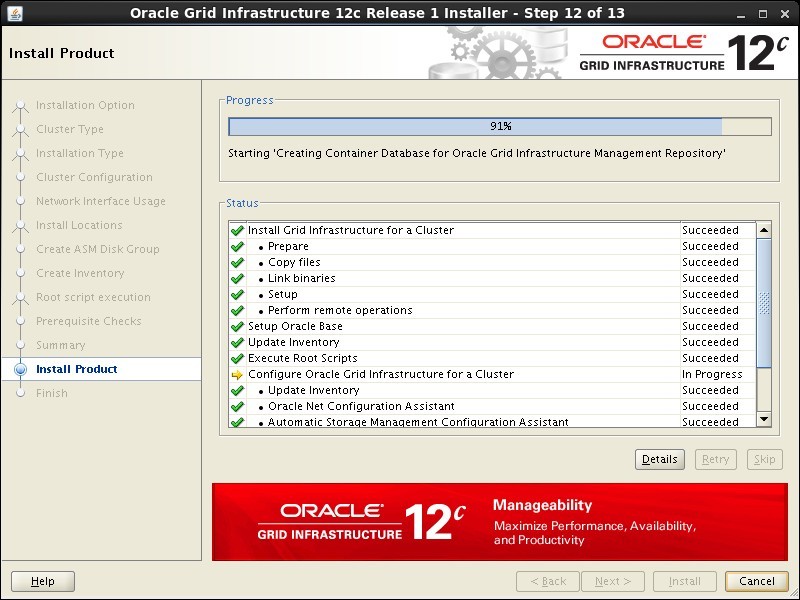
Wait for the configuration assistants to complete.
Step 34
35

Install the Grid Infrastructure

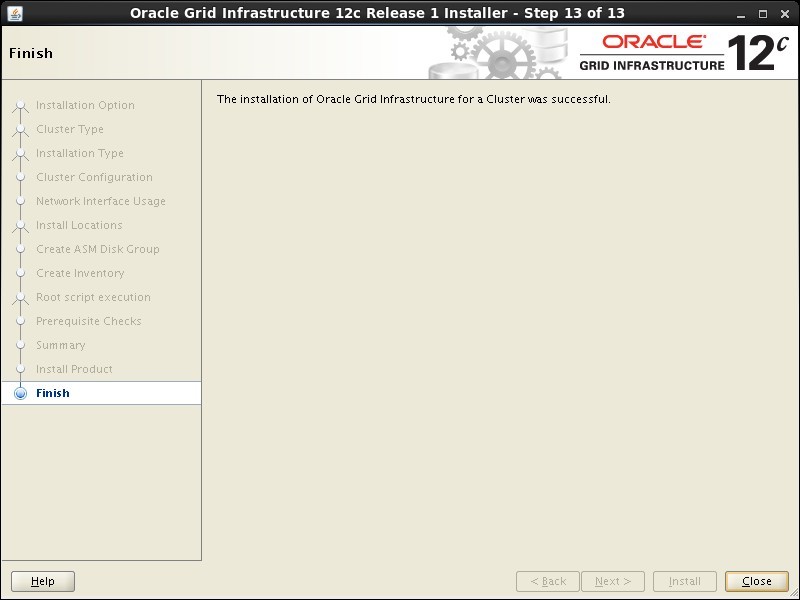
If any of the configuration steps fail you should check the specified log to see if the error is a show-stopper or not. If you are not using a DNS to resolve the SCAN you can expect the verification phase to fail with an error like the following. Provided this is the only error, it is safe to ignore this and continue by clicking the "Next" button. Click the "Close" button to exit the installer.
Step 35
36

Install the Database Software

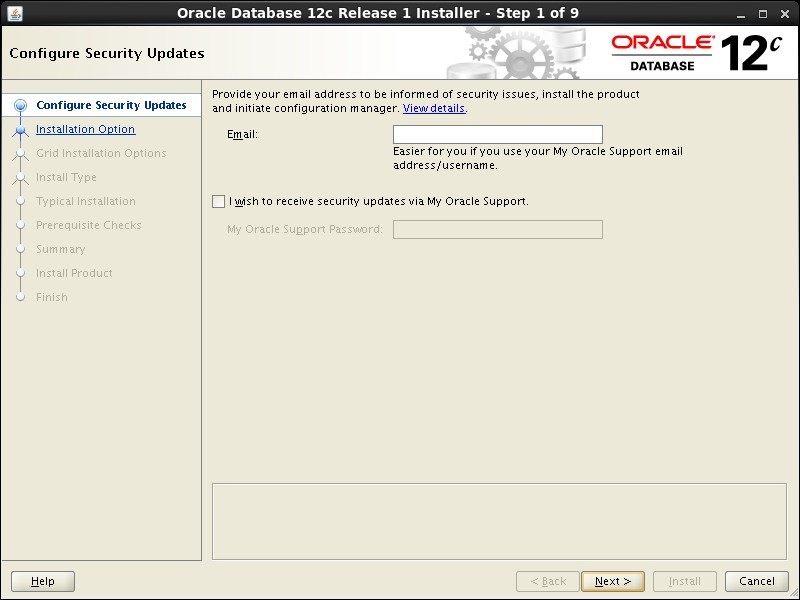
The grid infrastructure installation is now complete. We can check the status of the installation using the following commands. At this point it is probably a good idea to shutdown both VMs and take snapshots. Remember to make a fresh zip of the ASM disks on the host machine, which you will need to restore if you revert to the post-grid snapshots. Make sure the "ol7-121-rac1" and "ol7-121-rac2" virtual machines are started, then login to "ol7-121-rac1" as the oracle user and start the Oracle installer. Check that all services are up using "crsctl stat res -t", as described before. Uncheck the security updates checkbox and click the "Next" button and "Yes" on the subsequent warning dialog.
Step 36
37

Install the Database Software

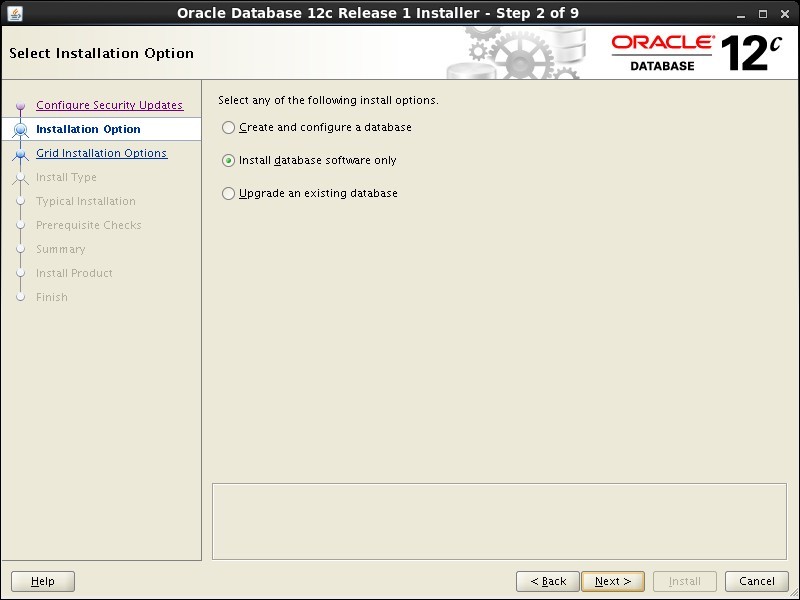
Select the "Install database software only" option, then click the "Next" button.
Step 37
38

Install the Database Software

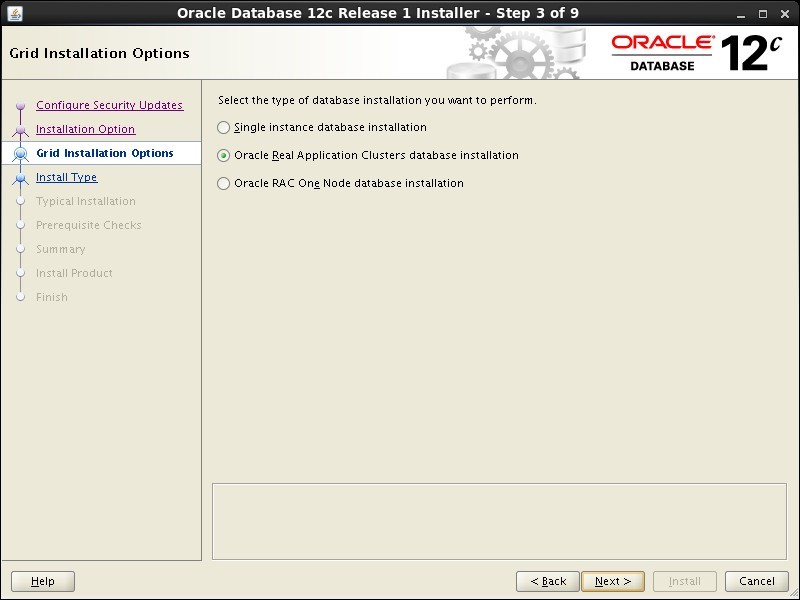
Accept the "Oracle Real Application Clusters database installation" option by clicking the "Next" button.
Step 38
39

Install the Database Software

Make sure both nodes are selected, then click the "Next" button.
Step 39
40

Install the Database Software

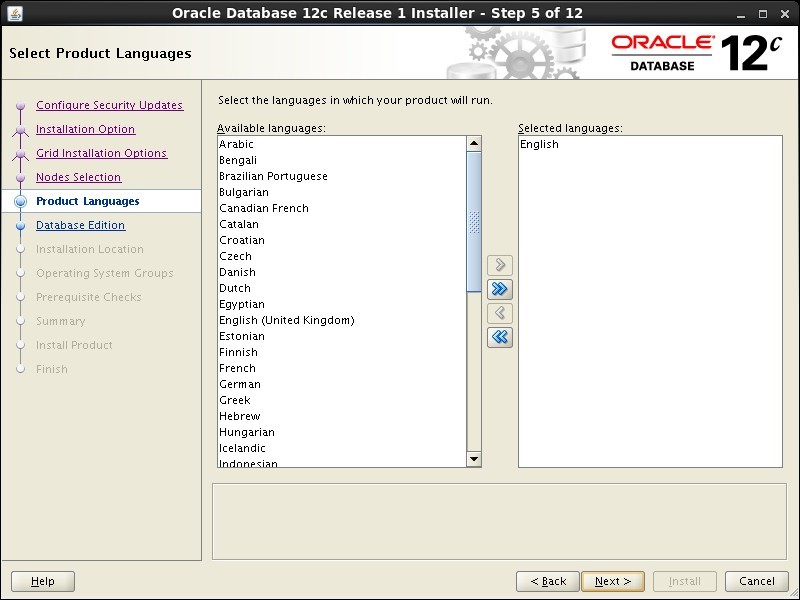
Select the required languages, then click the "Next" button.
Step 40
41

Install the Database Software

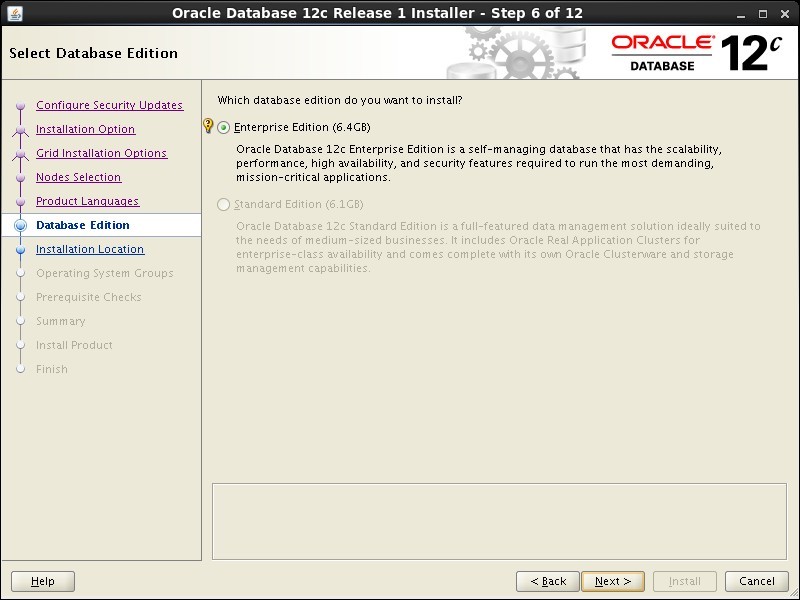
Select the "Enterprise Edition" option, then click the "Next" button.
Step 41
42

Install the Database Software

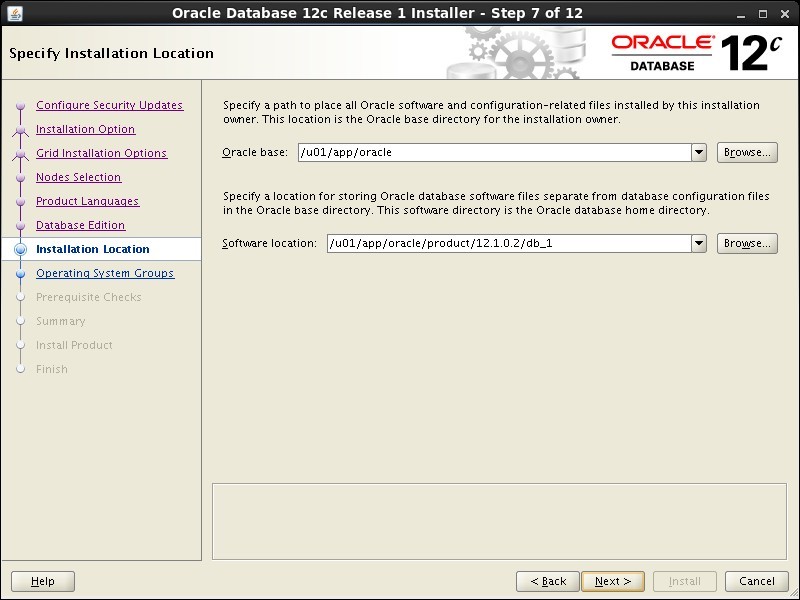
Enter "/u01/app/oracle" as the Oracle base and "/u01/app/oracle/product/12.1.0.2/db_1" as the software location, then click the "Next" button.
Step 42
43

Install the Database Software

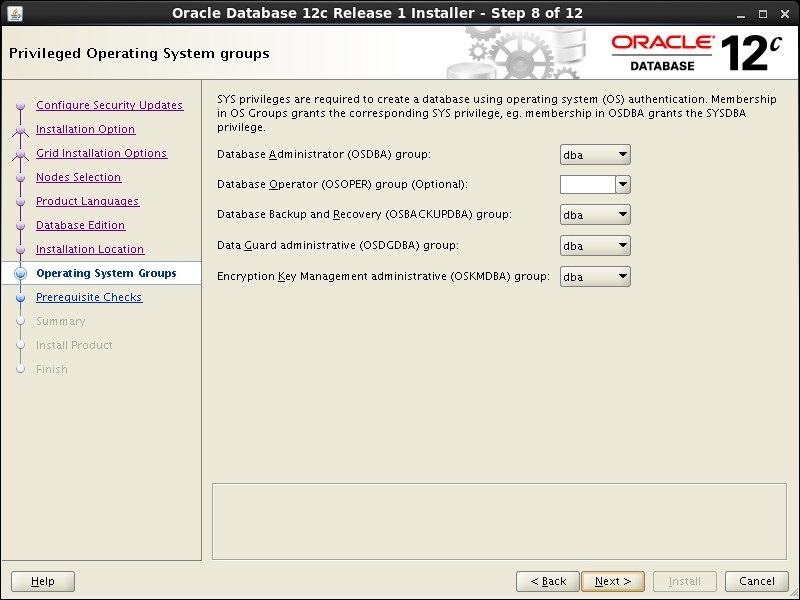
Select the desired operating system groups, then click the "Next" button.
Step 43
44

Install the Database Software

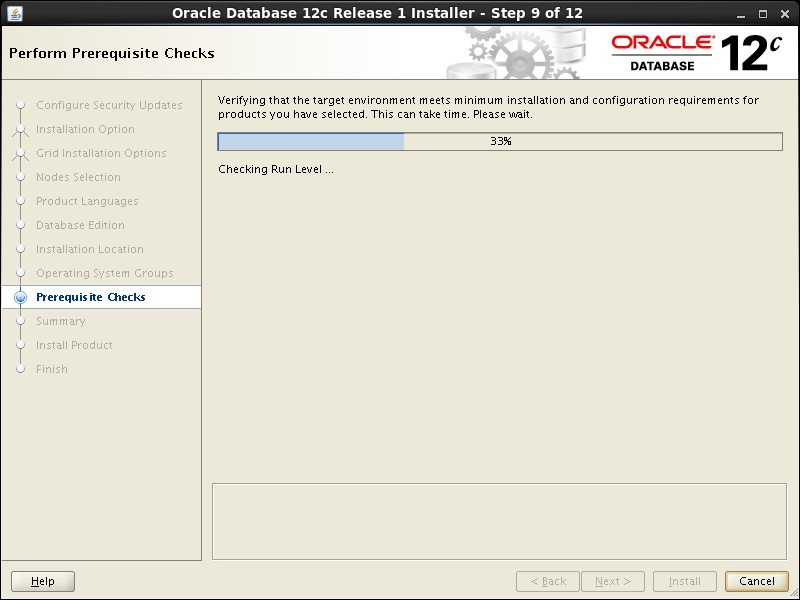
Wait for the prerequisite check to complete. If there are any problems either click the "Fix & Check Again" button, or check the "Ignore All" checkbox and click the "Next" button.
Step 44
45

Install the Database Software

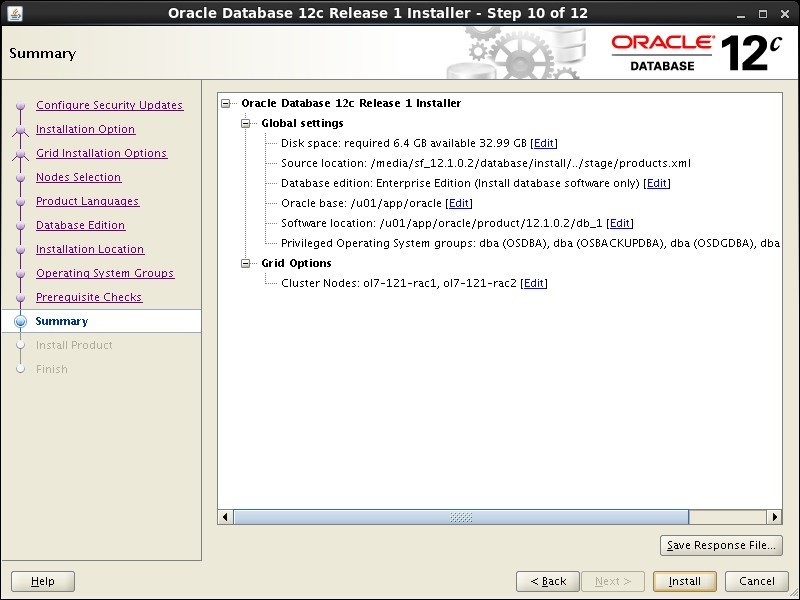
If you are happy with the summary information, click the "Install" button.
Step 45
46

Install the Database Software

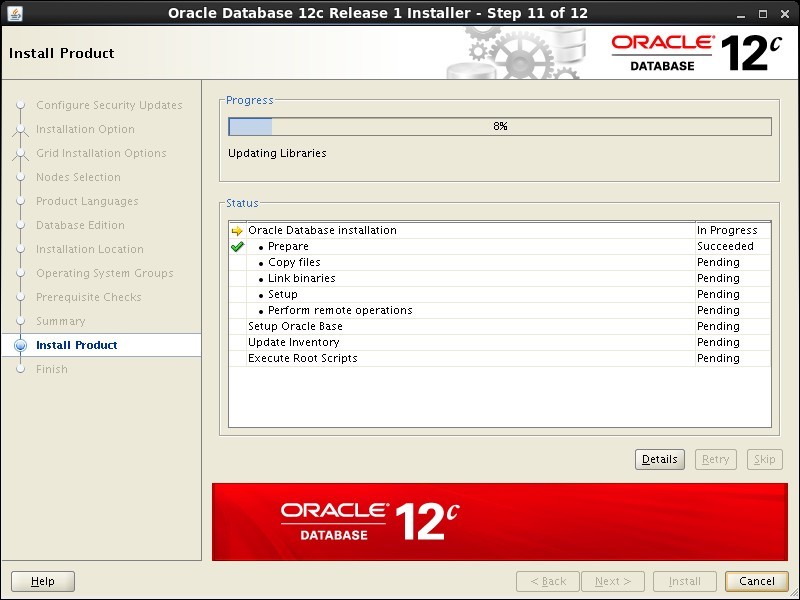
Wait while the installation takes place.
Step 46
47

Install the Database Software

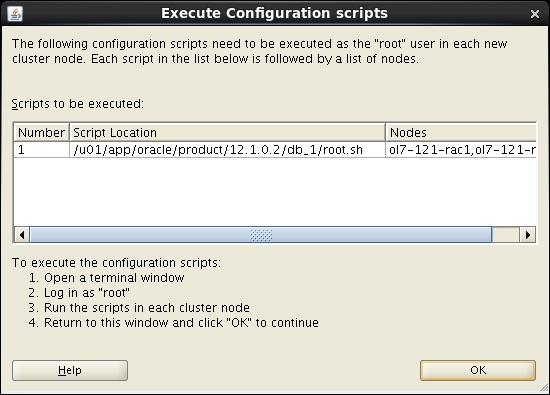
When prompted, run the configuration script on each node. When the scripts have been run on each node, click the "OK" button.
Step 47
48

Install the Database Software

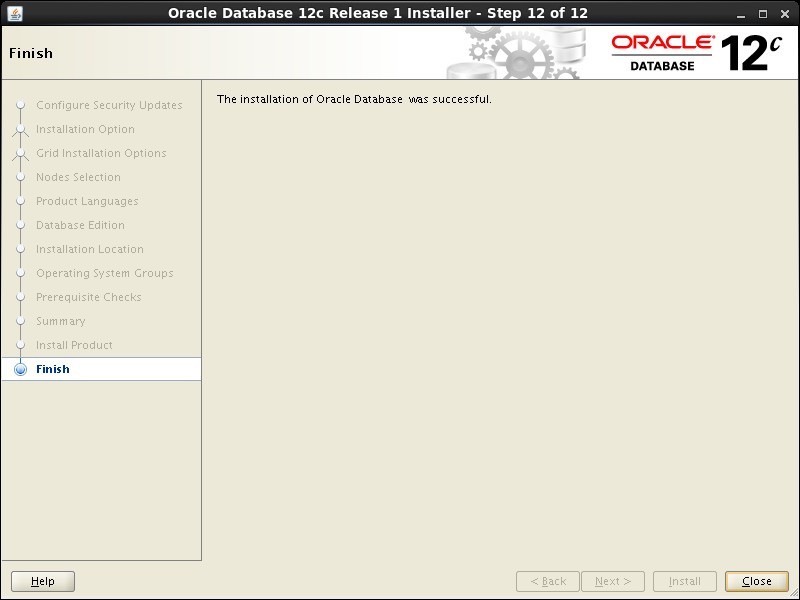
Click the "Close" button to exit the installer.
Step 48
49

Create a Database

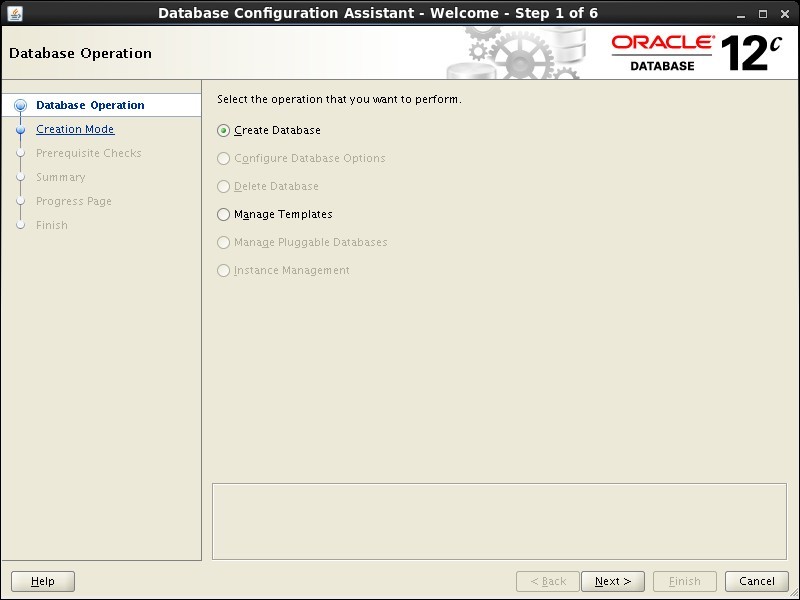
Shutdown both VMs and take snapshots. Remember to make a fresh zip of the ASM disks on the host machine, which you will need to restore if you revert to the post-db snapshots. Make sure the "ol7-121-rac1" and "ol7-121-rac2" virtual machines are started, then login to "ol7-121-rac1" as the oracle user and start the Database Creation Asistant (DBCA). Select the "Create Database" option and click the "Next" button.
Step 49
50

Create a Database

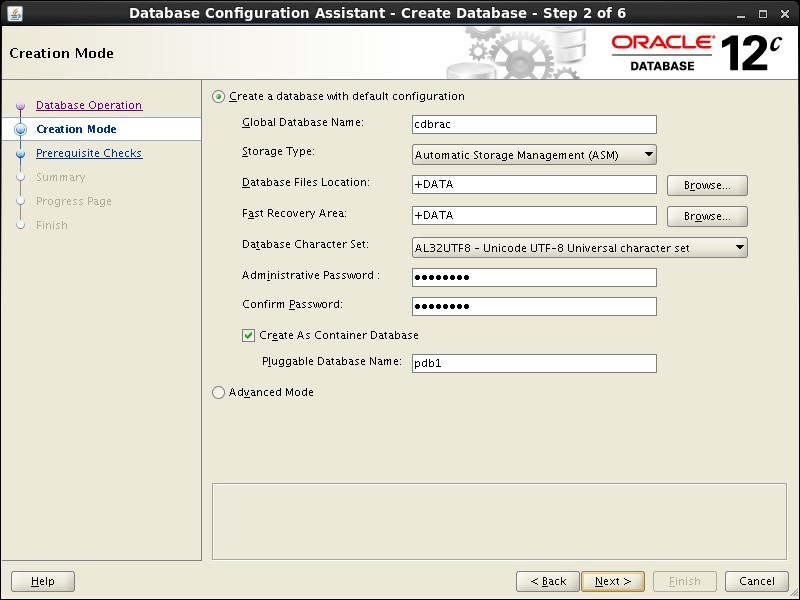
Select the "Create a database with default configuration" option. Enter the container database name (cdbrac), pluggable database name (pdb1) and administrator password. Click the "Next" button.
Step 50
51

Create a Database

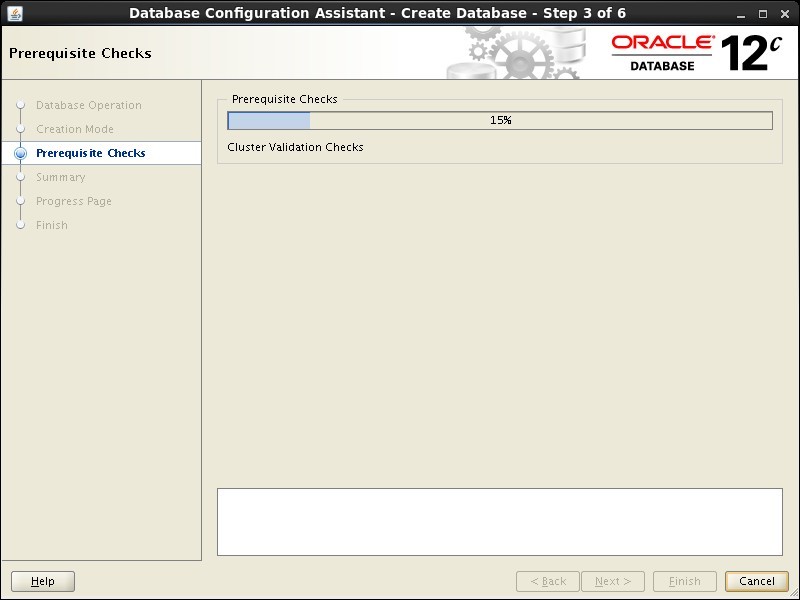
Wait for the prerequisite checks to complete. If there are any problems either fix them, or check the "Ignore All" checkbox and click the "Next" button.
Step 51
52

Create a Database

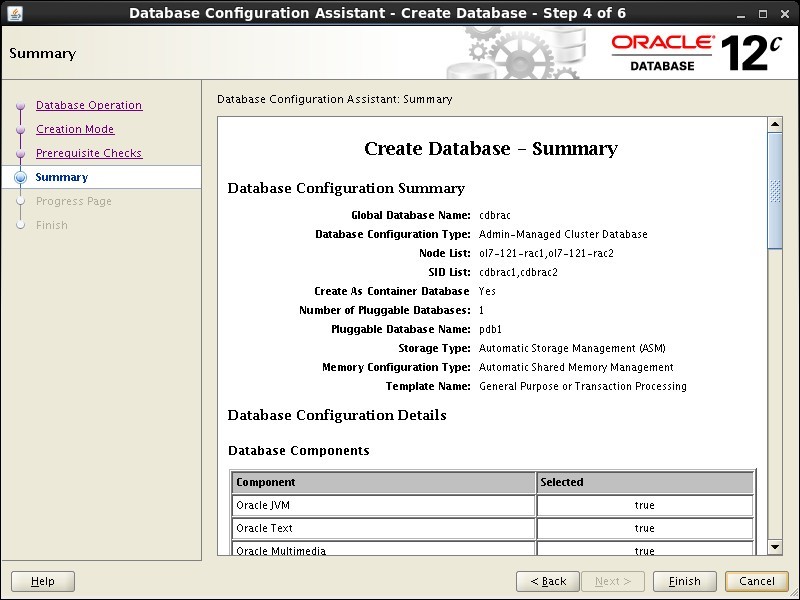
If you are happy with the summary information, click the "Finish" button.
Step 52
53

Create a Database

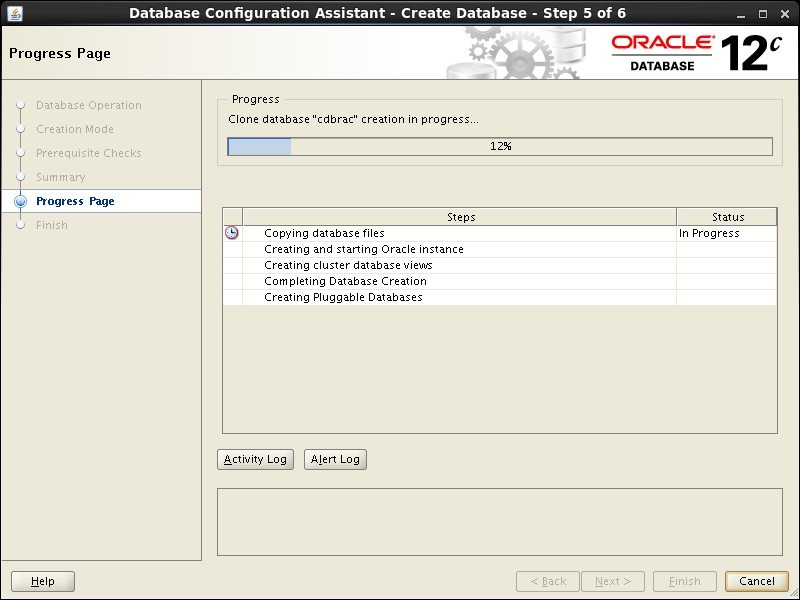
Wait while the database creation takes place.
Step 53
54

Create a Database

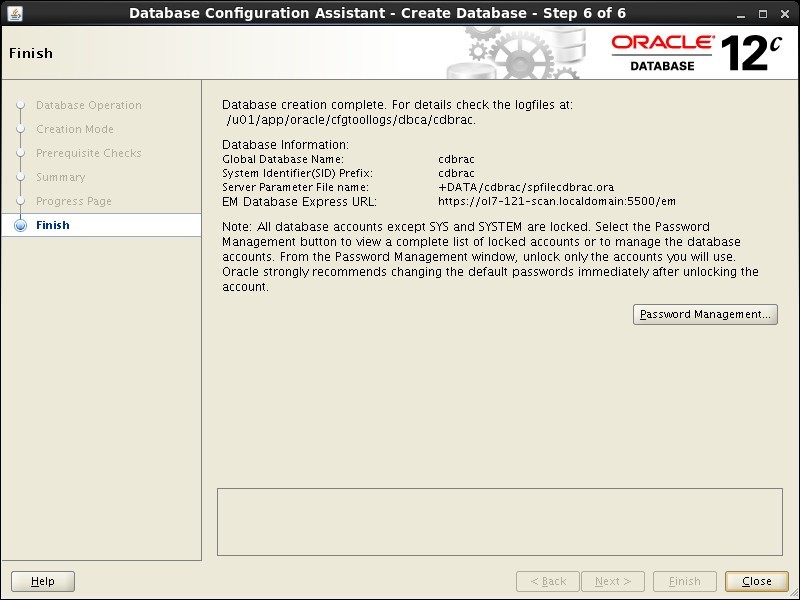
If you want to modify passwords, click the "Password Management" button. When finished, click the "Close" button.
Step 54
55

Check the Status of the RAC

The RAC database creation is now complete. There are several ways to check the status of the RAC. The utility shows the current configuration and status of the RAC database. The view can also display the current status of the instances. For more information see: Hope this helps. Regards Tim...
Step 55

Comments (0)

Please to add comments

No comments yet. Be the first to comment!