DBA Hub

📋Steps in this guide1/14

Oracle Enterprise Manager Cloud Control 12c Release 4 Installation on Oracle Linux 5.9 and 6.5

This article describes the installation of Oracle Enterprise Manager Cloud Control 12c Release 4 on Oracle Linux 5.9 and 6.5.

oracle 12cconfigurationintermediate
by OracleDba
13 views
1

Cloud Control 12c Installation

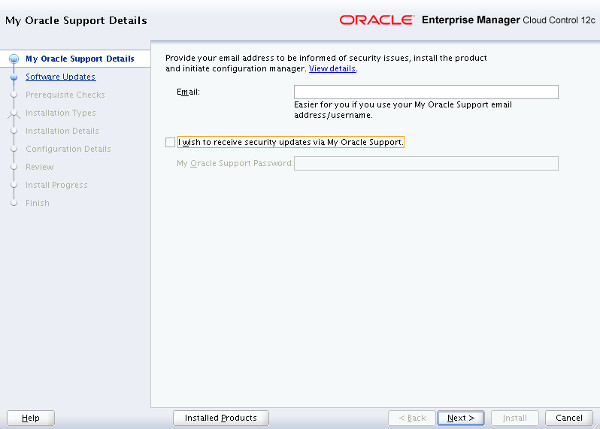
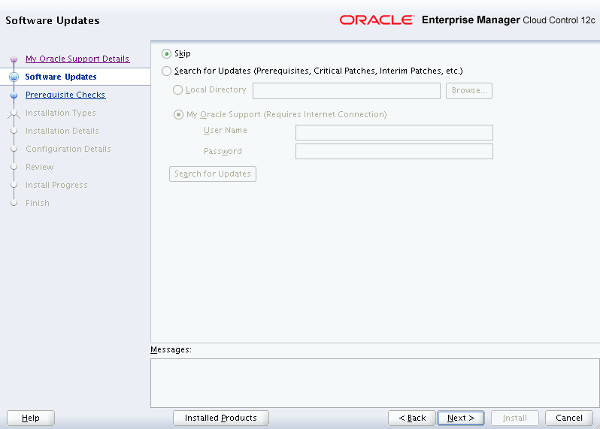
Enterprise Manager Cloud Control is the new name for what was previously know as Enterprise Manager Grid Control. Depending on the source of the material, you may still see the product described as Grid Control. This article describes the installation of Oracle Enterprise Manager Cloud Control 12c Release 4 on Oracle Linux 5.9 and 6.5. (x86_64). The repository database can be 11.2.0.3, 11.2.0.4 or 12.1.0.2. If you want to use 12.1.0.2, check out MOS Note 1987905.1. The steps described in this article will work for an 11.2.0.4 instance. Related articles. Download the following software: Previous versions of the database can be used to hold the repository, but anything earlier than 11.2.0.2 will require additional patches. Install Oracle Linux (OL) 5.9 or 6.5 in the same way you would for a regular Oracle Database installation. You can see examples of these types of installations below. Remember to check the relevant database installation article (listed below) for the specific package group selection. - Oracle Linux 5.x Installation - Oracle Linux 6.x Installation During this installation I used a virtual machine with 8G RAM and 100G disk space. The swap size was set at 8G, the firewall was disabled and SELinux was set to permissive. Use one of the following articles to install the 11.2.0.4 or 12.1.0.1 database. Remember to do an advanced installation and pick the ALT32UTF8 character set. The installation documentation says the following packages are necessary for the cloud control installation. If you have performed the database installation as described in one of the above articles, most of these prerequisites will already have been met. If you have performed a default 11g database installation you will need to deconfigure Enterprise Manager Database Control. Run the following command as the "oracle" user. Make the following initialization parameter changes and restart the instance. If you have done a default installation as described here, the UNDO tablespace will be autoextensible. If you have done a custom installation make sure the UNDO tablespace is at least 200M in size. Also, make sure you have 3 redo logs of at least 300M to prevent a warning during the installation. Edit the "/etc/security/limits.conf" file, increasing the following entry to 4096 if it is less than that. You will need to reboot after this. The database installation is now complete. Make the following directories to hold the management server and agent. Unzip the Cloud Control media, the start the installation by running the "runInstller" script. If you wish to receive support information, enter the required details, or uncheck the security updates checkbox and click the "Next" button. Click the "Yes" button the subsequent warning dialog. If you wish to check for updates, enter the required details, or check the "Skip" option and click the "Next" button.
Step 1
2

Cloud Control 12c Installation

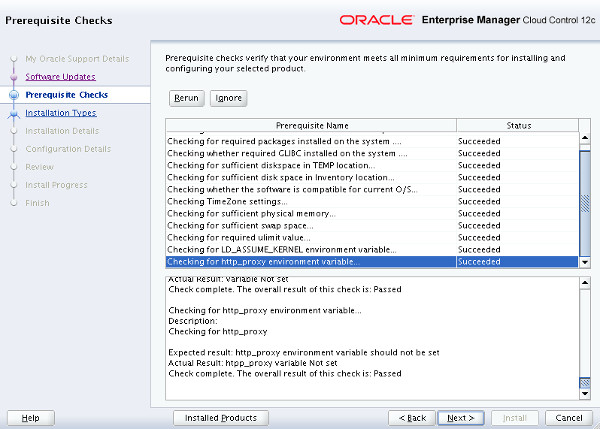
If you have performed the prerequisites as described, the installation should pass all prerequisite checks. Click the "Next" button.
Step 2
3

Cloud Control 12c Installation

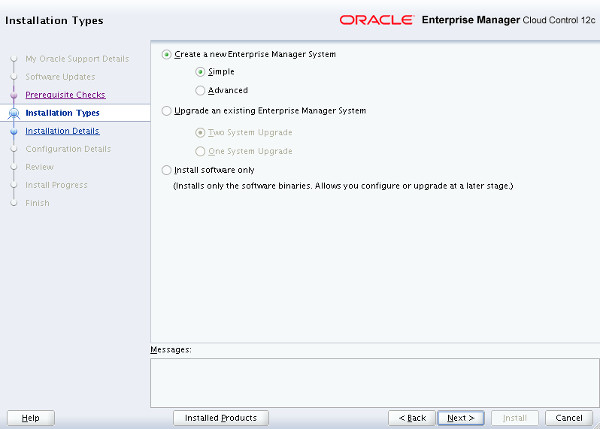
Select the "Create a new Enterprise Manager System" and "Simple" options, then click the "Next" button.
Step 3
4

Cloud Control 12c Installation

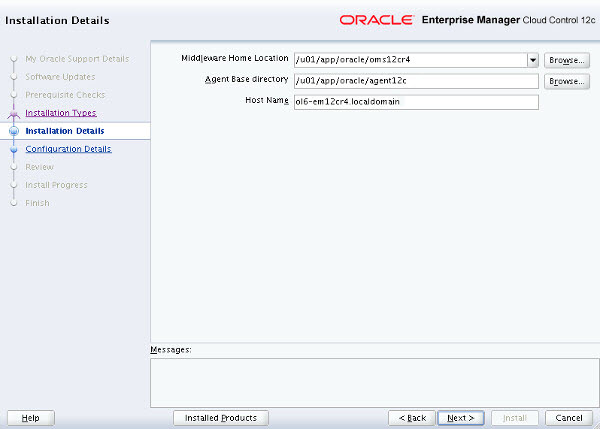
Enter the middleware and agent locations, then click the "Next" button.
Step 4
5

Cloud Control 12c Installation

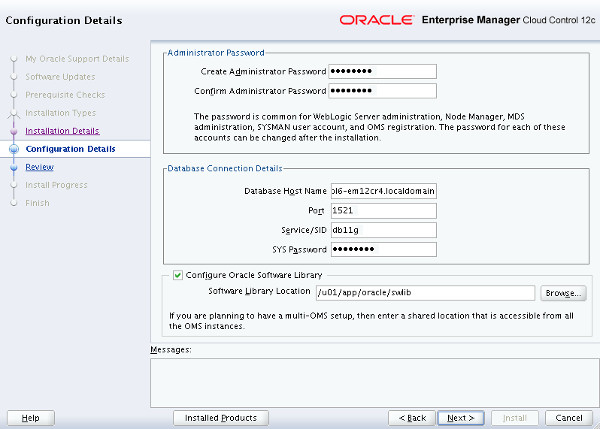
Enter the administrator password and database repository details, then click the "Next" button.
Step 5
6

Cloud Control 12c Installation

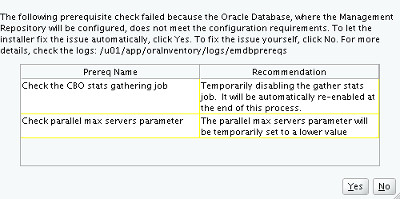
On the first warning dialog, click the "Yes" button.
Step 6
7

Cloud Control 12c Installation

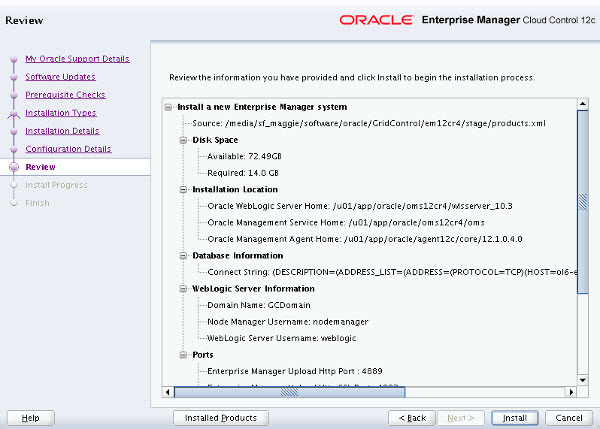
If you have any additional warnings, check they don't look like show-stoppers, then click the "OK" button to continue. If you are happy with the review information, click the "Install" button.
Step 7
8

Cloud Control 12c Installation

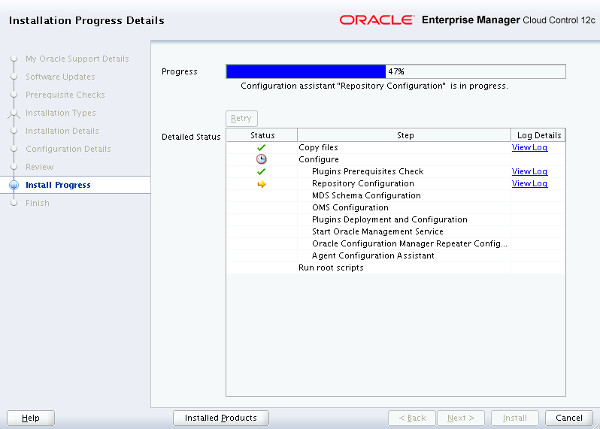
Wait while the installation and configuration take place.
Step 8
9

Cloud Control 12c Installation

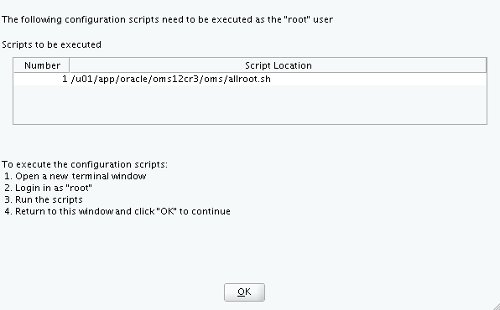
When prompted, run the root scripts, then click the "OK" button.
Step 9
10

Cloud Control 12c Installation

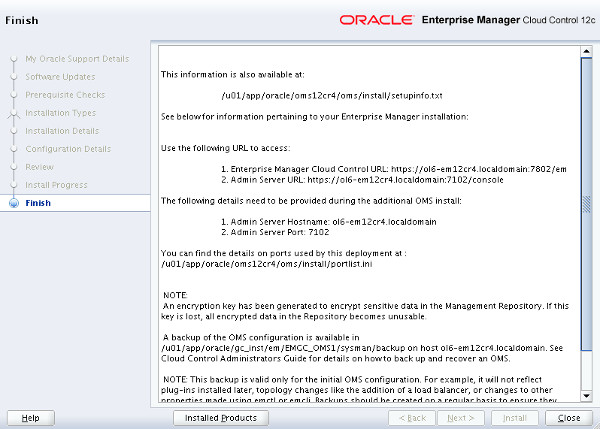
Make note of the URLs, then click the "Close" button to exit the installer. A copy of this information is available in the "/u01/app/oracle/oms12cr4/oms/install/setupinfo.txt" file.
Step 10
11

Cloud Control 12c Installation

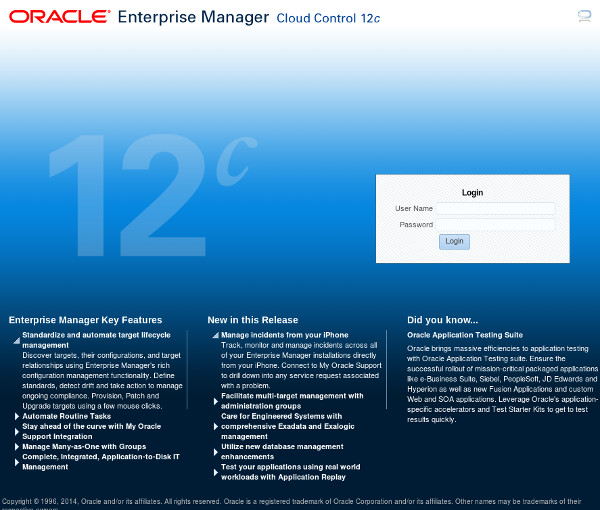
The login screen is available from a browser using the URL provided in the previous screen ("https://ol6-em12cr4.localdomain:7802/em"). Log in with the username "sysman" and the password you specified during your installation.
Step 11
12

Cloud Control 12c Installation

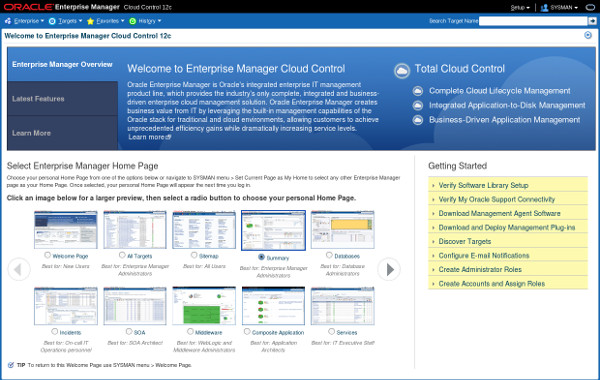
Once logged in, you are presented with a with the "Accessibility Preference" screen. Click the "Save and Continue" button and you are presented with the the "License Agreement" screen. Click the "I Accept" button and you are presented with the homepage selector screen. On the right side of the screen it lists the post-installation setup tasks you need to work through. I have these documented in a separate article . Select the desired homepage (I chose Summary).
Step 12
13

Cloud Control 12c Installation

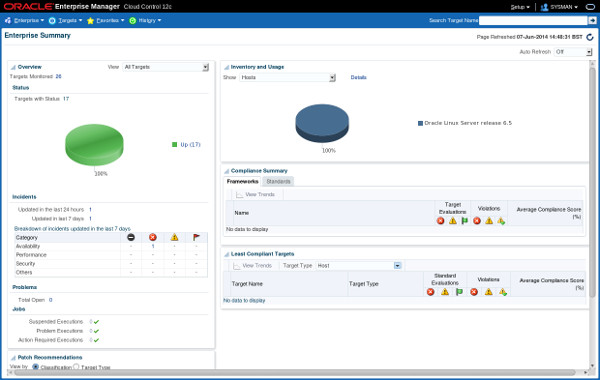
You are presented with the selected screen as the console homepage.
Step 13
14

Startup/Shutdown

Cloud Control is set to auto-start using the "gcstartup" service. The "/etc/oragchomelist" file contains the items that will be started by the system. On a simple installation the default auto-start will cause a problem as Cloud Control will attempt to start before the database has started. The service can be disabled by commenting out (using #) all the contents of the "/etc/oragchomelist" file to prevent the auto-start and use start/stop scripts described below. If the start/stop needs to be automated, you can do it in the usual way using Linux service that calls your start/stop scripts that include the database management. Use the following commands to turn on all components installed by this article. Use the following commands to turn off all components installed by this article. For more information see: Hope this helps. Regards Tim...
Step 14

Comments (0)

Please to add comments

No comments yet. Be the first to comment!