DBA Hub

📋Steps in this guide1/3

Oracle Enterprise Manager Cloud Control 12c Release 5 (12.1.0.5) Silent Installation on Oracle Linux 7

This article describes the silent installation of Oracle Enterprise Manager Cloud Control 12c Release 5 (12.1.0.5) on Oracle Linux 7.

oracle 12cconfigurationintermediate
by OracleDba
13 views
1

Cloud Control 12cR5 Silent Installation

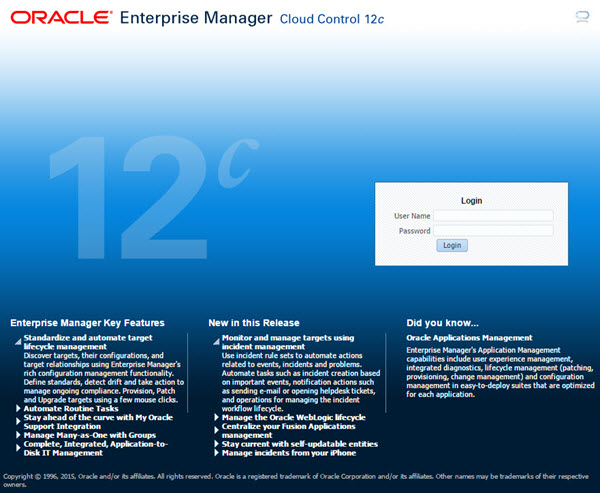
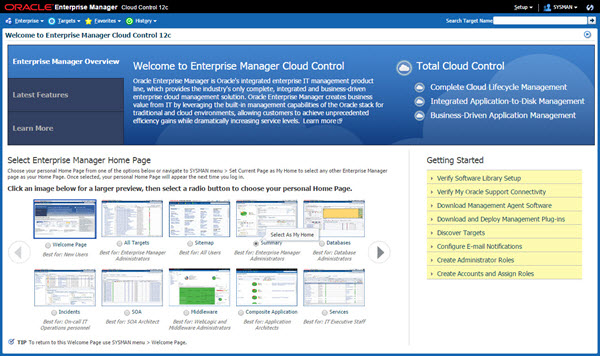
This article describes the silent installation of Oracle Enterprise Manager Cloud Control 12c Release 5 (12.1.0.5) on Oracle Linux 7 (x86_64). Your requirements may be different, so this is not a replacement for reading the documentation . Related articles. There is an automated Vagrant build for Cloud Control 12cR5 available here . Download the following software: Install Oracle Linux (OL) in the same way you would for a regular Oracle Database installation. You can see examples of this type of installation below. Remember to check database installation article (listed below) for the specific package group selection. These Linux installations articles are generic, not specific for Cloud Control. - Oracle Linux 7.x Installation During this installation I used a virtual machine with 6G RAM (more would be better) and 100G disk space. The swap size was set at 8G, the firewall was disabled and SELinux was set to permissive. The Cloud Control 13.3 installation can use database versions 12.1.0.2, 12.2.0.1 or 18.x for the repository. You should use apply the latest patchset, but the installation will work with the base release. For this installation you will need 18c for the repository database, but the same instructions work for 12.2, so use the installation instructions from this article. Alternatively, just do a silent installation from the "oracle" user, and run the root scripts when prompted. The installation documentation says the following packages are necessary for the Cloud Control installation. If you have performed the database installation as described in one of the above articles, most of these prerequisites will already have been met. The database software installation is now complete. Create a database to hold the repository. - As mentioned above, database version 12.1.0.2 is used for this installation. - You can use a Non-CDB database, or a PDB. Here we are using a CDB called "emcdb" and a PDB called "emrep". - Character set AL32UTF8. - There are some minimum recommended settings listed in the example database creation below. You can create the database using the DBCA in interactive mode, but it's easier to do it silently. You now have a database for use as the repository. Make the following directories to hold the management server and agent. There are some restrictions on the possible path lengths, so don't make the directory structure too deep, especially for Windows installations. Unzip the software. Create a response file for the installation process. Start the silent software-only installation by running the "em13300_linux64.bin" file. Because we are running the installation on OL7, we will get an error, which we can fix as follows. Once complete, run the root scripts as the root user. We can now configure Cloud Control. Create a response file for the configuration process. Run the configuration using the response file we just created. Wait for the configuration to complete. This can take a long time. The login screen is available from a browser using the URL provided in the previous screen ("https://ol6-emcc.localdomain:7802/em"). Log in with the username "sysman" and the password you specified during your installation. Once logged in, you are presented with a with the "Accessibility Preference" screen. Click the "Save and Continue" button and you are presented with the the "License Agreement" screen. Click the "I Accept" button and you are presented with the homepage selector screen. On the right side of the screen it lists the post-installation setup tasks you need to work through. I have these documented in a separate article . Select the desired homepage (I chose Summary).
Step 1
2

Cloud Control 12cR5 Silent Installation

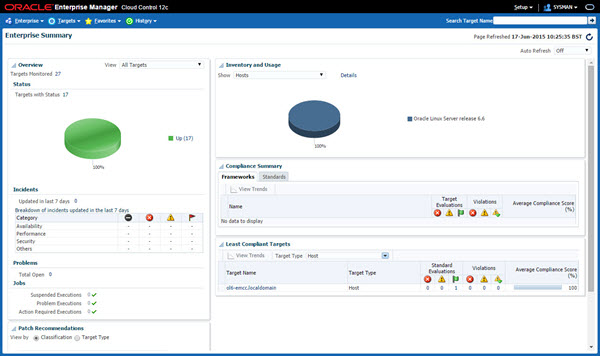
You are presented with the selected screen as the console homepage.
Step 2
3

Server has a weak, ephemeral Diffie-Hellman public key

I've not see it, but some people have reported the following error during the installation. If you see this, run the following as the user, then resume the installation. Cloud Control is set to auto-start using the "gcstartup" service. The "/etc/oragchomelist" file contains the items that will be started by the system. On a simple installation the default auto-start will cause a problem as Cloud Control will attempt to start before the database has started. The service can be disabled by commenting out (using #) all the contents of the "/etc/oragchomelist" file to prevent the auto-start and use start/stop scripts described below. If the start/stop needs to be automated, you can do it in the usual way using Linux service that calls your start/stop scripts that include the database management. Use the following commands to turn on all components installed by this article. Use the following commands to turn off all components installed by this article. To fix this problem, follow the instructions in MOS Note 1510058.1 . For more information see: Hope this helps. Regards Tim...
Step 3

Comments (0)

Please to add comments

No comments yet. Be the first to comment!