SSL Configuration
Configuration of Forms and Reports Services 12c is similar to 11gR2, but many of the files are in different locations. The paths may vary a little between Forms 12c versions, so be prepared to search for file locations if they don't match.
This article is a collection of useful notes on a variety of topics related to configuration of Oracle Forms and Reports Services 12c.
Related articles.
This site contains a number of articles describing the installation of WebLogic Server 11g and Oracle Forms and Reports Services 12c on Linux and Windows. You can find them here .
If you choose a software-only installation, you can initiate the configuration steps using the following command.
This is also useful if your configuration phase fails and you want to rerun it after making the necessary changes to fix the issues.
The basic WebLogic environment variable settings are described in the installation guides, but the following list accounts for most of the scenarios you are likely to come across on the server, including forms compilation from the command line. Remember to adjust the paths to suit your installation. The paths below assume you've installed using the same paths I used in my installation guides. Also, remember to adjust the and variables as required.
I tend to use and in place of and as I think they are more descriptive. It's worth setting both as many documents don't follow my preference.
A number of the sections below assume these environment variables have been set.
Many of the 12c Forms and Reports Services configuration files are the same as those in 11gR2, but their locations differ. It is often easier to find things by searching below the $MW_HOME and $DOMAIN_HOME, as shown below.
The files I tend to visit the most are listed below.
A fuller list of configuration files can be seen here .
A couple of the important files are described below.
The "formsweb.cfg" file is one of the most important configuration files as it allows you to define multiple configurations, or environments, within a single software installation.
Typically, each separate environment will have it's own section in the "formsweb.cfg" file, where environment-specific settings are placed. You only need to specify a value in a Named Configuration if it differs from that in the default configuration. For example, a named configuration might be simple, like the following.
The "archive" entry includes the "my_icons.jar", which assumes you have placed you icons in this JAR file and the JAR file is placed in the "$FR_HOME/forms/java" directory.
A very useful entry is the "envFile" parameter, that can associate an environment file with a named configuration. This allows each named configuration run with a unique set of environment variables, including the variable amongst others. Any custom environment files should be derived from the "default.env" file, described below.
Changes to this file to not require a restart of any components. The changes can be done directly to the file, or through Enterprise Manager.
The "default.env" file defines the forms runtime parameters for a specific environment. All custom environment files should be derived from this file.
Environment variables specified in an ".env" file override existing environment settings. If an environment variable is not defined in the ".env" files, the value from the session that started the server process will be used.
Changes to these ".env" files do not require a restart of any components. The changes can be done directly to the file, or through Enterprise Manager.
It's is worth explicitly setting the environment variable in the ".env" file to match the NLS details of the database the forms connect to, thereby removing any implicit character conversions.
Forms, menus and libraries are compiled using the or scripts. You can find these in the "$FR_INST/bin/" directory. Running the command without any parameters displays the usage information. Some examples of the basic syntax are shown below.
Remember, requires and X Server, so you will need to SSH tunnel ( ) or set your environment variable ( ).
You can easily script the compilation of all your forms-related objects, as shown by the following script.
In Forms 11g and 12c using SUDO is the recommended way to compile forms as a non-Oracle user.
As the root user, edit the "/etc/sudoers" file with the following entry (as a single line).
You can now run the compile commands from the user "myuser" by using the "sudo -u oracle" prefix. All environment variables discussed above must be set for this to work. An example is shown below.
The environment variable does not work correctly using this method, so you should use the "username/password@service" method for database authentication.
If you are running on RHEL7/OL7, you will need to create the following symbolic link as the root user. This is not necessary on RHEL6/OL6.
If you have set the environment variables described above, using the X Server based Forms builder should be as simple as issuing the command.
Reports are compiled using the script. You can find this in the "$FR_INST/config/reports/bin/" directory. Running the command without any parameters displays the GUI screen. An example of the command line syntax is shown below.
If you have set the environment variables described above, using the X Server based Reports builder should be as simple as running the command.
If you have any problems with this configuration, please check out this note.
The basic configuration is described below.
- Download the zipped "jacob.jar" (v1.18-M2) file from https://sourceforge.net/projects/jacob-project/files/jacob-project/1.18-M2/ .
- Unzip the contents of the file.
- Copy the "jacob.jar" to the "$FR_HOME/forms/java" directory.
- Copy the "jacob-1.18-M2-x86.dll" to the "$FR_HOME/forms/webutil/win32" directory.
- Copy the "jacob-1.18-M2-x64.dll" to the "$FR_HOME/forms/webutil/win64" directory.
- Edit the "$FR_HOME/forms/java/extensions.jnlp" file, making the following change.
- Sign the "jacob.jar" file. ( See below )
- Add "$FR_HOME/forms/java/frmall.jar" to the CLASSPATH entry in the "default.env" file. This should be done with Enterprise Manager, but it works fine if you manually edit the file. If you use custom environment files, you should add it to those also.
- Add "frmwebutil.jar" and "jacob.jar" to the "WebUtilArchive" entry in the "formsweb.cfg" file for any configurations that require it, for example.
- After making changes, restart the WLS_FORMS managed server and the OHS.
Additional configuration is possible by editing the "$FR_INST/config/FormsComponent/forms/server/webutil.cfg" file.
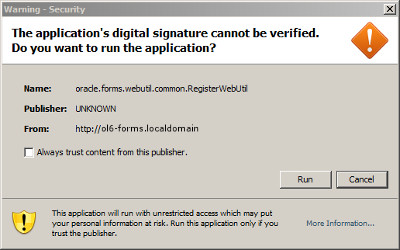
Unsigned or self-signed jar files cause a browser security warning dialog to appear.
On some clients the behavior of this dialog is rather erratic, sometimes hanging and preventing you from taking the appropriate action. This seems to relate to two MOS notes.
- Form Hangs When Acknowledging Security Warning - The application's digital signature cannot be verified [ID 1328039.1]
- Windows Java Client Hangs On Accepting Not Verified Signature Of jar Files When SeparateFrame=True [ID 1173365.1]
The solution is to alter the order of the Jar files set by the "archive" and/or "WebUtilArchive" entries in the "formsweb.cfg" file. In the case of the "jacob.far" file, if you have it listed in the "archive" parameter, you will probably need to make the following change.
If you have instead listed it in the "WebUtilArchive" parameter, you will probably need to make the following change.
You should not need to restart any services for this to take effect.
Edit the "$FR_INST/bin/sign_webutil.sh" file, setting the appropriate values. If you want to generate a new certificate and keystore you must enter the following information, adjusted as desired.
If you created a keystore for securing your managed servers, you can reuse that by editing the following settings to match the details of your existing keystore.
Make sure line 84 has the correct path to the "keytool" utility. I had to make the following change to the line.
Make sure line 108 has the correct path to the "jarsigner" utility. I had to make the following change to the line.
Issue to the following command to sign the specified JAR file. In this case it is the jacob.jar file. If you are using a self-signed certificate this will result in a warning, and since return text is not blank the script will say the signing failed, but it didn't.
If you attempt to re-sign a JAR file that is already signed, it will contain multiple signatures in the "META-INF" directory, which will probably result in the following error.
To fix this, unpack the JAR, remove the signatures from the "META-INF" directory and re-pack the JAR. The following example shows how this can be done for the "jacob.jar" file.
Once you've stripped the signatures from the JAR file you will need to resign it.
I've combined this method, along with the signing of the JAR file into following script, which I save as "resign_jars.sh".
This will strip and resign any JAR file passed as a parameter to the "sign_jar" function.
Reports 11.1.2.1 turns off the diagnostics output by default. If you need to turn it on, do the following.
Edit the "$DOMAIN_HOME/config/fmwconfig/servers/WLS_REPORTS/applications/reports_11.1.2/configuration/rwservlet.properties" file as follows.
Restart WLS_REPORTS server.
Once you have finished testing, you will probably want to remove the new entry and restart the WLS_REPORTS server.
After a clean start of the Forms and Reports Services, the in-process reports server should start automatically on the first attempt to run a report. In practice, this does not seem to happen. There are a number of ways to kick the in-process reports server into touch.
The "startserver" URL can be used to start the in-process reports server. Adding the following commands to the end of your startup script will start make sure it starts as expected.
If you have enabled the diagnostics pages (discussed earlier), any call to a diagnostics page will start the in-process reports server. Adding the following commands to the end of your startup script will start make sure it starts as expected.
You can also start the process using the Reports application page in Oracle Enterprise Manager. Either use the "Monitoring > Start Reports Application" option or the "Administration > Start In-process Reports Server" option.
The shortcut keys used by Forms can be altered by editing the key mapping resource file for your specific language. The default US/English language uses one of the following resource files, depending on the character set being used.
A description of key mappings can be found here .
The fonts available for the Reports server are defined in the following files.
The fonts referenced in these configuration files must be present in the following directory.
After making any changes, restart the Forms and Reports Services.
SSL configuration of Forms and Reports Services can seem a little tricky as there are a number of different elements to consider, including:
- The AdminServer, WLS_FORMS and WLS_REPORTS managed servers. Explained here .
- The JAR files used by the Forms and Reports Services. Explained here .
- The Oracle HTTP Server (OHS). See below.
To configure the Oracle HTTP Server (OHS), do the following steps, which assume you have already configured the managed servers for SSL using a keystore as described here .
Create a new wallet.
Load the contents of the previously created keystore into the new wallet.
Edit the "$DOMAIN_HOME/config/fmwconfig/components/OHS/instances/ohs1/ssl.conf" file, altering the path to the wallet as shown below.
Restart the Oracle HTTP Server.
The Oracle HTTP Server is now using the certificate in the wallet to support HTTPS traffic.
For more information see:
Hope this helps. Regards Tim...