DBA Hub

📋Steps in this guide1/12

Oracle REST Data Services (ORDS) : Oracle Database API for MongoDB

This article demonstrates the use of the Oracle database API for MongoDB functionality built into Oracle REST Data Services (ORDS).

oracle miscconfigurationintermediate
by OracleDba
14 views
1

MongoDB Compass

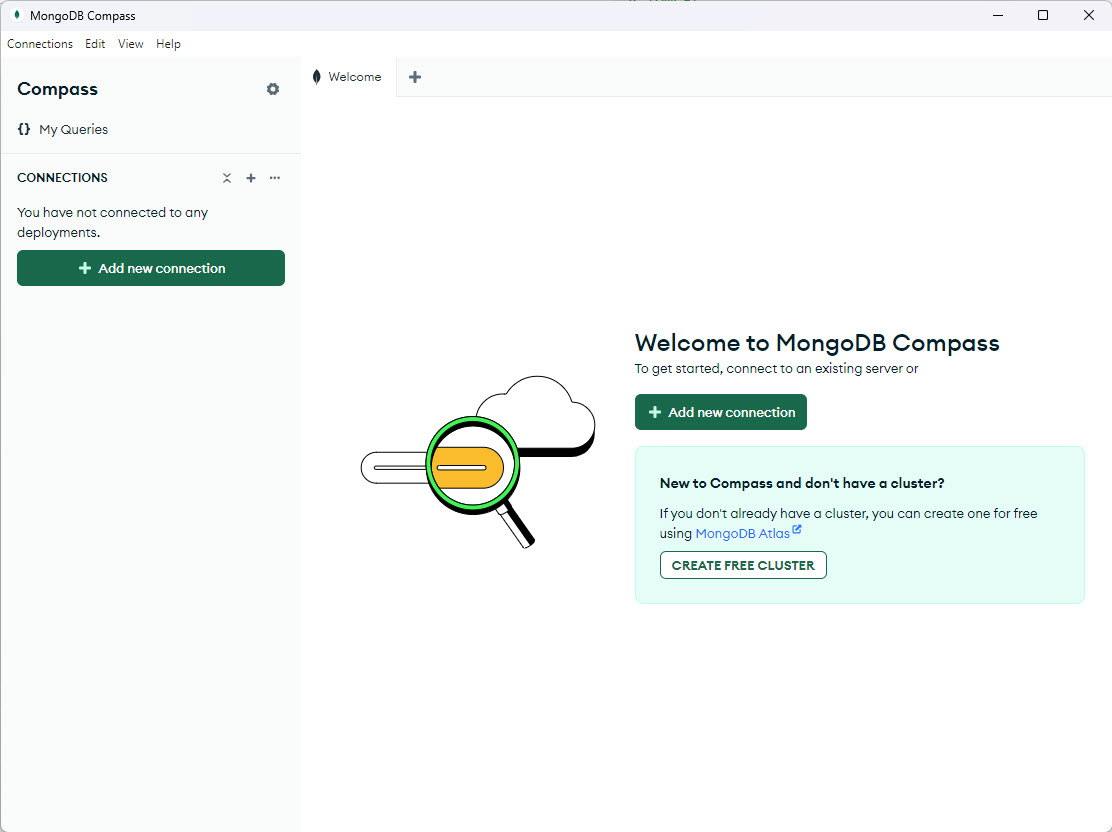
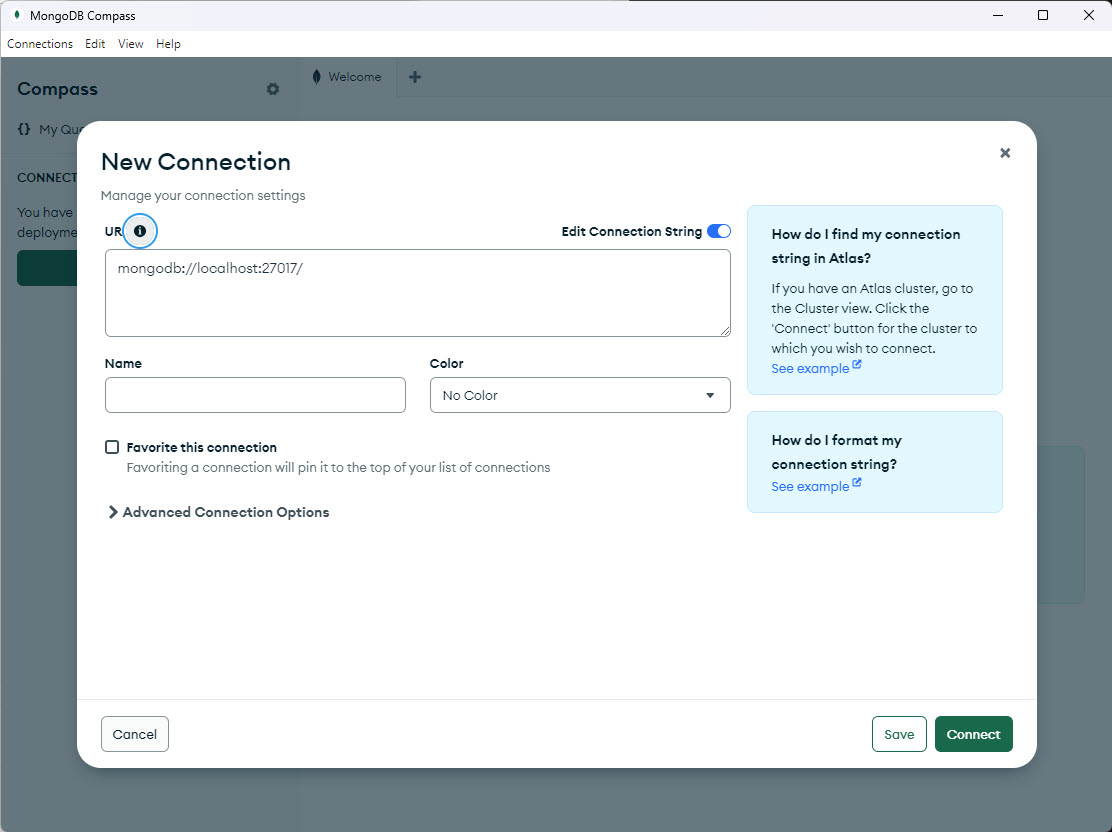
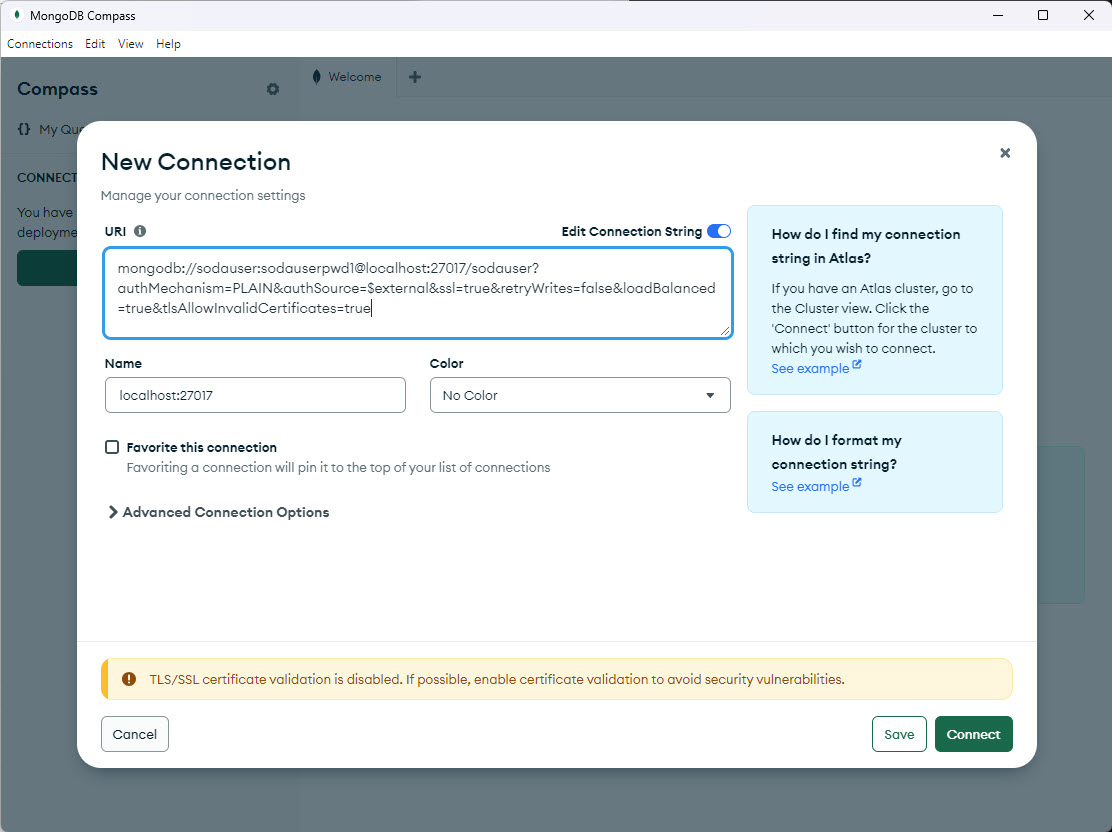
This article demonstrates the use of the Oracle database API for MongoDB functionality built into Oracle REST Data Services (ORDS). - ORDS Setup - Database Setup - Create some JSON Collections (23ai optional) - MongoDB Compass - MongoDB Shell (mongosh) Related articles. We are going to assume you have an ORDS installation at version 22.3 or higher, running in standalone mode. If not, you can find out how to install ORDS here. - Oracle REST Data Services (ORDS) : Standalone Mode (ORDS Version 22.1 Onward) Enable the MongoDB API and start ORDS. During the startup we see a log message showing the MongoDB API connection URI. Substituting our credentials we get the following. Remember to adjust the hostname if ORDS is running on a different server. We are running with a self-signed certificate, so we also have to add "&tlsAllowInvalidCertificates=true". ORDS is listening on port 27017 for the MongoDB API connections. We create a test user to hold our MongoDB collections. It needs to be able to connect and create tables for the basic functionality. We are going to build some additional objects, so we grant it . It's important to grant the role. We connect to the user and enable ORDS for the schema. We create some JSON collections. These are only available from 23ai onward. These are optional. We create and populate some tables to work with. We create a JSON-relational duality view based on the and tables. We create and populate a JSON collection table. We create a JSON collection view based on the and tables. Download MongoDB Compass from here . Click the "Add new connection" button.
Step 1
2

MongoDB Compass

Put the amended URI into the dialog and click the "Save" button.
Step 2
3

MongoDB Compass

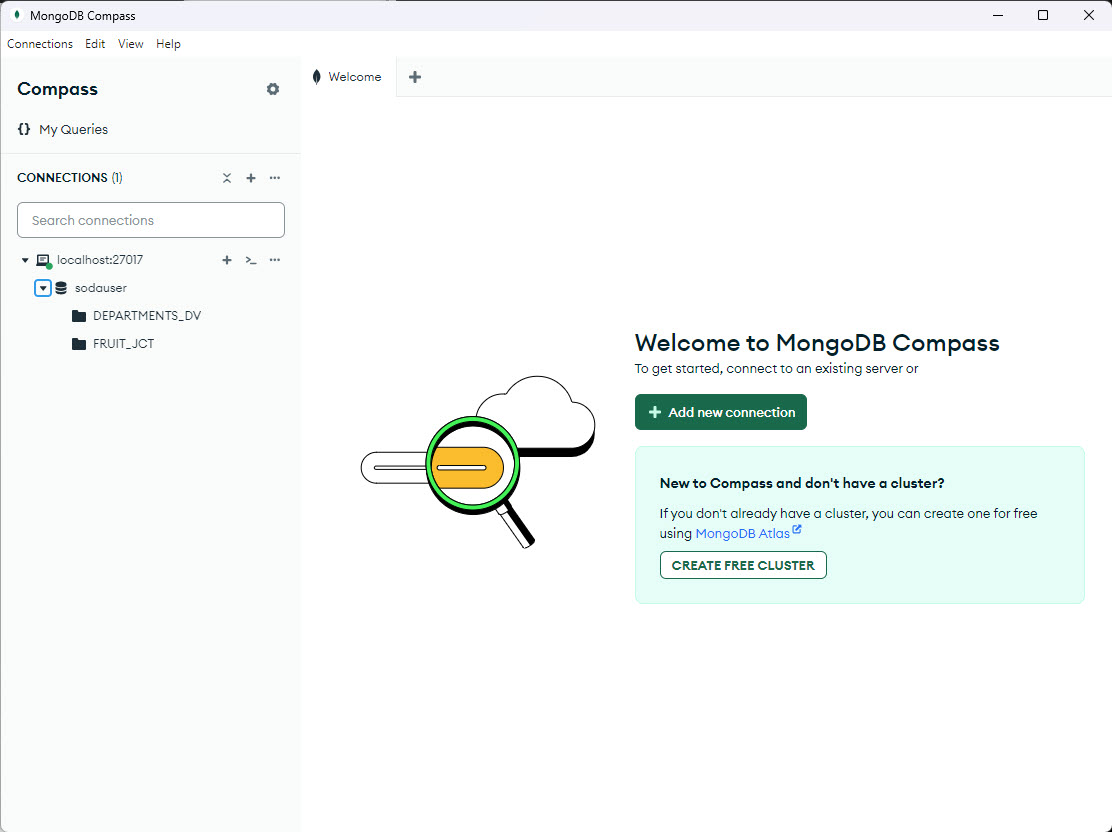
Expand the connection, which connects via the MongoDB API. Notice the JSON-relational duality view and JSON collection table are visible as collections under the "sodauser" database.
Step 3
4

MongoDB Compass

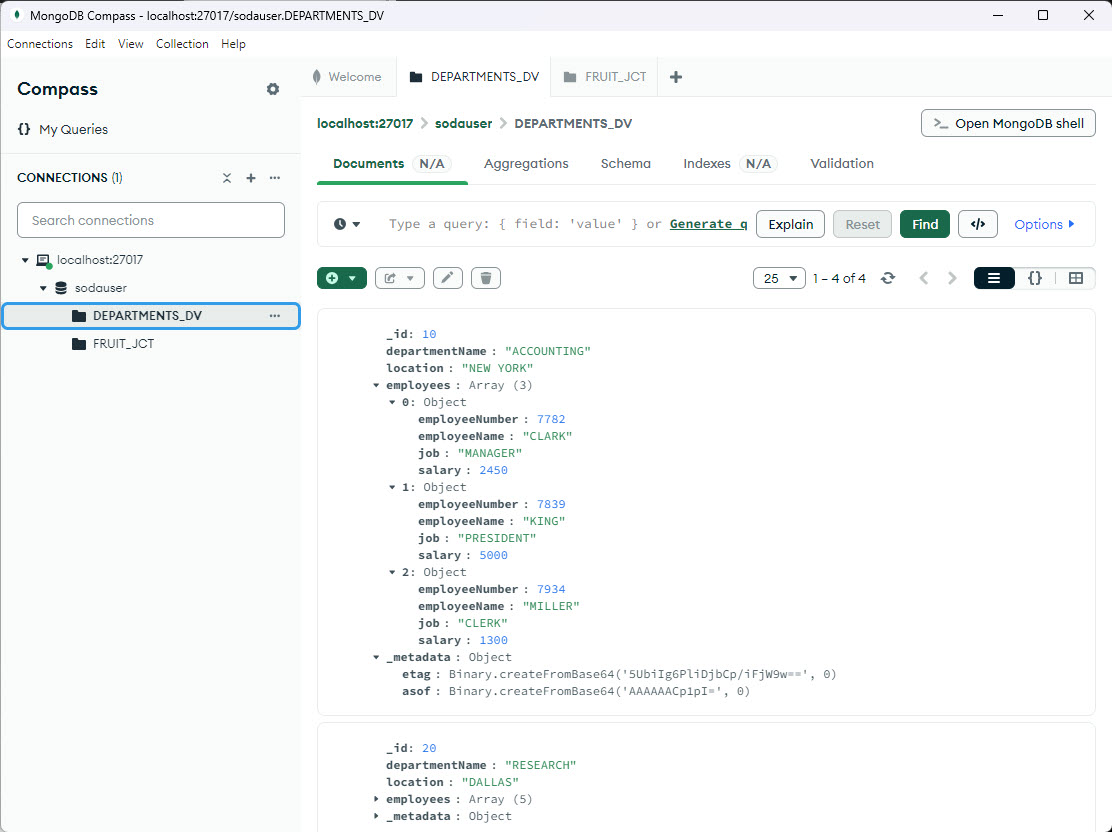
We click on the "DEPARTMENTS_DV" collection and we can expand the nodes to see the data.
Step 4
5

MongoDB Compass

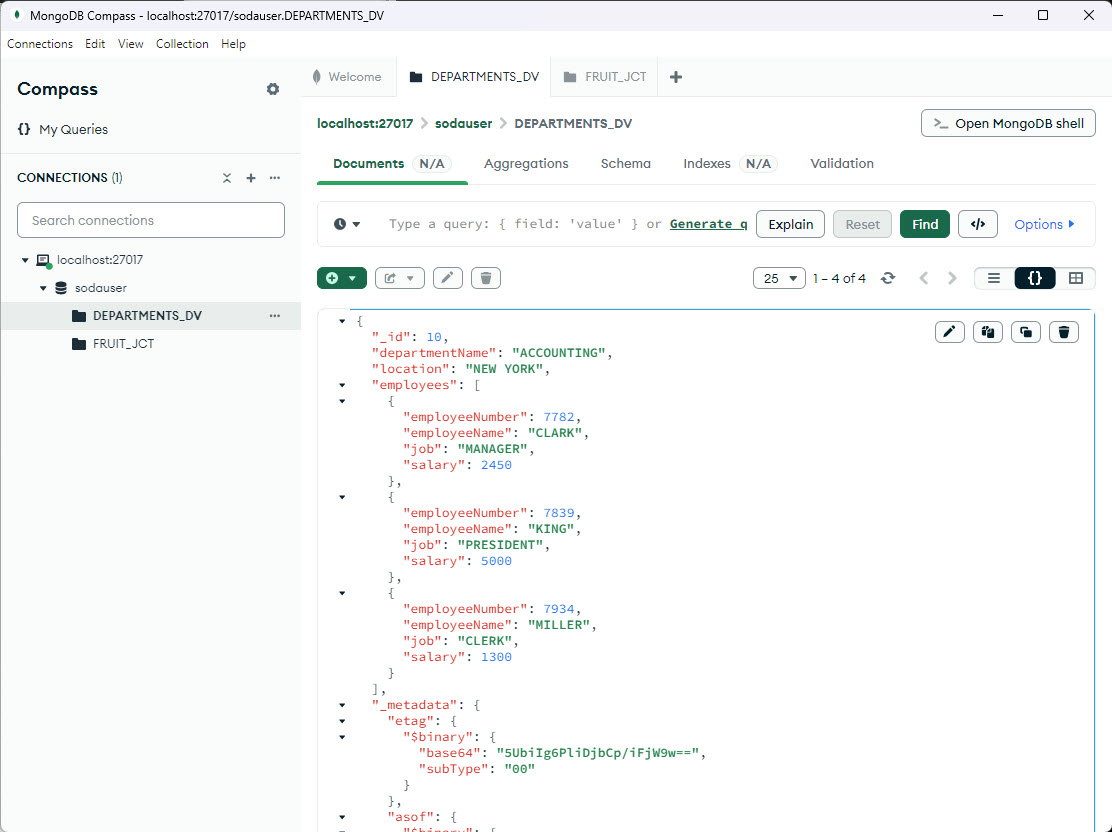
We switch the view to display the JSON.
Step 5
6

MongoDB Compass

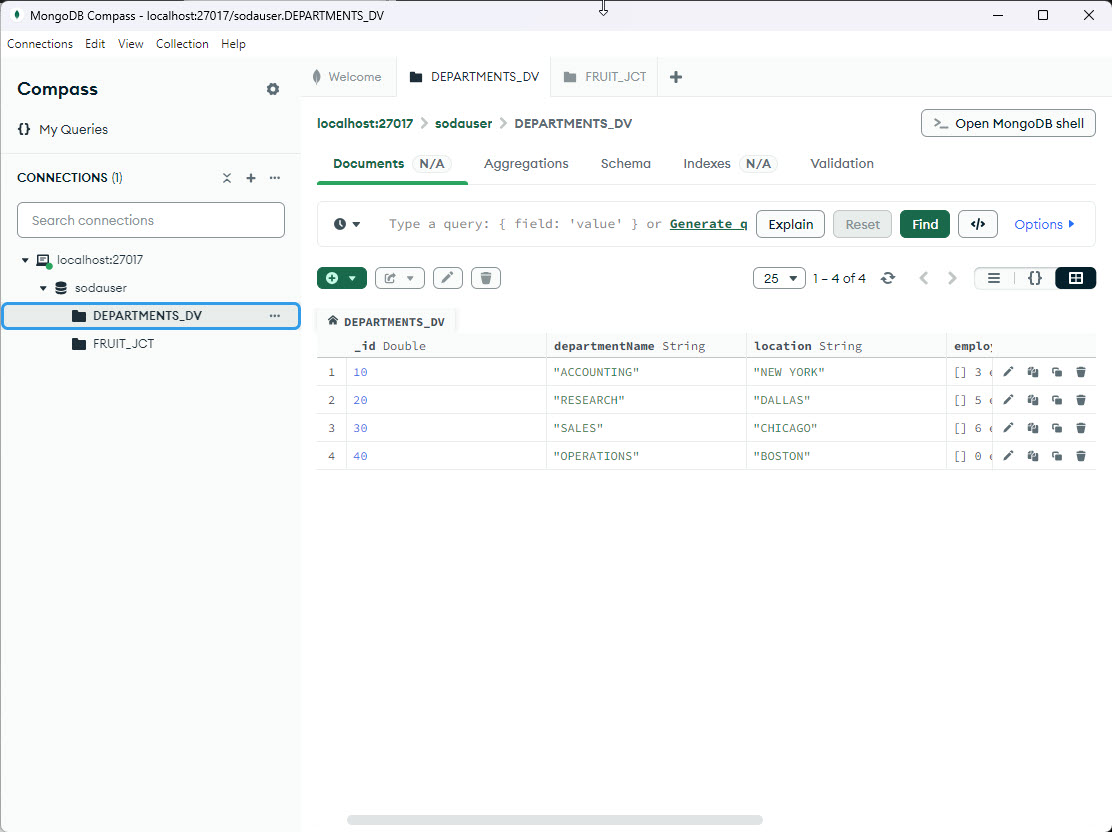
We can also see the data in a grid.
Step 6
7

MongoDB Compass

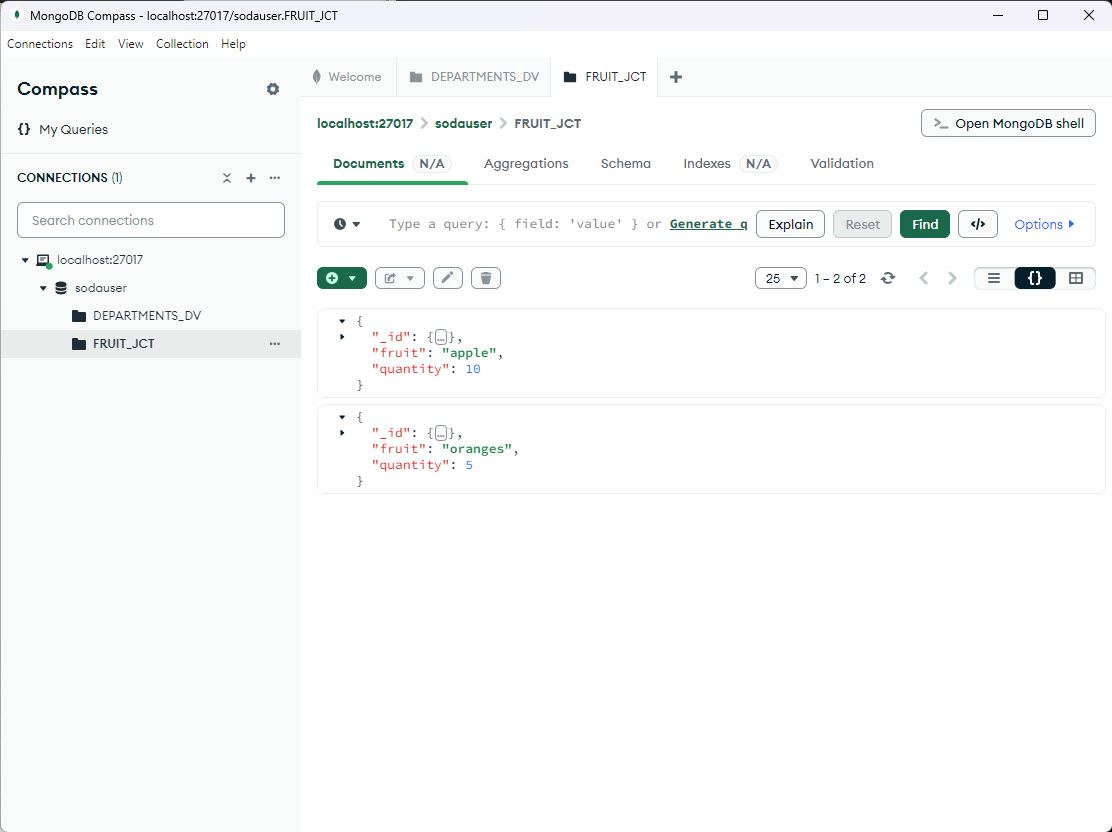
We can also see the data in the JSON collection table.
Step 7
8

MongoDB Compass

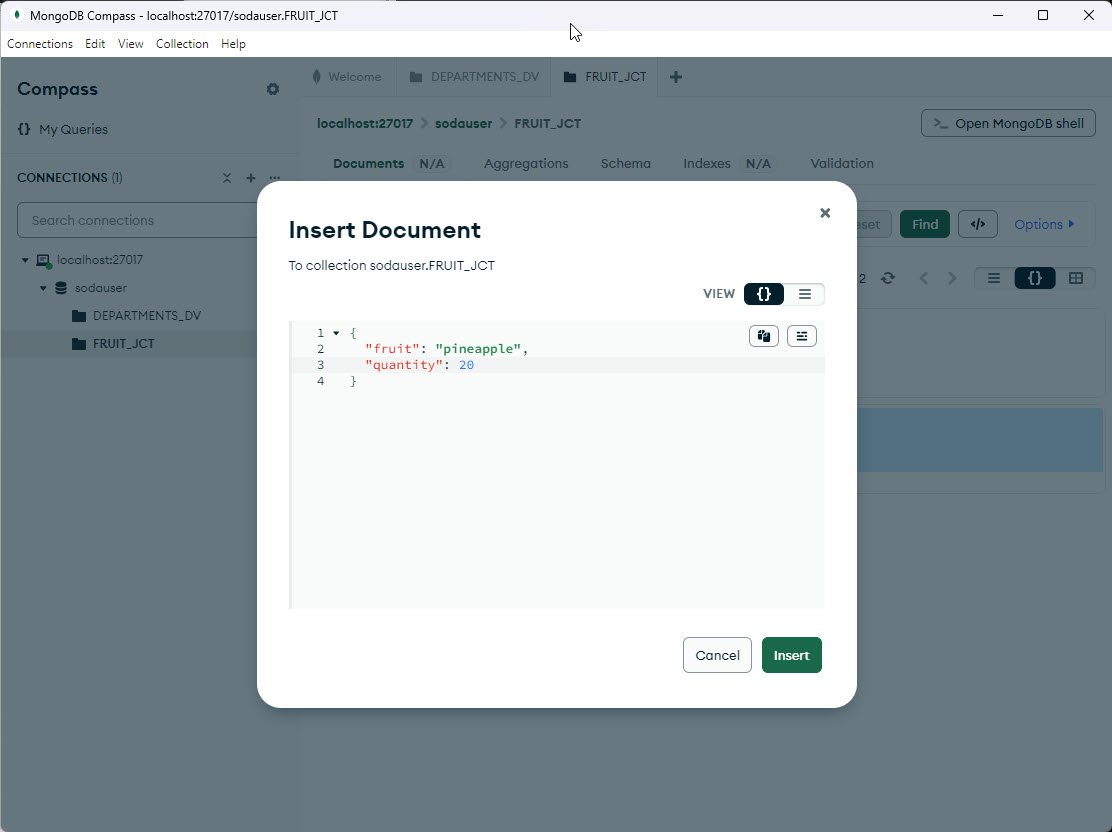
Click the "+" button to insert a document.
Step 8
9

MongoDB Compass

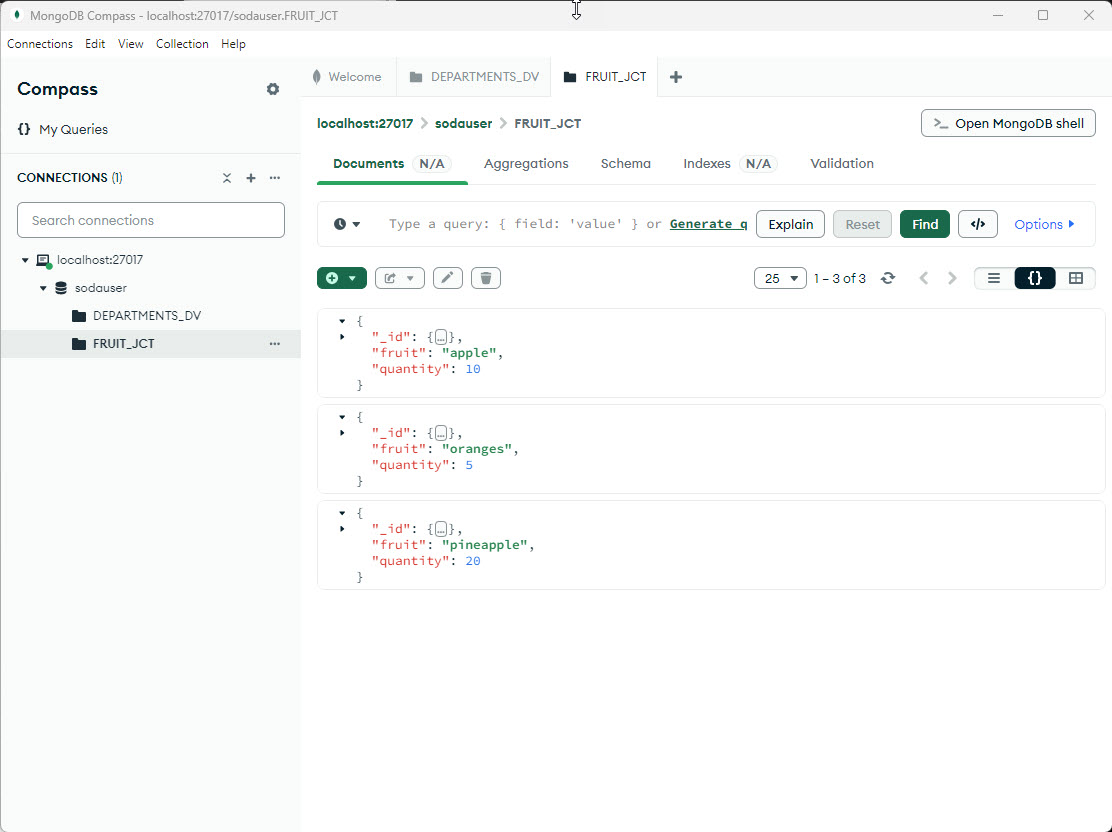
We can see the new document has been added.
Step 9
10

MongoDB Compass

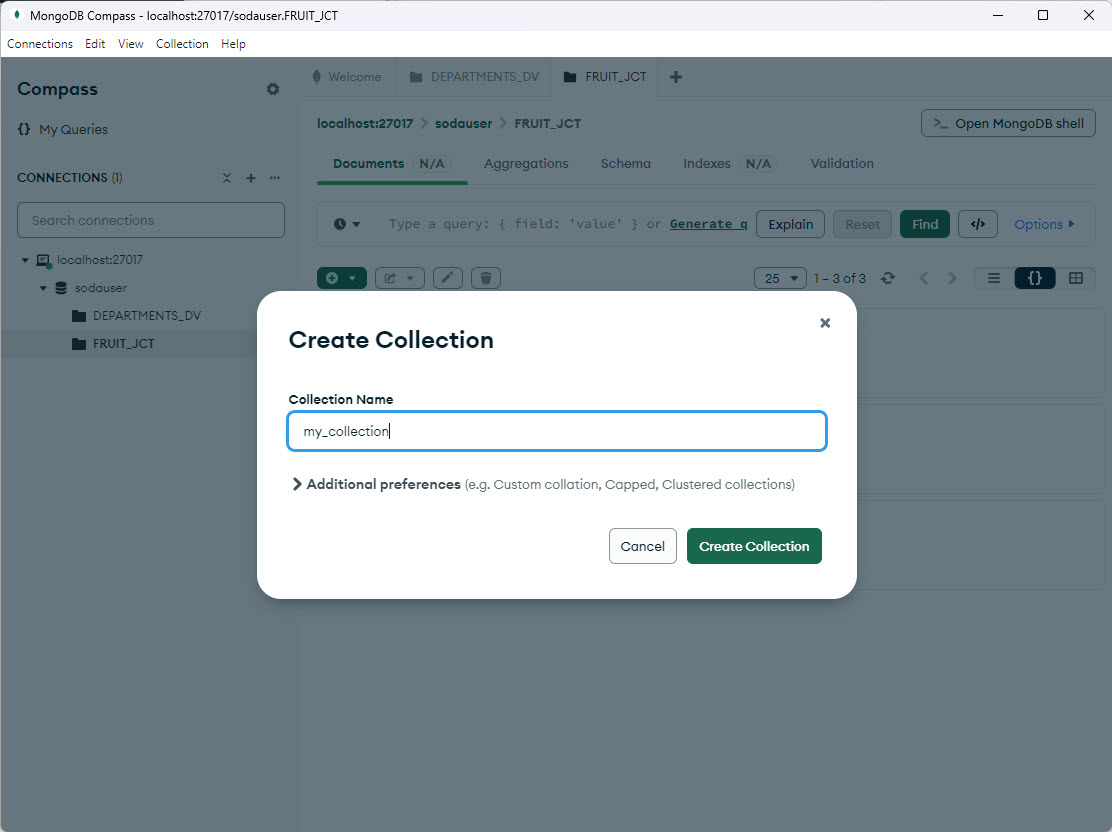
To add a new collection, hover over the "sodauser" tree node and click the "+" button that appears. That opens the "Create Collection" screen.
Step 10
11

MongoDB Compass

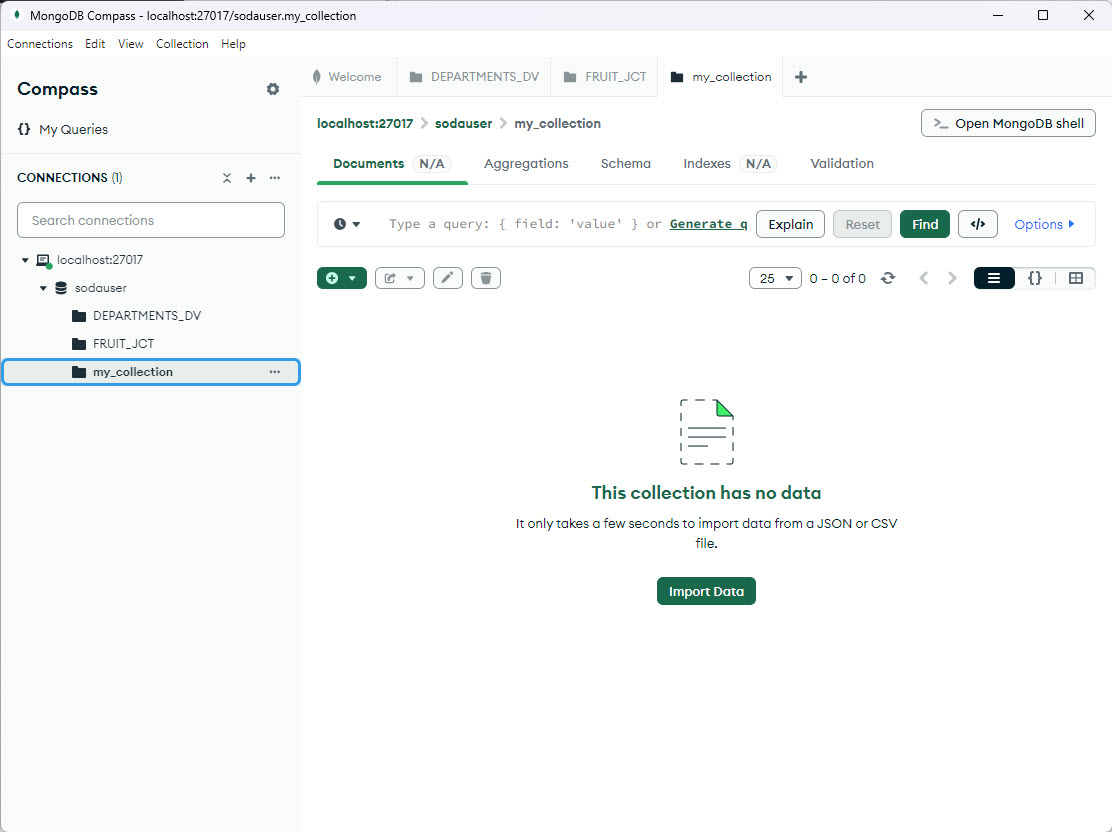
The new collection is now visible in the list. We could add some data to it, like we did previously.
Step 11
12

MongoDB Shell (mongosh)

If we check the database we can see a table has been created to hold the collection data. In Oracle 23ai we can see it listed as a collection. Download MongoDB Shell (mongosh) from here . Install mongosh by extracting it. We start mongosh and connect to "sodauser" using the connection URI we discussed earlier. The following commands are all run from this command prompt. We list the available collections using "show collections" or "show tables". We display the contents of the "FRUIT_JCT" collection. We create a new collection called "my_collection2". We display the list of collections. Notice "my_collection2" has been added. We insert data into the collection. Notice the collection name is references in the command. We display a specific document. First by searching for a specific element value, and second by searching for a specific "_id" value. We update the document, setting a new quantity, then display the updated document. We drop the collection called "my_collection2", and check it is removed from the collection list. We exit mongosh. For more information see: Hope this helps. Regards Tim...
Step 12

Comments (0)

Please to add comments

No comments yet. Be the first to comment!