Using SQL Developer Web
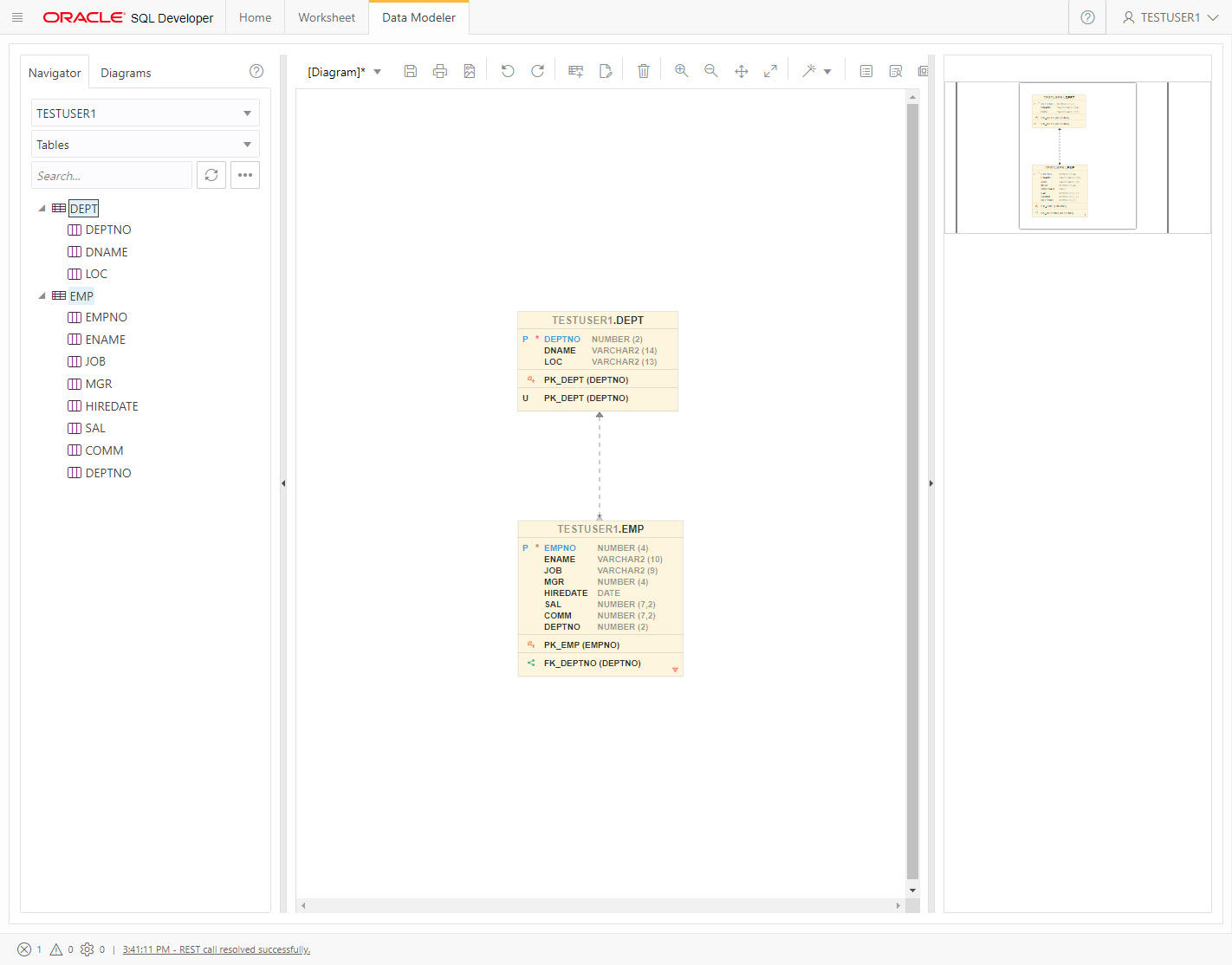
SQL Developer Web allows Oracle REST Data Services (ORDS) to present a web-based version of SQL Developer and SQL Developer Data Modeler. This can be a convenient alternative to opening firewall access to database servers.
- Assumptions
- Create a Test Database User
- Enable ORDS
- Enable SQL Developer Web (ORDS Version 22.1 Onward)
- Enable SQL Developer Web (ORDS Versions 19.4 to 21.4)
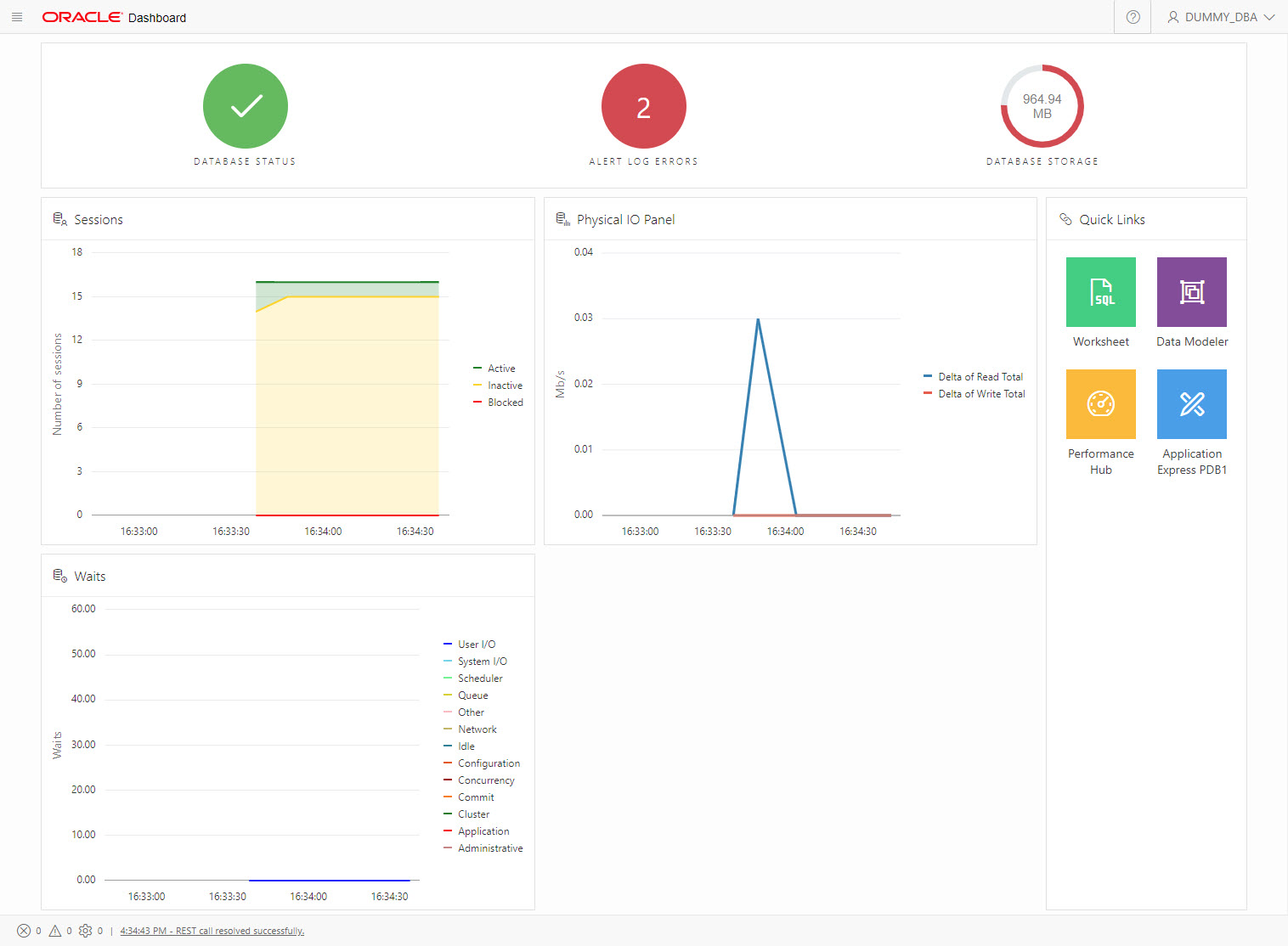
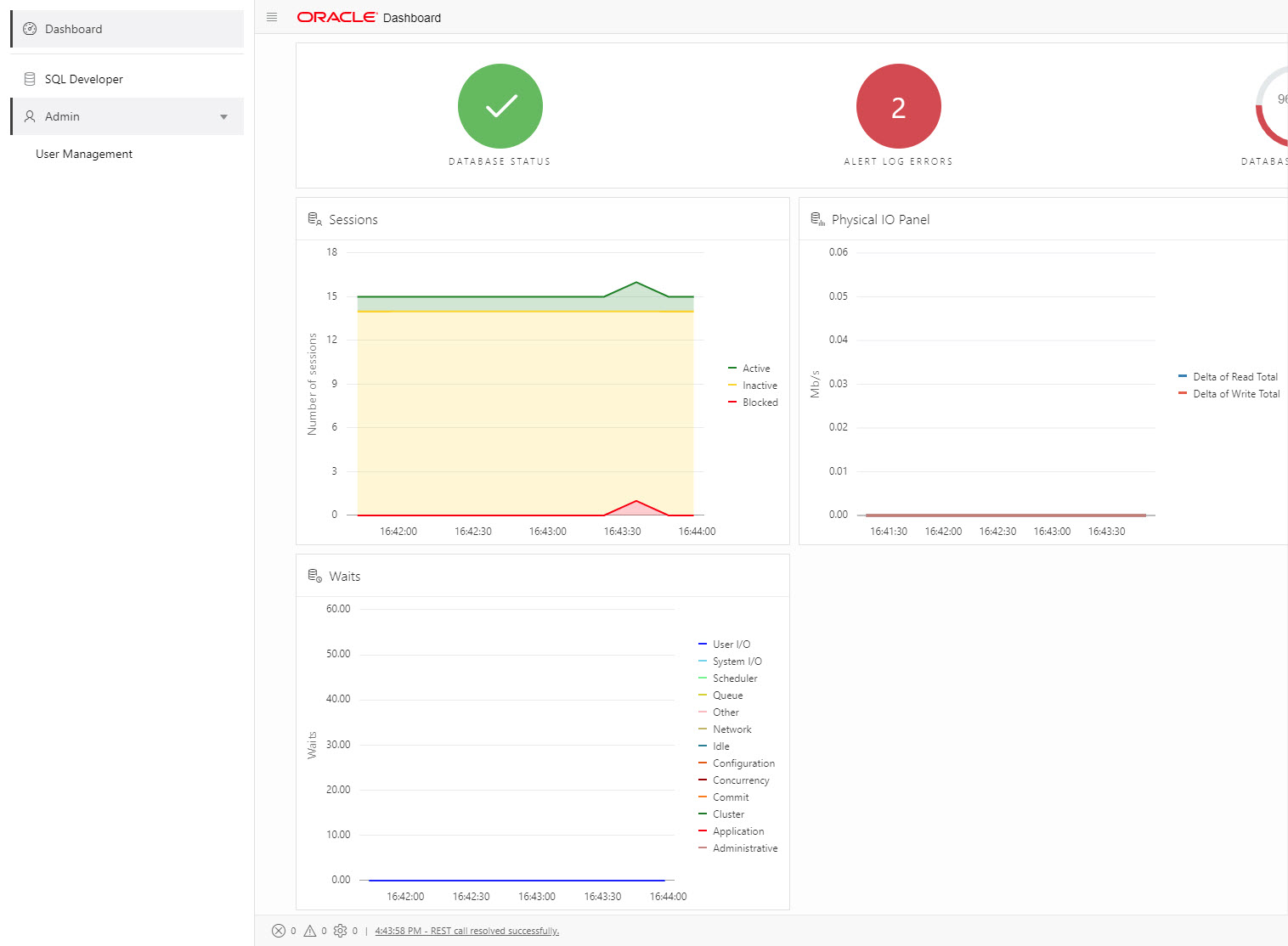
- Using SQL Developer Web
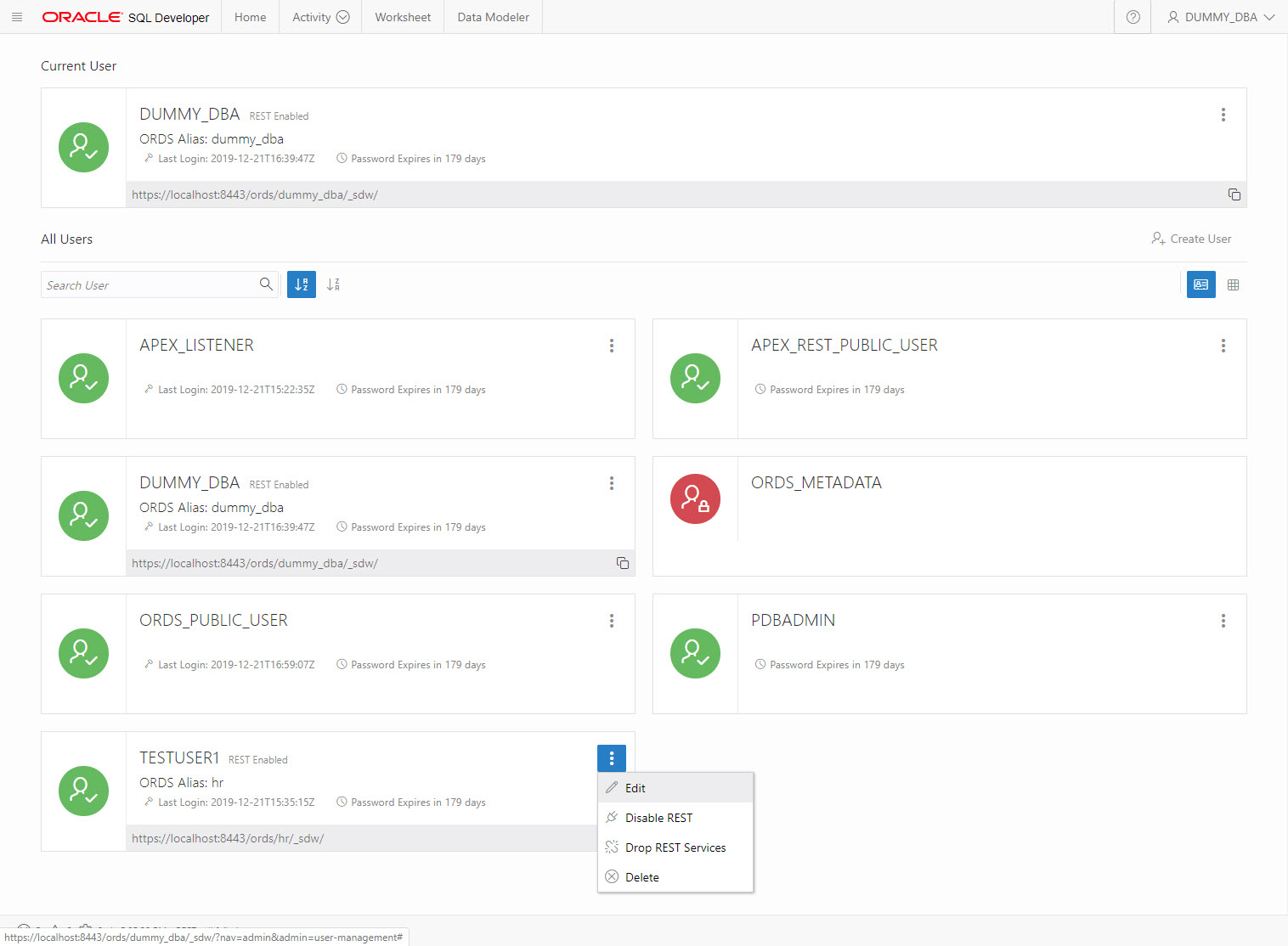
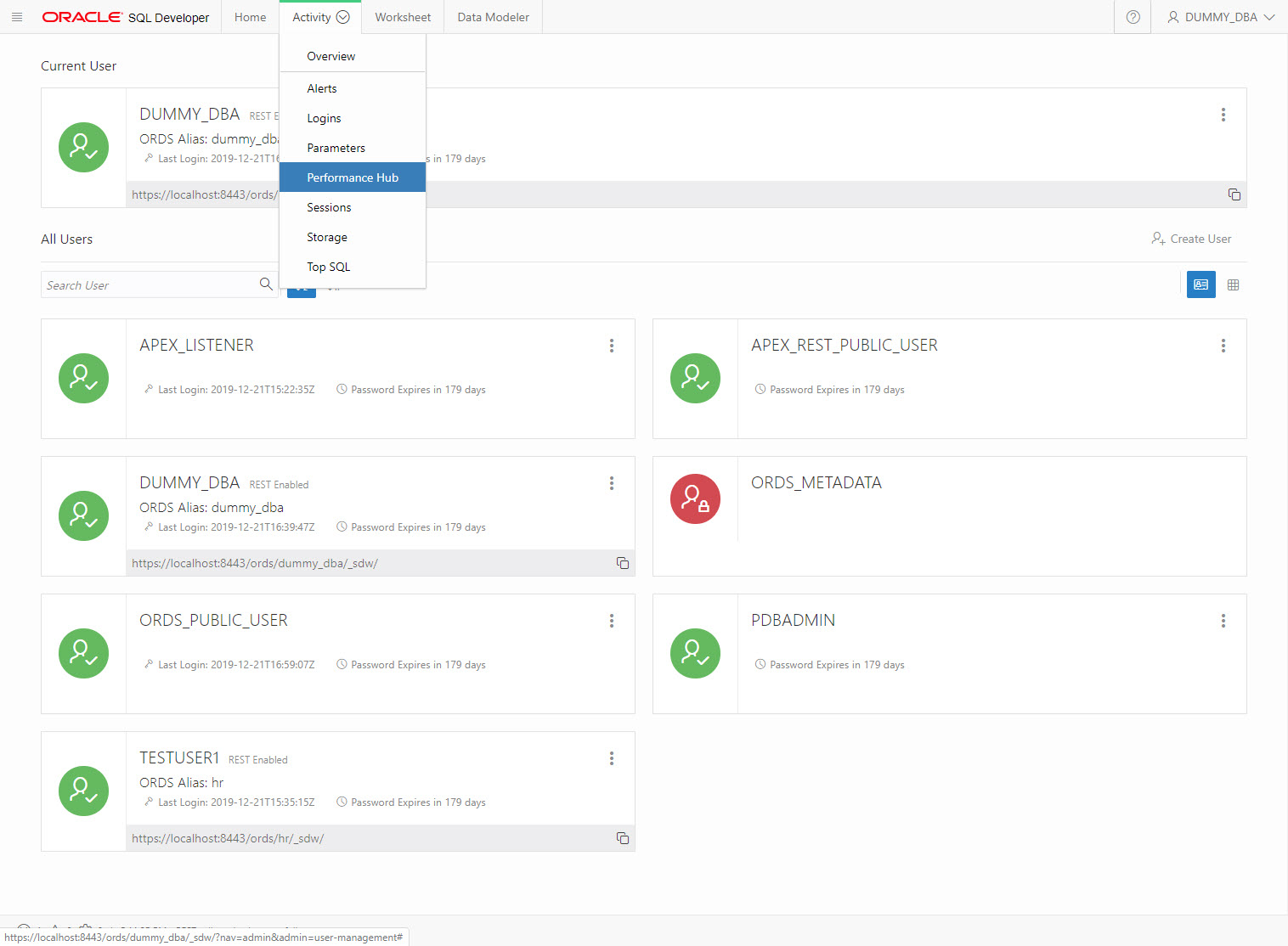
- DBA Access
Related articles.
- Oracle REST Data Services (ORDS) : SQL Developer Web
- Oracle REST Data Services (ORDS) : REST Enabled SQL
- Oracle REST Data Services (ORDS) : All Articles
This article assumes the following.
- You already have a functioning installation of ORDS 19.4 or higher, using an application server or standalone mode. The SQL Developer Web functionality was introduced in ORDS version 19.3 on the cloud and 19.4 for on-prem installations.
- The paths for the ORDS configuration match those from the ORDS installation article listed above.
- You are using HTTPS in a browser to connect to ORDS. SQL Developer Web will only work with HTTP if you enable HTTP access to REST Enabled SQL, which is a bad idea, as you will be transferring passwords across the network. If you want to do it, it is explained here , but please don't!
We need a new database user for our testing.
We connect to the test user and create some test tables.
Enable ORDS for the test schema itself. We could use any unique and legal URL mapping pattern for the schema, so it is not necessary to expose the schema name. In this example we've used a schema alias of "hr".
Normal web services from the schema can now be referenced using the following base URLs. We can only use the HTTPS URL by default for SQL Developer Web.
We are now ready to start.
So far we have enabled the conventional functionality available in previous versions. To enable the SQL Developer Web functionality we must set the attribute. This is the on/off switch for this functionality. As mentioned previously, we also need to enable REST Enabled SQL using the atrribute.
We will need to restart ORDS for this to take effect. The method will vary depending on if you are running ORDS under Tomcat, WebLogic or in standalone mode.
With the above configuration in place, we can access SQL Developer Web and connect to the user with the following URL.
There is also a top-level URL that guides you through the login URL.
It assumes your base path and username match, which is unlikely to be the case for a schema owner or API user, so I'm going to avoid it in this example, but if you are setting up a regular user for a developer, having a matching schema name and base path are not a problem.
So far we have enabled the conventional functionality available in previous versions. To enable the SQL Developer Web functionality we must amend the "defaults.xml" file, which in this case is located in the "/u01/ords/conf/ords" directory. The following entries are on/off switches for REST Enabled SQL and SQL Developer Web. Both must be enabled.
This can be done manually, or with the following commands.
You will need to restart ORDS for this to take effect. The method will vary depending on if you are running ORDS under Tomcat, WebLogic or in standalone mode.
With the above configuration in place, we can access SQL Developer Web and connect to the user with the following URL.
There is also a top-level URL that guides you through the login URL.
It assumes your base path and username match, which is unlikely to be the case for a schema owner or API user, so I'm going to avoid it in this example, but if you are setting up a regular user for a developer, having a matching schema name and base path are not a problem.
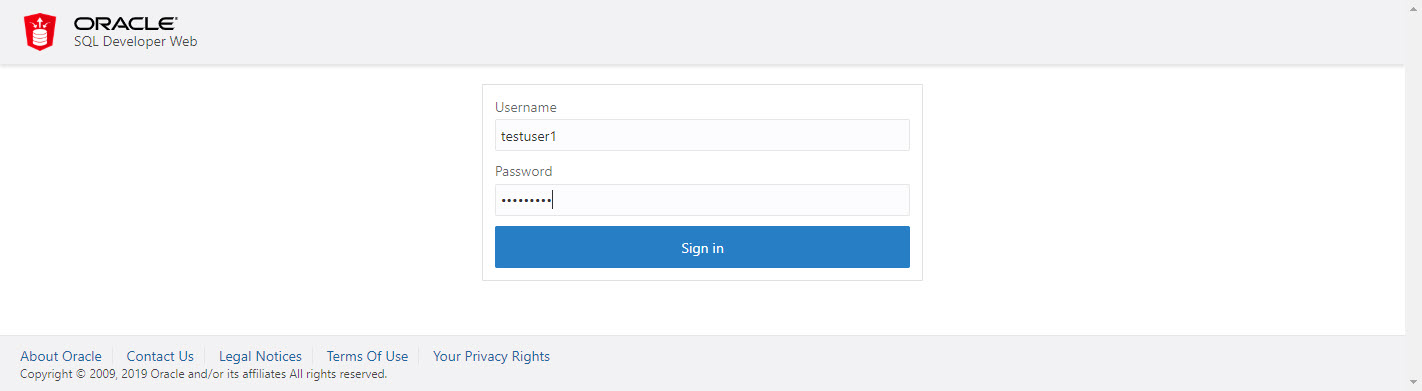
Open a browser and go to the following URL, adjusted to suit your installation. The URL must be to an ORDS enabled schema, via the relevant schema alias.
Enter the credentials of the schema.
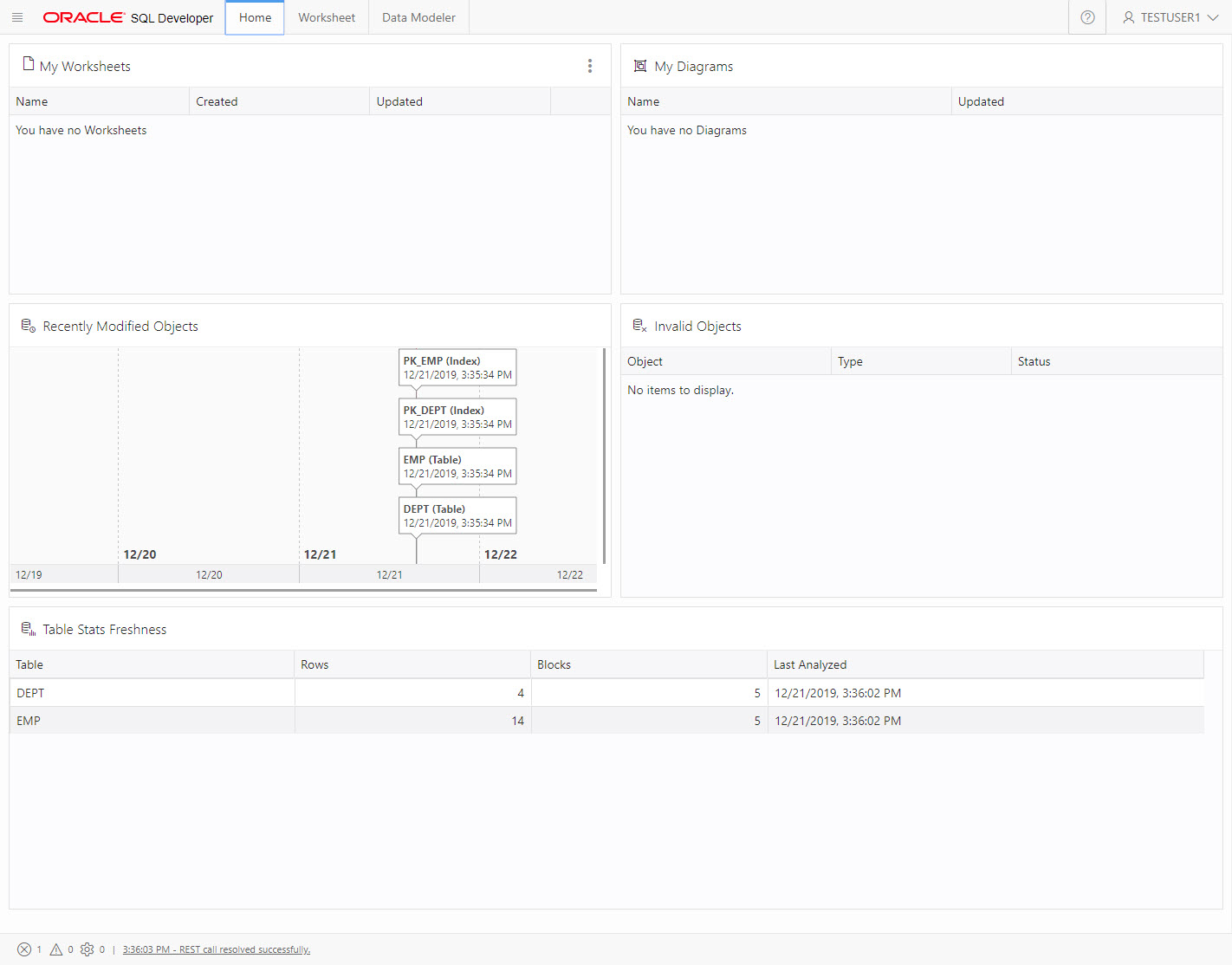
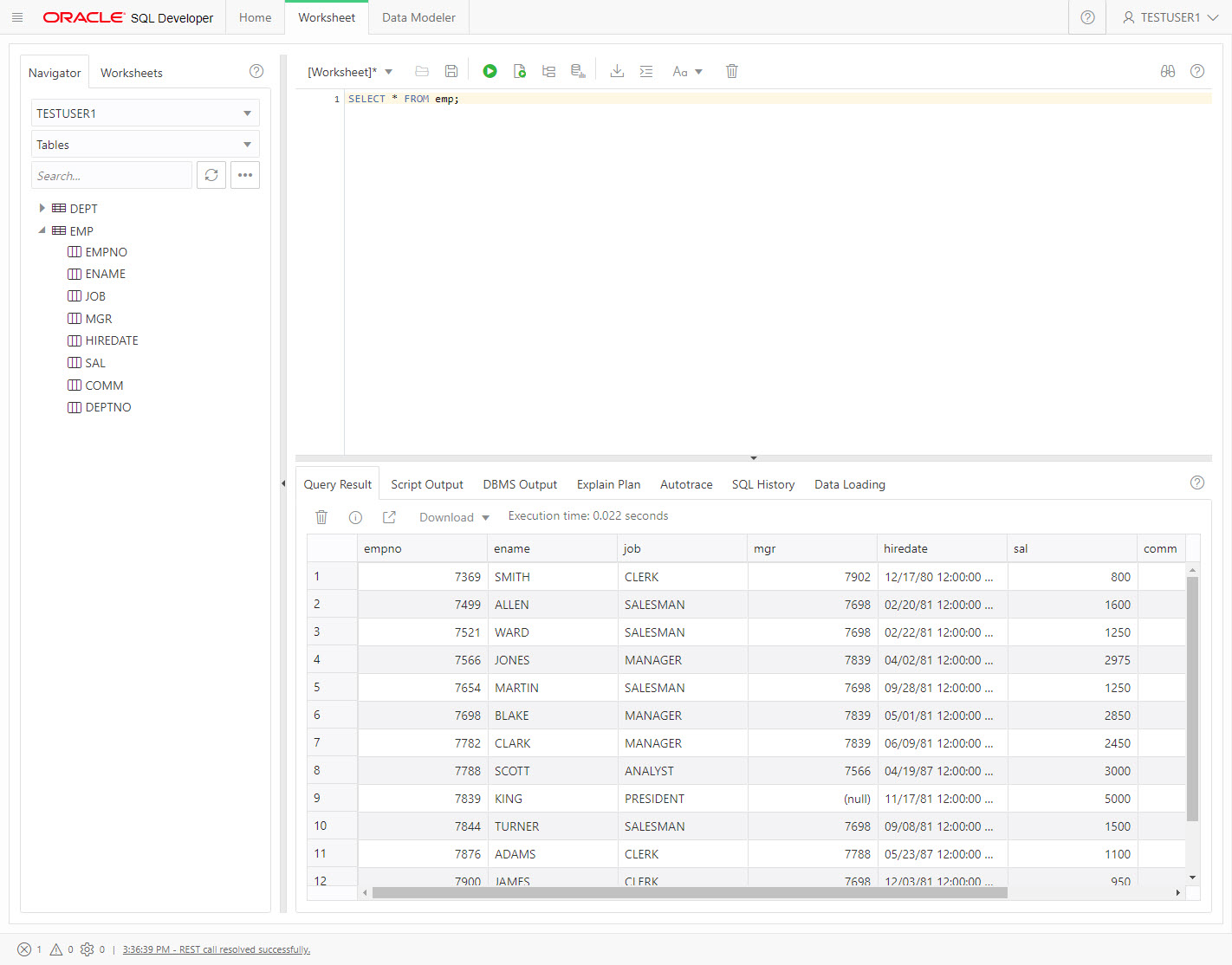
Once logged in you are presented with the "Home" tab. Click the "Worksheet" tab.