DBA Hub

📋Steps in this guide1/27

Oracle REST Data Services (ORDS) : Using SQL Developer

This article gives an overview of using SQL Developer to interact with Oracle REST Data Services (ORDS).
oracle miscconfigurationintermediate
by OracleDba
15 views
1

Enable ORDS for a Schema

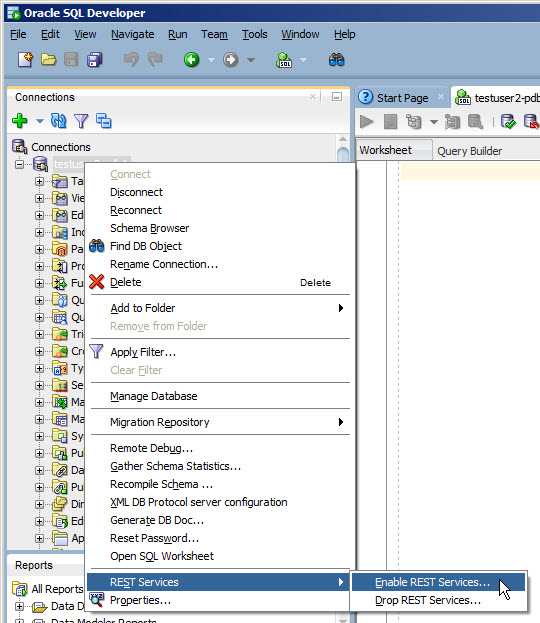
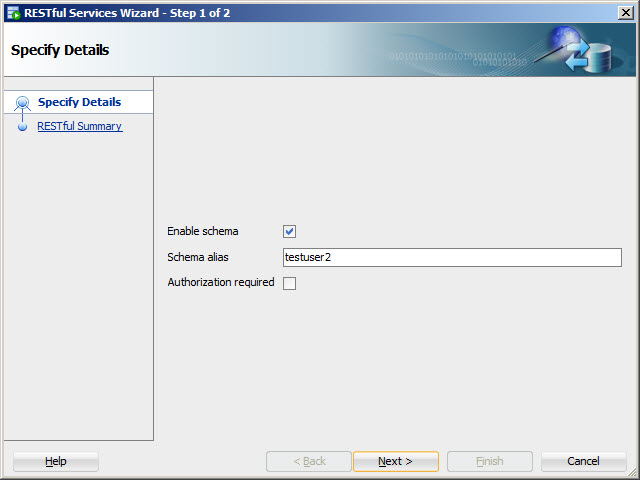
This article gives an overview of using SQL Developer to interact with Oracle REST Data Services (ORDS). - Assumptions - Enable ORDS for a Schema - Enable AutoREST for an Object - Create Basic RESTful Web Service - ORDS Administration - SQLcl REST Command Related articles. - Oracle REST Data Services (ORDS) : All Articles - Oracle REST Data Services (ORDS) : Create Basic RESTful Web Services Using PL/SQL - Oracle REST Data Services (ORDS) : AutoREST - Oracle REST Data Services (ORDS) : Configure Multiple Databases - Oracle REST Data Services (ORDS) : Authentication This article assumes the following. Right-click on the connection and select the "REST Services > Enable REST Services..." menu option. Check the "Enable schema" checkbox and alter the schema alias if you don't want to expose the schema name in the URL. In this case we will ignore authorization. Click the "Next >" button.
Step 1
2

Enable ORDS for a Schema

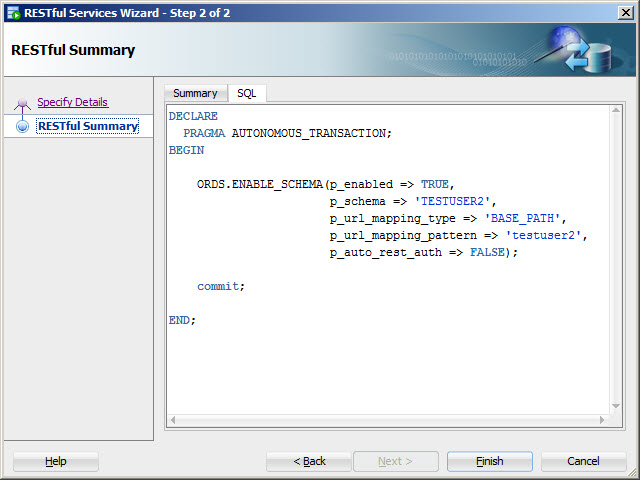
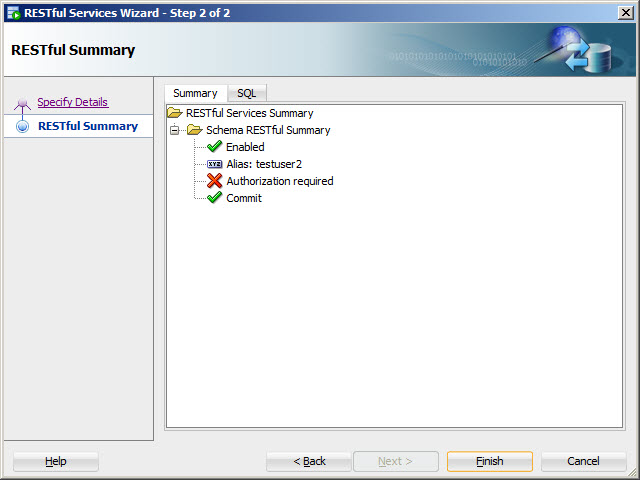
If you want to see the code that will run to enable ORDS for the schema, click the "SQL" tab.
Step 2
3

Enable ORDS for a Schema

Click the "Finish" button.
Step 3
4

Enable ORDS for a Schema

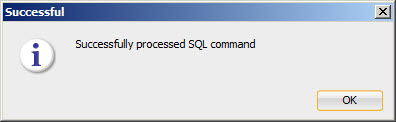
Click the "OK" button.
Step 4
5

Enable AutoREST for an Object

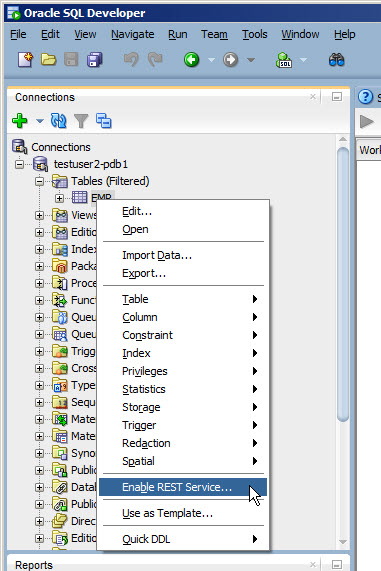
Right-click on the object and select the "Enable REST Service..." menu option.
Step 5
6

Enable AutoREST for an Object

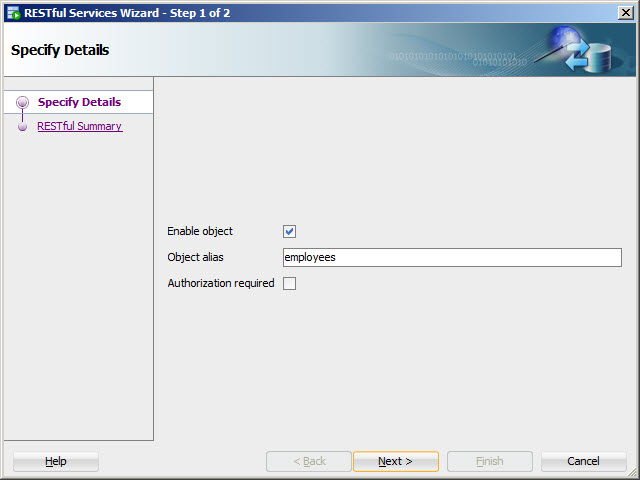
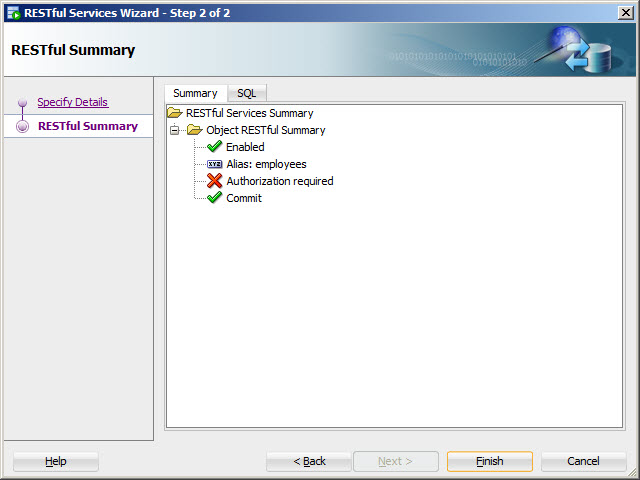
Check the "Enable object" checkbox and specify an object alias if you don't want to expose the object name in the URL. In this case we will ignore authorization. Click the "Next >" button.
Step 6
7

Enable AutoREST for an Object

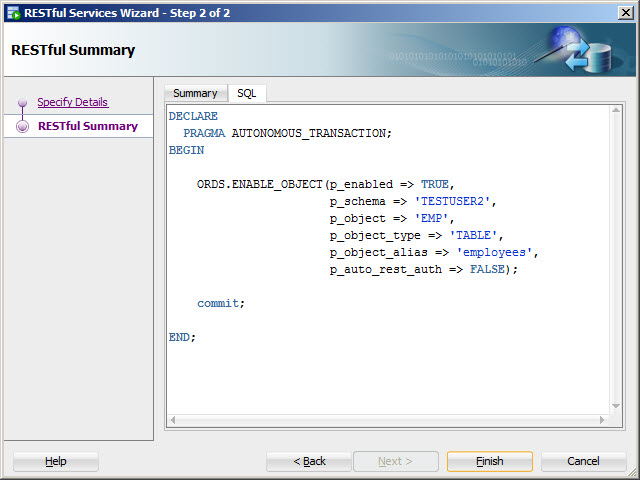
If you want to see the code that will run to enable AutoREST for the object, click the "SQL" tab.
Step 7
8

Enable AutoREST for an Object

Click the "Finish" button.
Step 8
9

Enable AutoREST for an Object

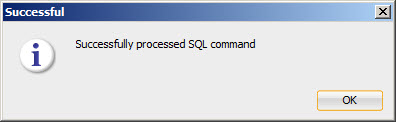
Click the "OK" button.
Step 9
10

Create Basic RESTful Web Service

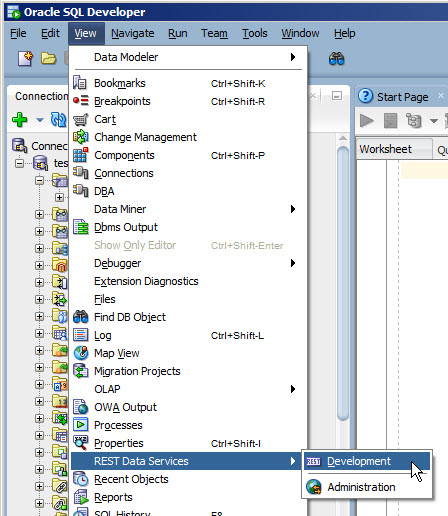
To let SQL Developer connect to your ORDS server, you will need to create a user through ORDS with the "SQL Developer" role. The credentials are stored on the ORDS server in the following location. With the ORDS user in place, you can now proceed to develop web services using SQL Developer. Select the "View > REST Data Service > Development" menu option.
Step 10
11

Create Basic RESTful Web Service

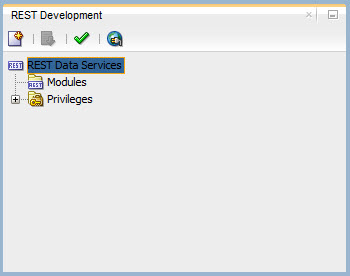
On the resulting "REST Development" pane, click the connect button.
Step 11
12

Create Basic RESTful Web Service

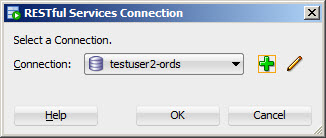
If you don't already have a connection, click the "+" button.
Step 12
13

Create Basic RESTful Web Service

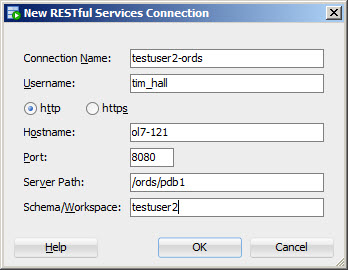
Enter the connection details, including the "Username" configured on the ORDS server, then click the "OK" button.
Step 13
14

Create Basic RESTful Web Service

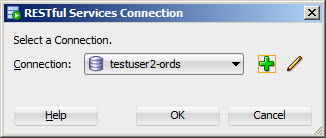
Click the "OK" button.
Step 14
15

Create Basic RESTful Web Service

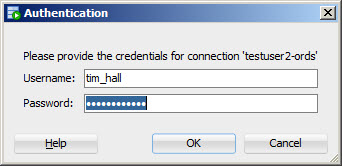
Enter the ORDS credentials and click the "OK" button.
Step 15
16

Create Basic RESTful Web Service

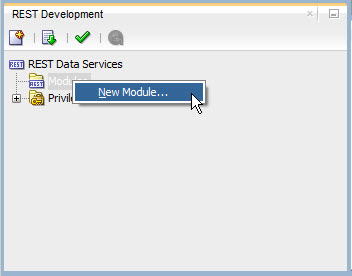
Right-click on the "Modules" tree node and select the "New Module..." menu option.
Step 16
17

Create Basic RESTful Web Service

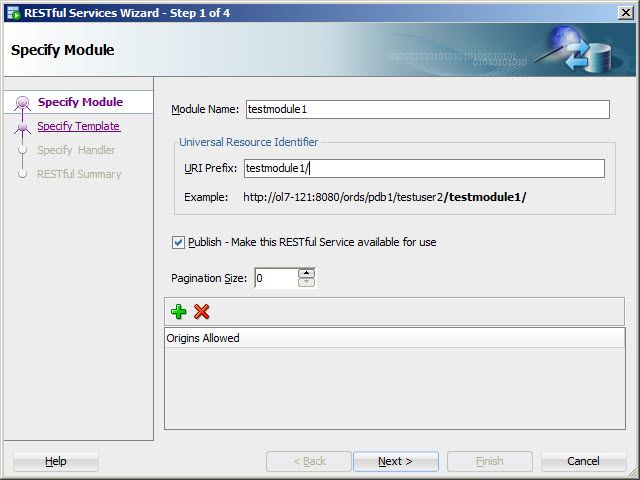
Enter the module details and click the "Next >" button.
Step 17
18

Create Basic RESTful Web Service

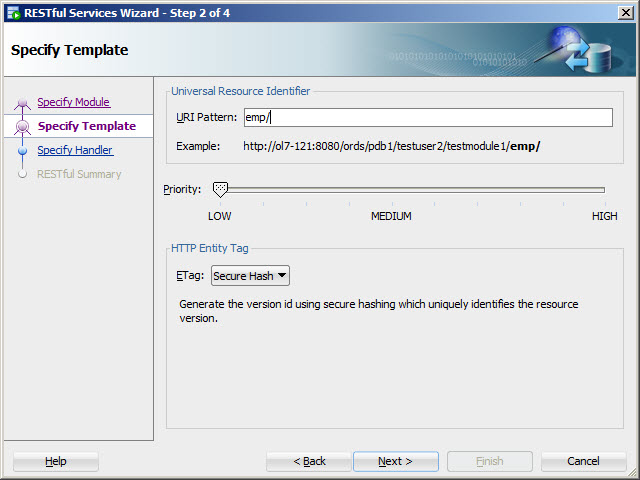
Enter the template details and click the "Next >" button.
Step 18
19

Create Basic RESTful Web Service

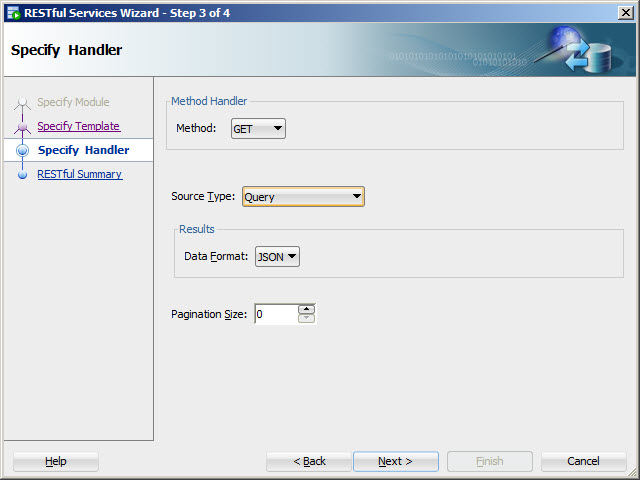
Enter the handler details and click the "Next >" button.
Step 19
20

Create Basic RESTful Web Service

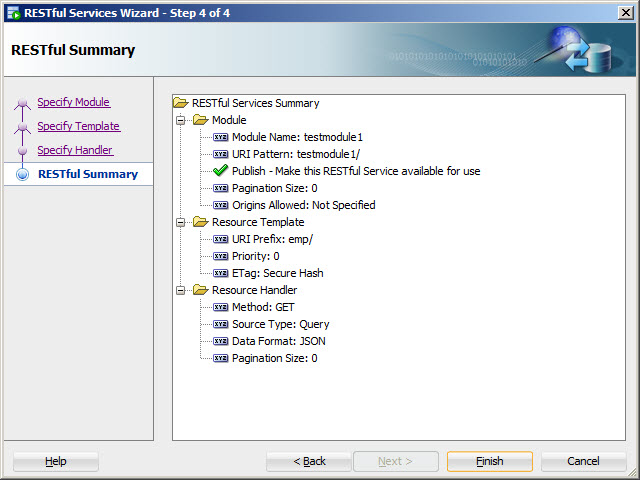
Click the "Finish" button.
Step 20
21

Create Basic RESTful Web Service

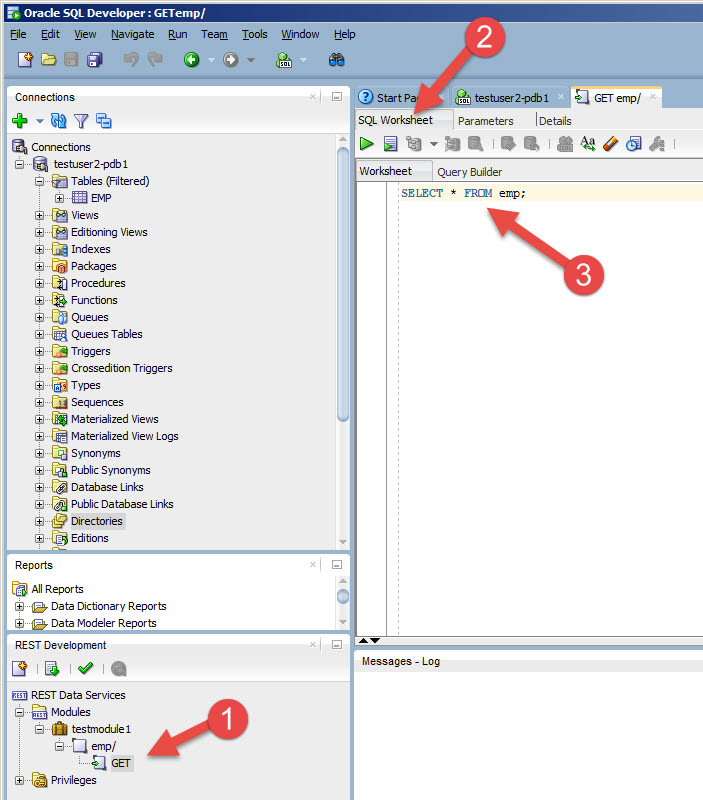
Expand the tree and click on the GET handler. Click on the "Worksheet" tab. Enter the query associated with the GET handler.
Step 21
22

Create Basic RESTful Web Service

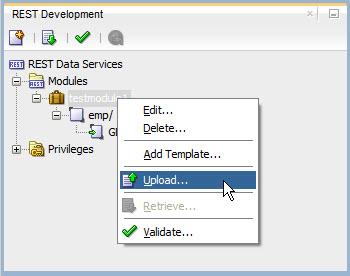
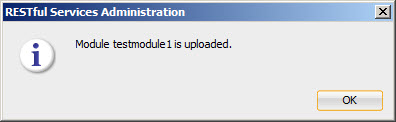
All changes are performed locally, so changes need to be uploaded to the server to take effect. Right-click on the module and select the "Upload..." menu option.
Step 22
23

Create Basic RESTful Web Service

Click the "OK" button.
Step 23
24

Create Basic RESTful Web Service

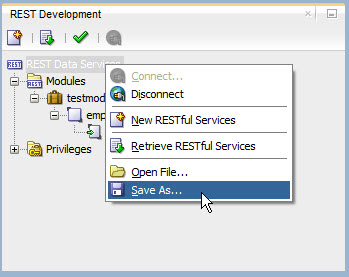
The web service should now be available from your ORDS. If you want to save a local copy of the configuraton, right-click on the tree and select the "Save As..." menu option, then name and save the zip file. At the time of writing, this configuration is only a XML representation of the configuration, not the SQL used to create it.
Step 24
25

ORDS Administration

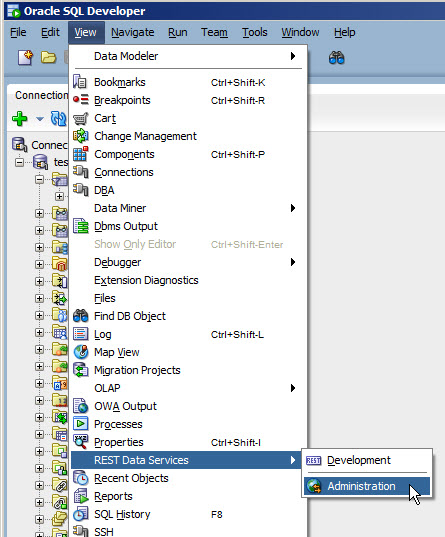
You will need to create an ORDS user with the "Listener Administrator" role to let SQL Developer connect to your ORDS server for administration. The credentials are stored on the ORDS server in the following location. With the ORDS user in place, you can now administer ORDS using SQL Developer. Select the "View > REST Data Service > Administration" menu option.
Step 25
26

ORDS Administration

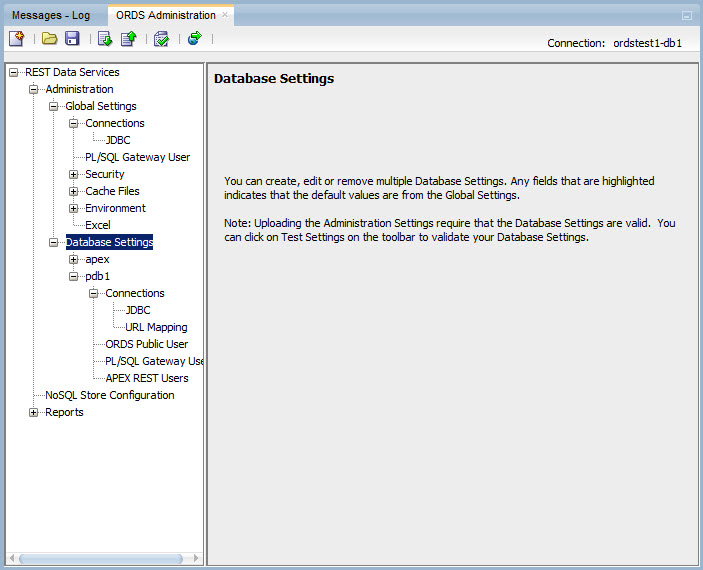
Connect as you did for the developer pane. All configuration changes are local and need to be uploaded to the ORDS server for them to take effect.
Step 26
27

SQLcl REST Command

The SQLcl utility includes a command that can be quite useful. Let's get a list of the REST modules. Now we know the module name, we can export the definition. For more information see: - Oracle REST Data Services Documentation Release 3.0 - Oracle REST Data Services (ORDS) : All Articles - Oracle REST Data Services (ORDS) : Create Basic RESTful Web Services Using PL/SQL - Oracle REST Data Services (ORDS) : AutoREST - Oracle REST Data Services (ORDS) : Configure Multiple Databases - Oracle REST Data Services (ORDS) : Authentication Hope this helps. Regards Tim...
Step 27

Comments (0)

Please to add comments

No comments yet. Be the first to comment!