Installation
This article presents a brief overview of installing Oracle WebLogic Server (WLS) 12cR2 (12.2.1) on Oracle Linux 6 and 7.
- Assumptions
- Download Software
- Setup
- Installation
- Create Domain
- Post-Installation
- Patching WebLogic Server
Related articles.
This article assumes you have an existing server (real or virtual) with either Oracle Linux 6.x or 7.x installed on it. For instruction on how to do this check out the following articles.
- Oracle Linux 6 (OL6) Installation
- Oracle Linux 7 (OL7) Installation
I picked the "Desktop" option for the OL6 installation and the "Server with GUI" option for OL7, so I would have a graphical interface without having to select separate package groups. Everything in the installation will be 64-bit.
Download the Weblogic Server 12c software from Oracle Technology Network .
- Java Development Kit (I used 8u144 jdk-8u144-linux-x64.tar.gz)
- Fusion Middleware Infrastructure Installer (1.4G)
Remember, you will need the infrastructure version of WebLogic if you plan to do an Oracle Forms and Reports Services installation.
The following actions should be performed by the "root" user.
Make sure the "/etc/hosts" file contains correct entries for both the "localhost" and real host names.
Create a new group and user.
Create the directories in which the Oracle software will be installed.
Append the following entries into the "/home/oracle/.bash_profile" file.
Install the JDK.
For Oracle Linux 6, as specified in MOS Note [ID 1487773.1] , amend the "/etc/security/limits.d/90-nproc.conf" file, making the following change.
The images were originally captured from a 12.2.1.0 installation. The process is the same for 12.2.1.2.
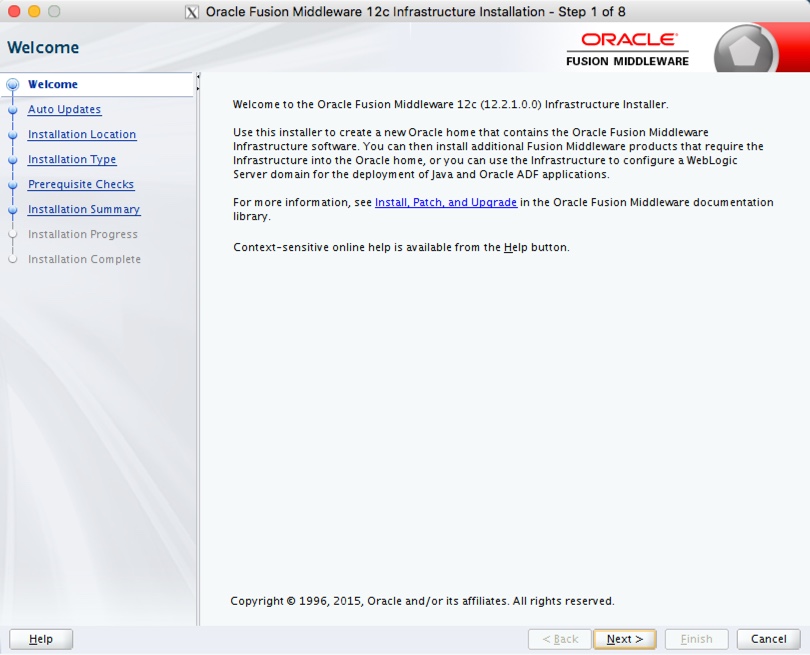
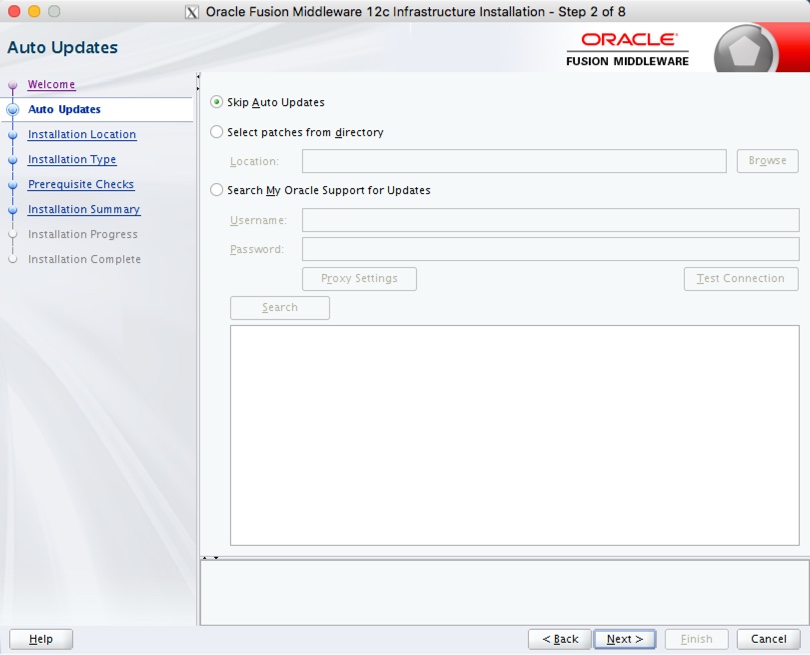
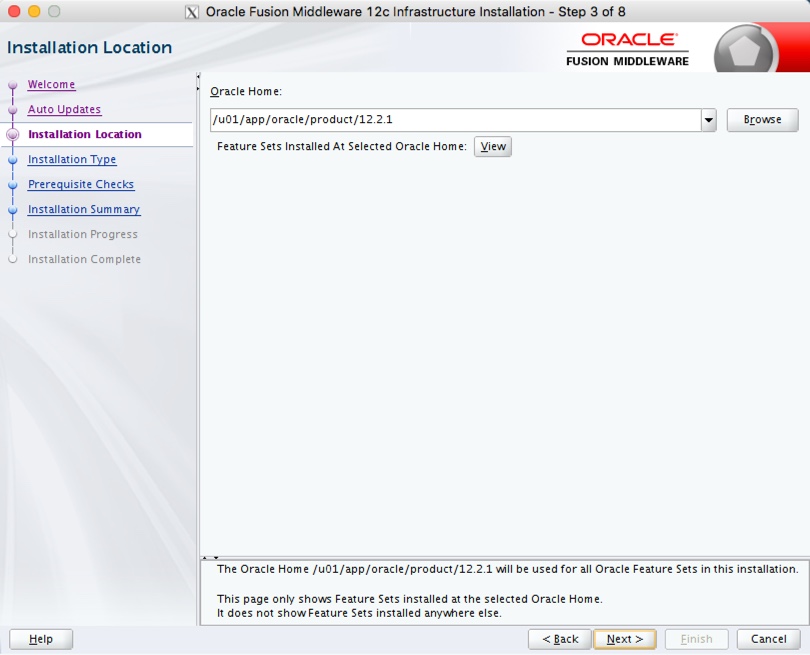
Run the installer as the "oracle" user.
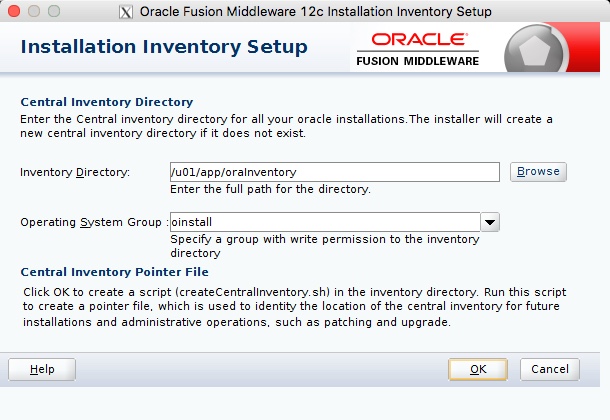
If this is is the first installation on the machine you will need to specify an inventory location. Enter the inventory location, like "/u01/app/oraInventory" and click the "OK" button.
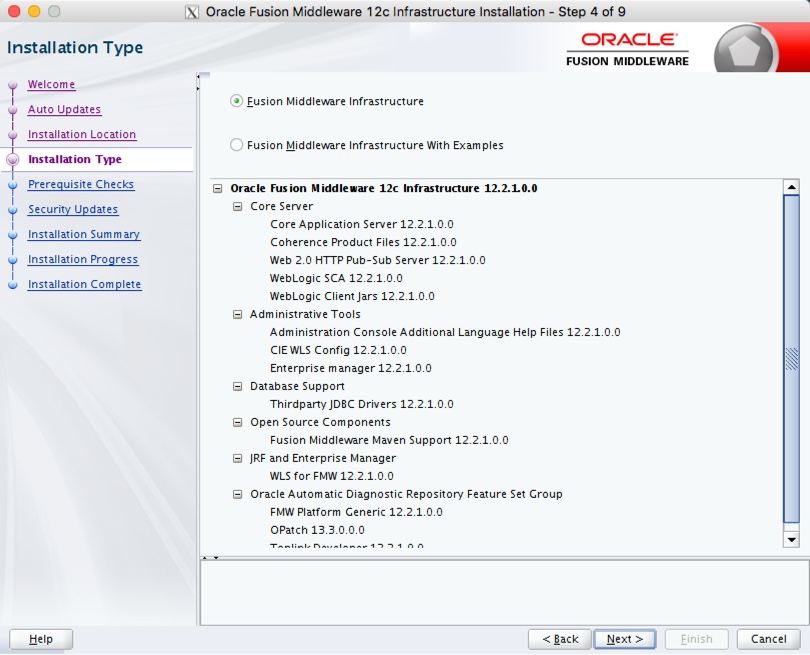
Accept the "Fusion Middleware Infrastructure" option by clicking the "Next" button.
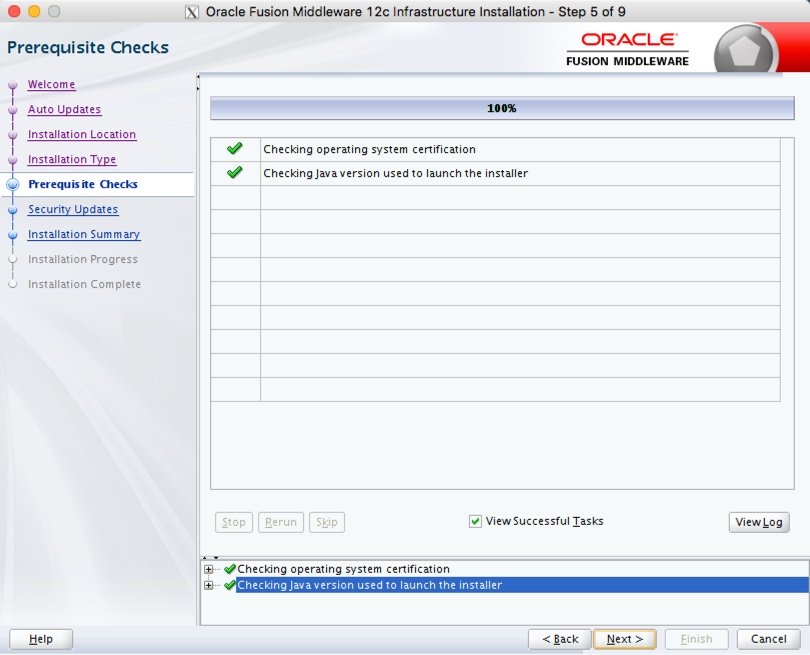
Wait for the prerequisite checks to complete. If there are failures, correct them and rerun the checks. If there are no failures, click the "Next" button.
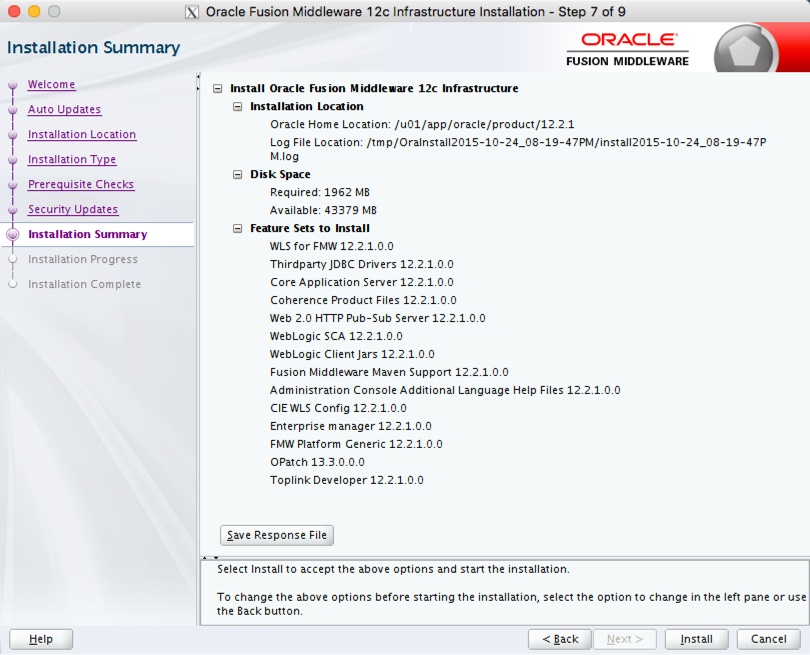
If you are happy with the summary information, click the "Install" button.
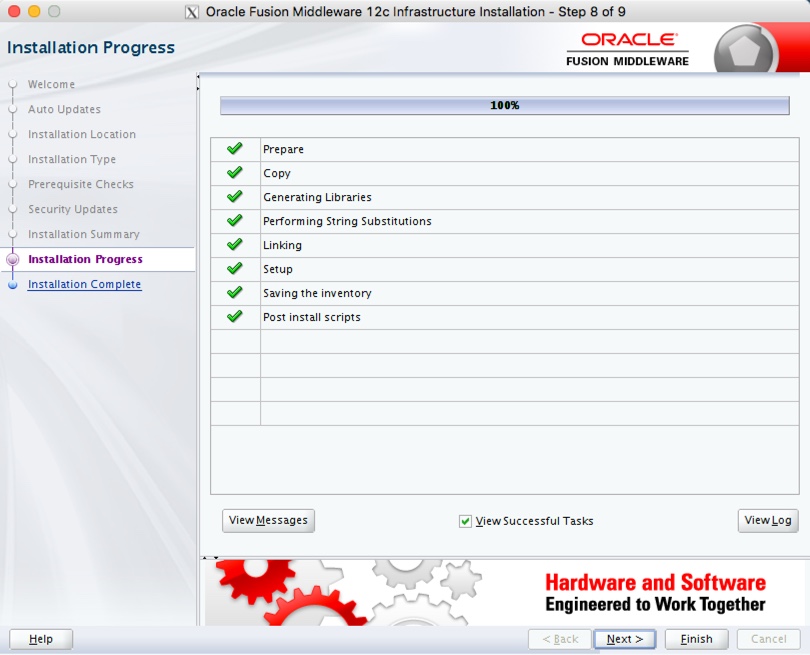
Wait for the installation to complete, then click the "Next" button.
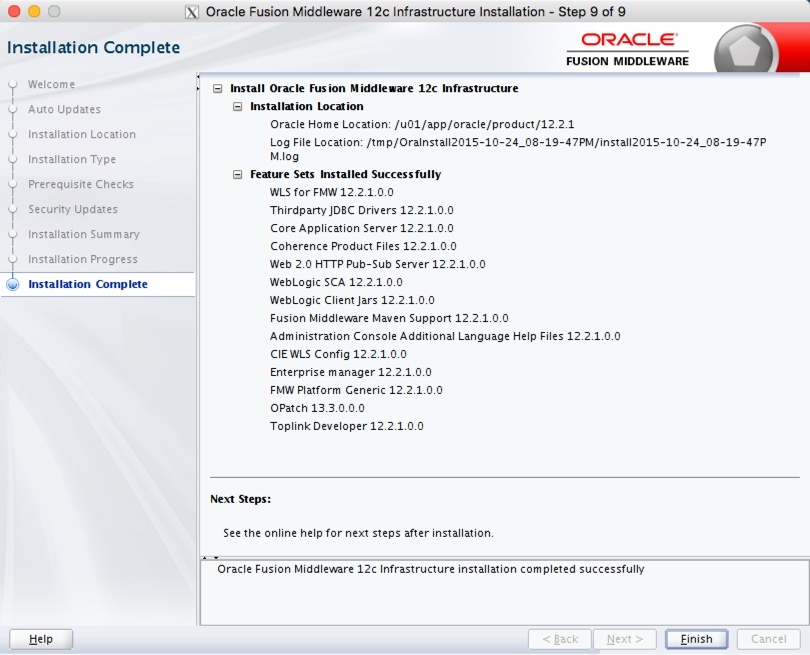
On the installation complete screen, click the "Finish" button to launch the Configuration Wizard.
If you are doing an installation for Oracle Forms and Reports Services, you don't need to create the domain at this point, so stop here.
Launch the Configuration Wizard with the following command.
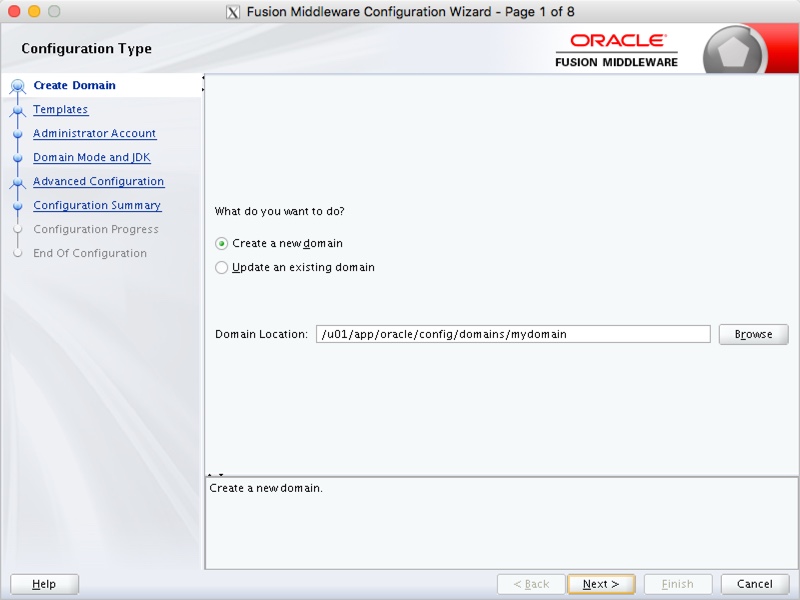
Accept the "Create a new domain" option, enter the domain name at the end of the "Domain Location", then click the "Next" button. In this case my domain was called "mydomain", so the path I used was "/u01/app/oracle/config/domains/mydomain".
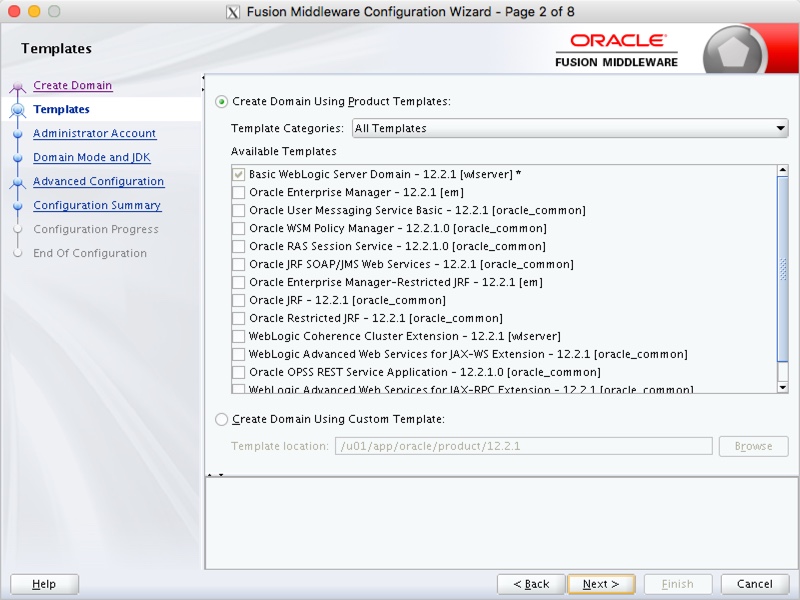
Select the required product template and click the "Next" button.
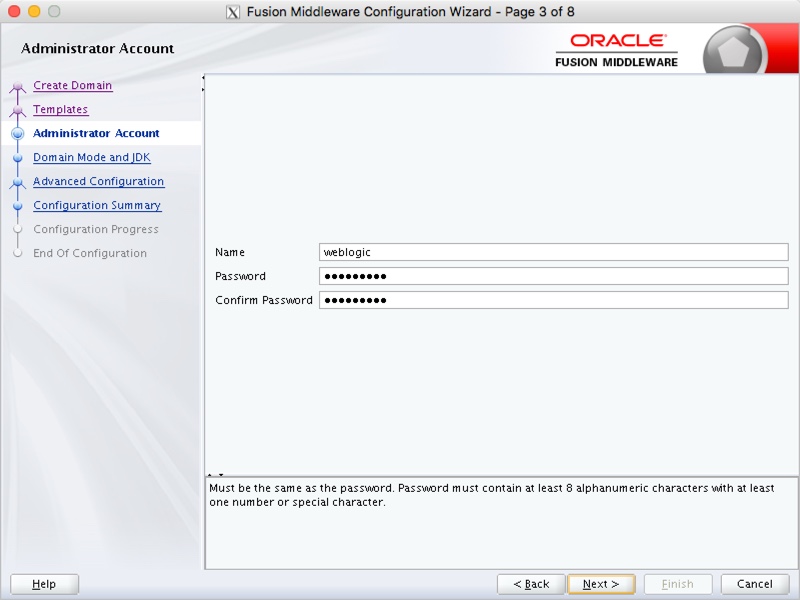
Enter the administrator credentials and click the "Next" button.
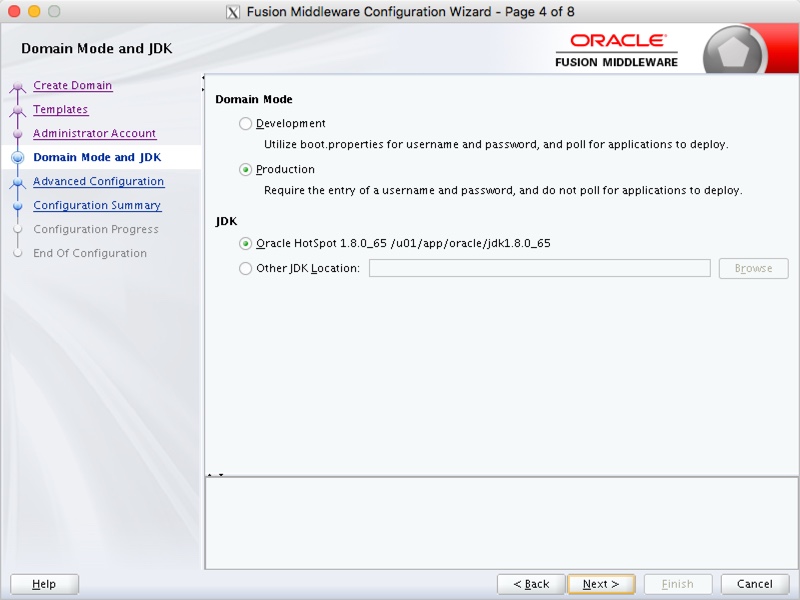
Enter the domain mode and JDK details, then click the "Next" button.
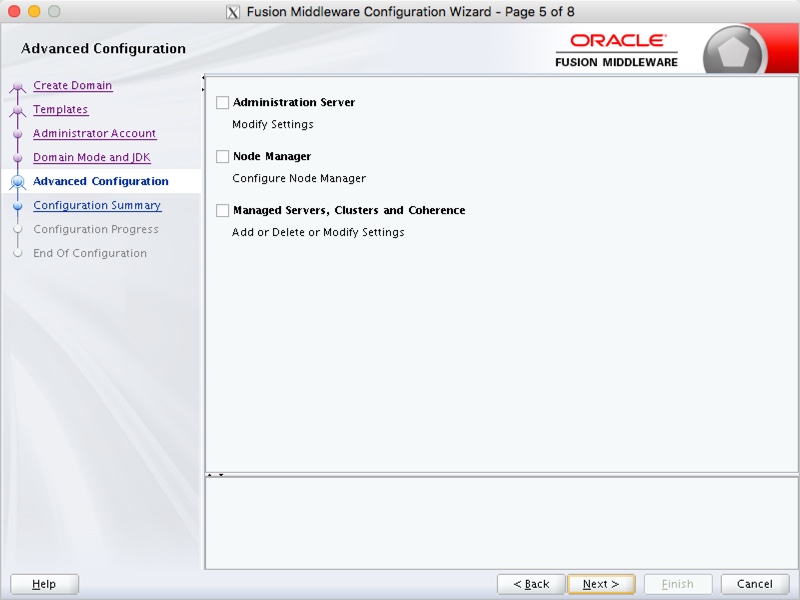
Select any required advanced configuration options. For this example I ignored the advanced configuration. Click the "Next" button.
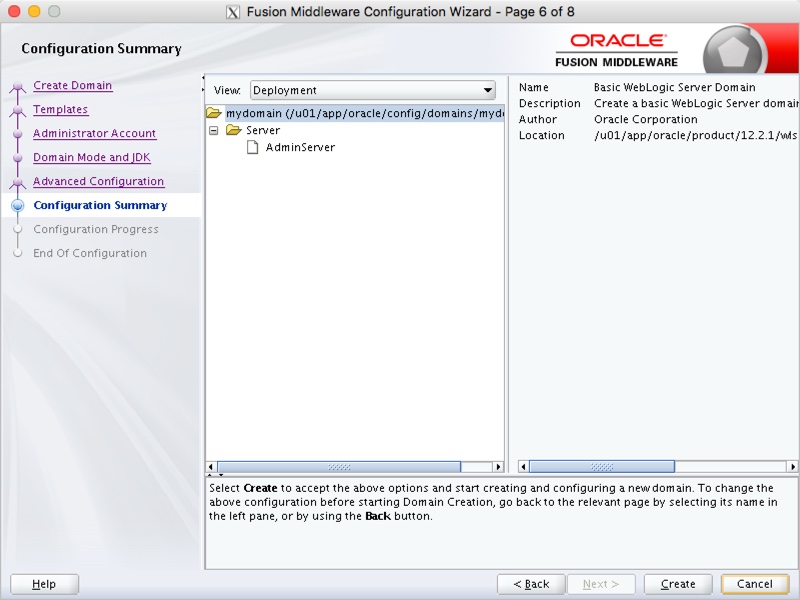
If you are happy with the configuration summary screen, click the "Create" button.
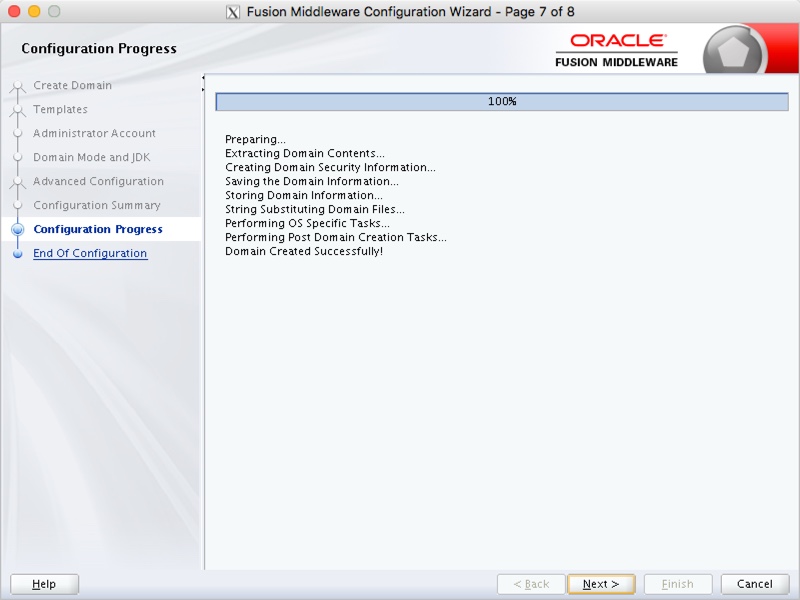
Once the domain is created, click the "Next" button.
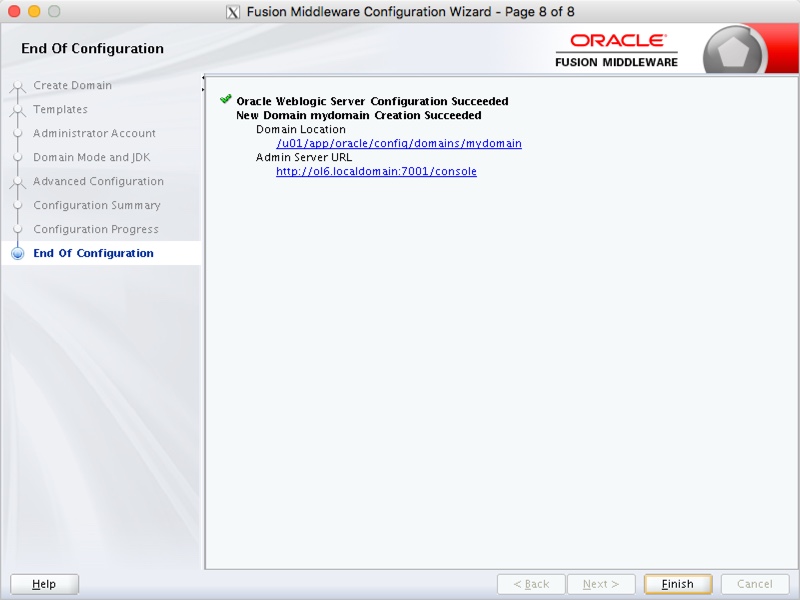
Make a note of the Admin Server URL and click the "Finish" button.
If you chose the "Production Mode" options for the domain, you will need to create a "boot.properties" file for the scripts referred to later to work without credentials. Adjust the DOMAIN_HOME and credentials appropriately.
The "$ORACLE_BASE/config/domains/mydomain" directory now contains a script that can be used to start the server. Remember to use the "&" if you want access to the commandline to be returned.
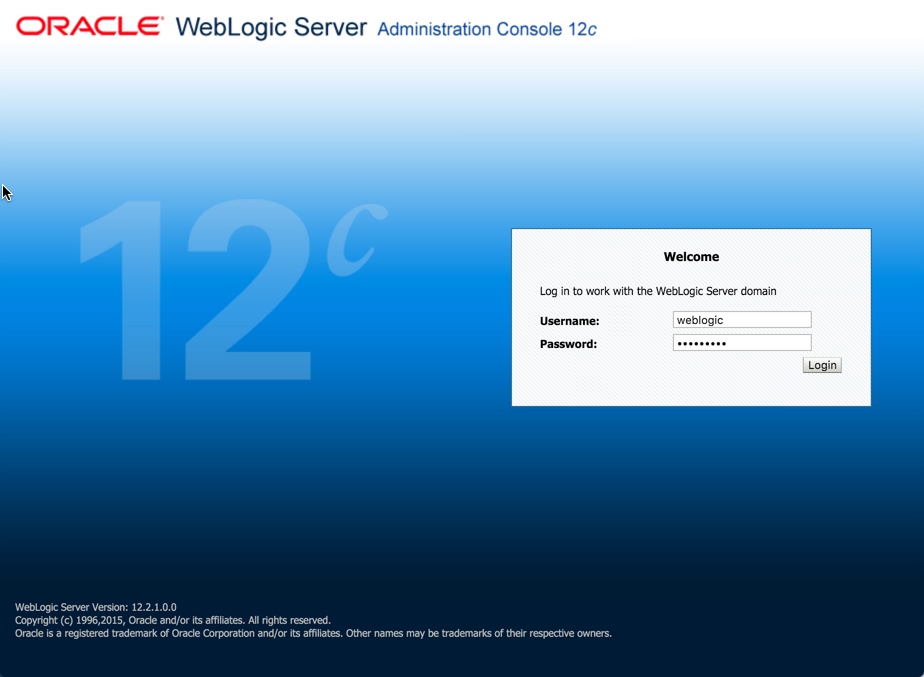
Once the server is started you can access the administrator console using the "http://hostname:port/console" URL. Log in using the username and password provided in the previous step.
The following scripts are useful.
Applying patches to WebLogic Server 12c is done using the OPatch utility. Make sure any processes running under this WebLogic installation are stopped before applying a patch.
Download the latest version of OPatch and the WebLogic updates from Oracle Support and put them into the "/u01/software" directory with the other software. For example.
- OPatch : p6880880_132000_Generic.zip *** See Note Below
- Updates : p22331568_122100_Generic.zip
At the time of writing, the latest version of OPatch (OUI NextGen 13.2) is older than the version of OPatch that ships with WebLogic Server 12.2.1.
Assuming a newer version of OPatch were available you would unzip the OPatch utility and add it to your path.
Since there isn't a newer version available at the time of writing, we will use the existing one.
Unzip the patch and change to the resulting directory, then apply the patch.
Answer any prompts and take appropriate action when required.
When the patch is complete, check the WebLogic version using the following command. Depending on the scale of the patch, the version may not have changed.
For more information see:
Hope this helps. Regards Tim...
Accept the "Fusion Middleware Infrastructure" option by clicking the "Next" button.
Wait for the prerequisite checks to complete. If there are failures, correct them and rerun the checks. If there are no failures, click the "Next" button.
If you are happy with the summary information, click the "Install" button.
Wait for the installation to complete, then click the "Next" button.
On the installation complete screen, click the "Finish" button to launch the Configuration Wizard.
If you are doing an installation for Oracle Forms and Reports Services, you don't need to create the domain at this point, so stop here.
Launch the Configuration Wizard with the following command.
Accept the "Create a new domain" option, enter the domain name at the end of the "Domain Location", then click the "Next" button. In this case my domain was called "mydomain", so the path I used was "/u01/app/oracle/config/domains/mydomain".
Select the required product template and click the "Next" button.
Enter the administrator credentials and click the "Next" button.
Enter the domain mode and JDK details, then click the "Next" button.
Select any required advanced configuration options. For this example I ignored the advanced configuration. Click the "Next" button.
If you are happy with the configuration summary screen, click the "Create" button.
Once the domain is created, click the "Next" button.
Make a note of the Admin Server URL and click the "Finish" button.
If you chose the "Production Mode" options for the domain, you will need to create a "boot.properties" file for the scripts referred to later to work without credentials. Adjust the DOMAIN_HOME and credentials appropriately.
The "$ORACLE_BASE/config/domains/mydomain" directory now contains a script that can be used to start the server. Remember to use the "&" if you want access to the commandline to be returned.
Once the server is started you can access the administrator console using the "http://hostname:port/console" URL. Log in using the username and password provided in the previous step.
The following scripts are useful.
Applying patches to WebLogic Server 12c is done using the OPatch utility. Make sure any processes running under this WebLogic installation are stopped before applying a patch.
Download the latest version of OPatch and the WebLogic updates from Oracle Support and put them into the "/u01/software" directory with the other software. For example.
- OPatch : p6880880_132000_Generic.zip *** See Note Below
- Updates : p22331568_122100_Generic.zip
At the time of writing, the latest version of OPatch (OUI NextGen 13.2) is older than the version of OPatch that ships with WebLogic Server 12.2.1.
Assuming a newer version of OPatch were available you would unzip the OPatch utility and add it to your path.
Since there isn't a newer version available at the time of writing, we will use the existing one.
Unzip the patch and change to the resulting directory, then apply the patch.
Answer any prompts and take appropriate action when required.
When the patch is complete, check the WebLogic version using the following command. Depending on the scale of the patch, the version may not have changed.
For more information see:
Hope this helps. Regards Tim...