DBA Hub

📋Steps in this guide1/21

SQL Developer 3.1 Data Pump Wizards (expdp, impdp)

This article gives an overview of the Data Pump Wizards included in SQL Developer 3.1.
oracle miscconfigurationintermediate
by OracleDba
12 views
1

General Points

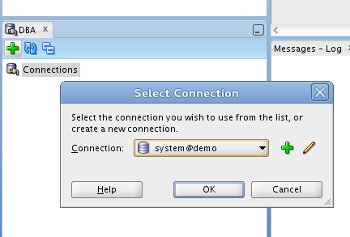
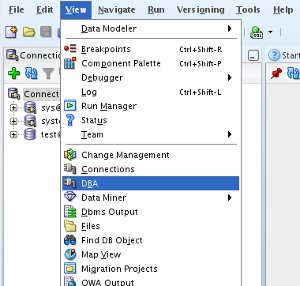
SQL Developer 3.1 includes a neat GUI interface for Data Pump, allowing you to do on-the-fly exports and imports without having to remember the expdp/impdp command line syntax. This article gives an overview of these wizards. - General Points - Exports (expdp) - Imports (impdp) Related articles. The data pump wizards are accessible from the DBA browser (View > DBA). If no connections are available, click the "+" icon and select the appropriate connection from the drop-down list and click the "OK" button. In this case I will be using the "system" connection.
Step 1
2

General Points

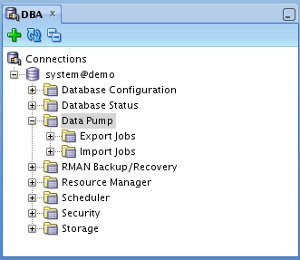
Expanding the connection node in the tree lists a number of functions, including "Data Pump". Expanding the "Data Pump" node displays "Export Jobs" and "Import Jobs" nodes, which can be used to monitor running data pump jobs.
Step 2
3

Exports (expdp)

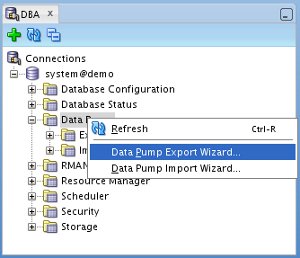
This tree will be the starting point for the operations listed in the following sections. Right-click on either the "Data Pump" or "Export Jobs" tree node and select the "Data Pump Export Wizard..." menu option.
Step 3
4

Exports (expdp)

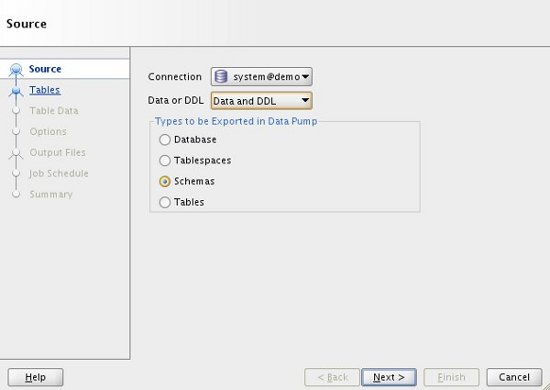
Check the connection details are correct and select the type of export you want to perform, then click the "Next" button. In this case I will do a simple schema export.
Step 4
5

Exports (expdp)

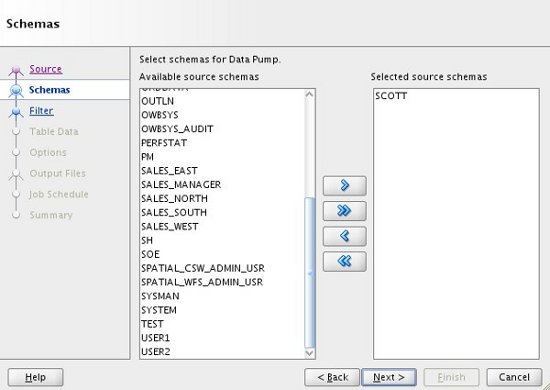
The screens that follow will vary depending on the type of export you perform. For the schema export, we must select the schema to be exported. To do this, highlight the schema of interest in the left-hand "Available" pane, then click the ">" button to move it to the right-hand "Selected" pane. When you are happy with your selection, click the "Next" button.
Step 5
6

Exports (expdp)

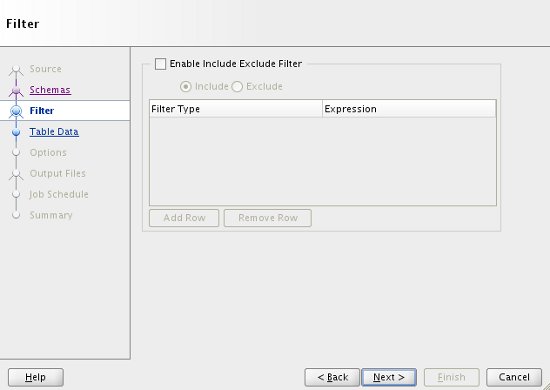
If you have any specific include/exclude filters, add them and click the "Next" button.
Step 6
7

Exports (expdp)

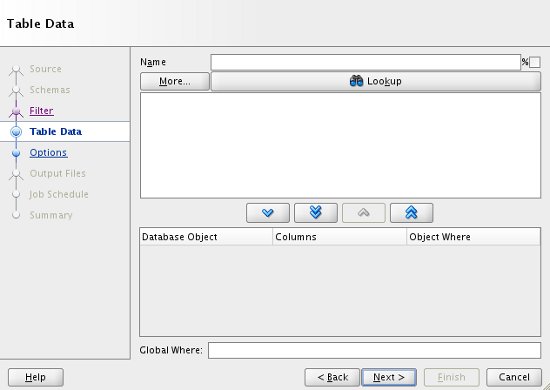
If you want to apply a clause to any or all of the tables, enter the details in the "Table Data" screen, then click the "Next" button.
Step 7
8

Exports (expdp)

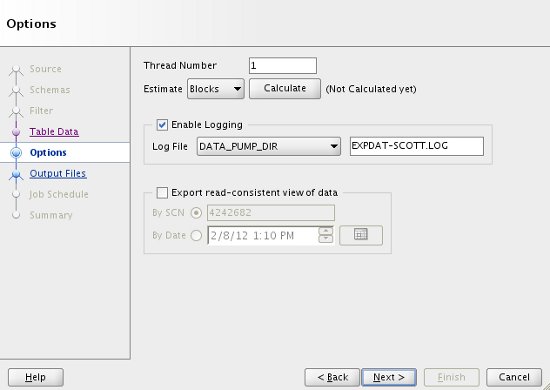
The "Options" screen allows you to increase the parallelism of the export, name the logfile and control the read-consistent point in time if necessary. When you have selected your specific options, click the "Next" button.
Step 8
9

Exports (expdp)

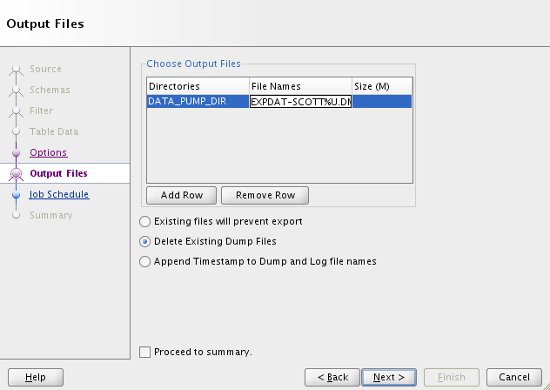
Enter a suitable dump file name by double-clicking on the default name and choose the appropriate action should the file already exist, then click the "Next" button.
Step 9
10

Exports (expdp)

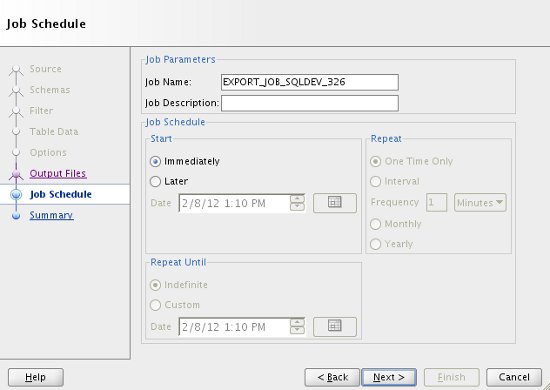
If you want to schedule the export to run at a later time, or on regular intervals, enter the details here. The default is to run the job immediately. Click the "Next" button.
Step 10
11

Exports (expdp)

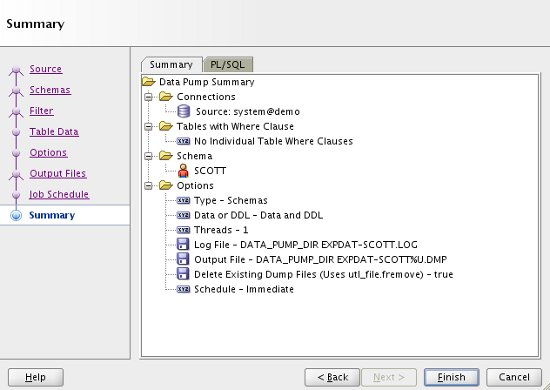
Check the summary information is correct. If you need to keep a copy of the job you have just defined, click on the "PL/SQL" tab to see the code. When you are ready, click the "Finish" button.
Step 11
12

Exports (expdp)

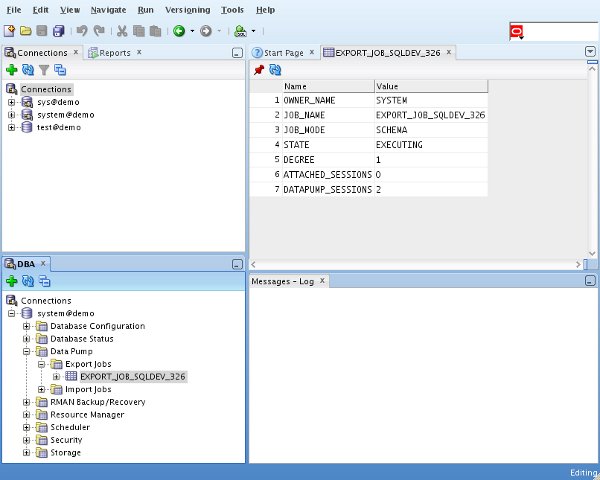
Once the job is initiated, it can be seen under the "Export Jobs" node of the tree, where it can be monitored.
Step 12
13

Imports (impdp)

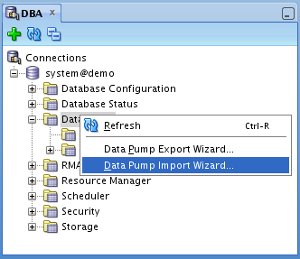
As normal, the dump file and log file are located in the specified directory on the database server. In this section we will import the SCOTT schema, exported in the previous section, into a new user. The new user was created as follows. Right-click on either the "Data Pump" or "Import Jobs" tree node and select the "Data Pump Import Wizard..." menu option.
Step 13
14

Imports (impdp)

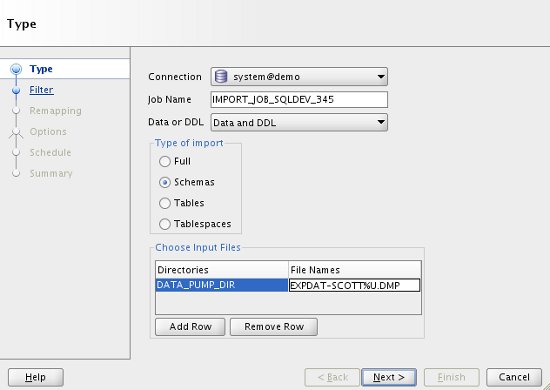
Enter the type of import you want to do and the name of the dump file that is the source of the data, then click the "Next" button.
Step 14
15

Imports (impdp)

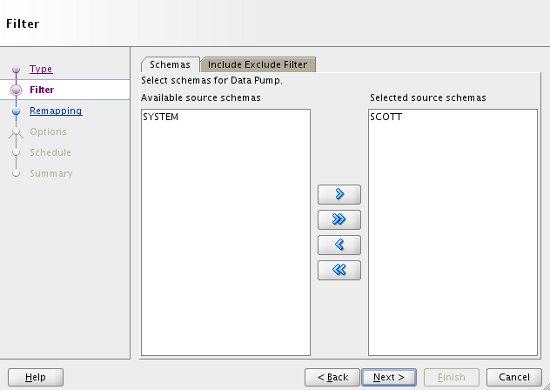
The screens that follow will vary depending on the type of import you perform. Wait for the utility to interrogate the file, then select the schema of choice. If you need any specific include/exclude filters, they can be added in the "Include Exclude Filter" tab. Click the "Next" button.
Step 15
16

Imports (impdp)

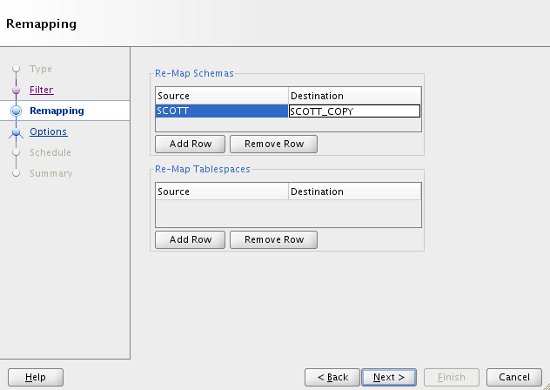
To load the data into a new schema, we need to add a entry. Once this is done, click the "Next" button.
Step 16
17

Imports (impdp)

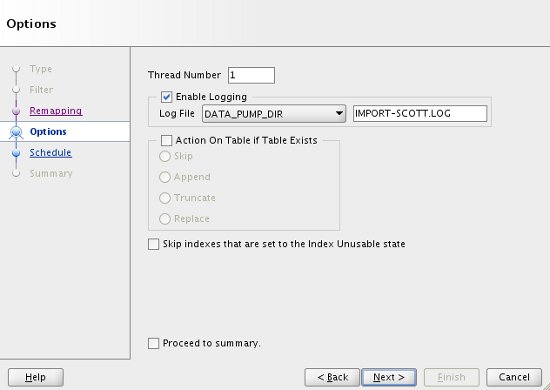
The "Options" screen allows you to increase the parallelism of the import, name the logfile and control the action if tables or unusable indexes exist. When you have selected your specific options, click the "Next" button.
Step 17
18

Imports (impdp)

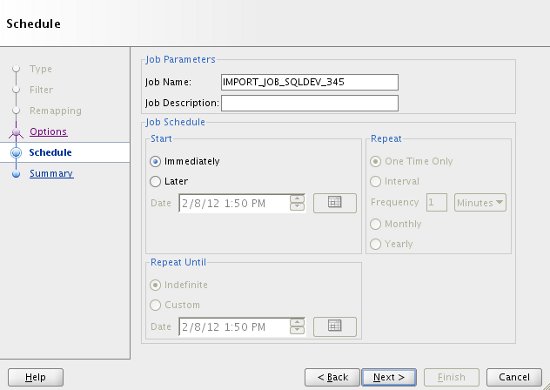
If you want to schedule the import to run at a later time, or on regular intervals, enter the details here. The default is to run the job immediately. Click the "Next" button.
Step 18
19

Imports (impdp)

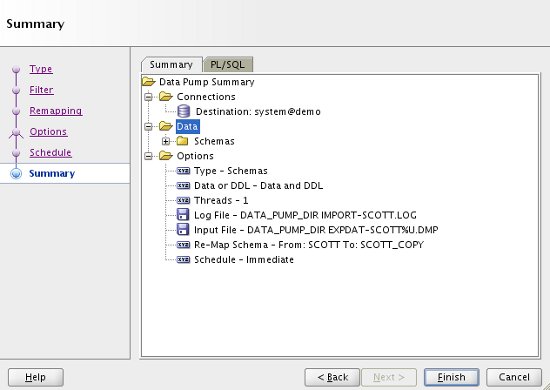
Check the summary information is correct. If you need to keep a copy of the job you have just defined, click on the "PL/SQL" tab to see the code. When you are ready, click the "Finish" button.
Step 19
20

Imports (impdp)

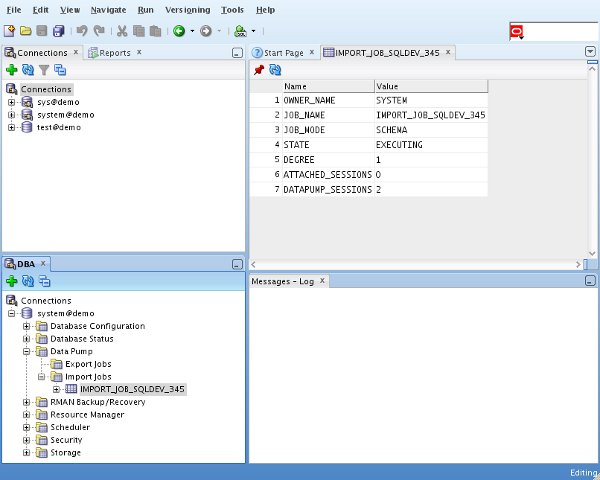
Once the job is initiated, it can be seen under the "Import Jobs" node of the tree, where it can be monitored.
Step 20
21

Imports (impdp)

As normal, the log file is located in the specified directory on the database server. For more information see: Hope this helps. Regards Tim...
Step 21

Comments (0)

Please to add comments

No comments yet. Be the first to comment!