DBA Hub

📋Steps in this guide1/4

SQL Property Graphs and SQL/PGQ in Oracle Database 23ai/26ai

Oracle have had a Graph Server and Client product for some time, but in Oracle database 23ai/26ai some of the property graph functionality has been built directly into the database.

oracle 23configurationintermediate
by OracleDba
169 views
1

Oracle Graph Visualization

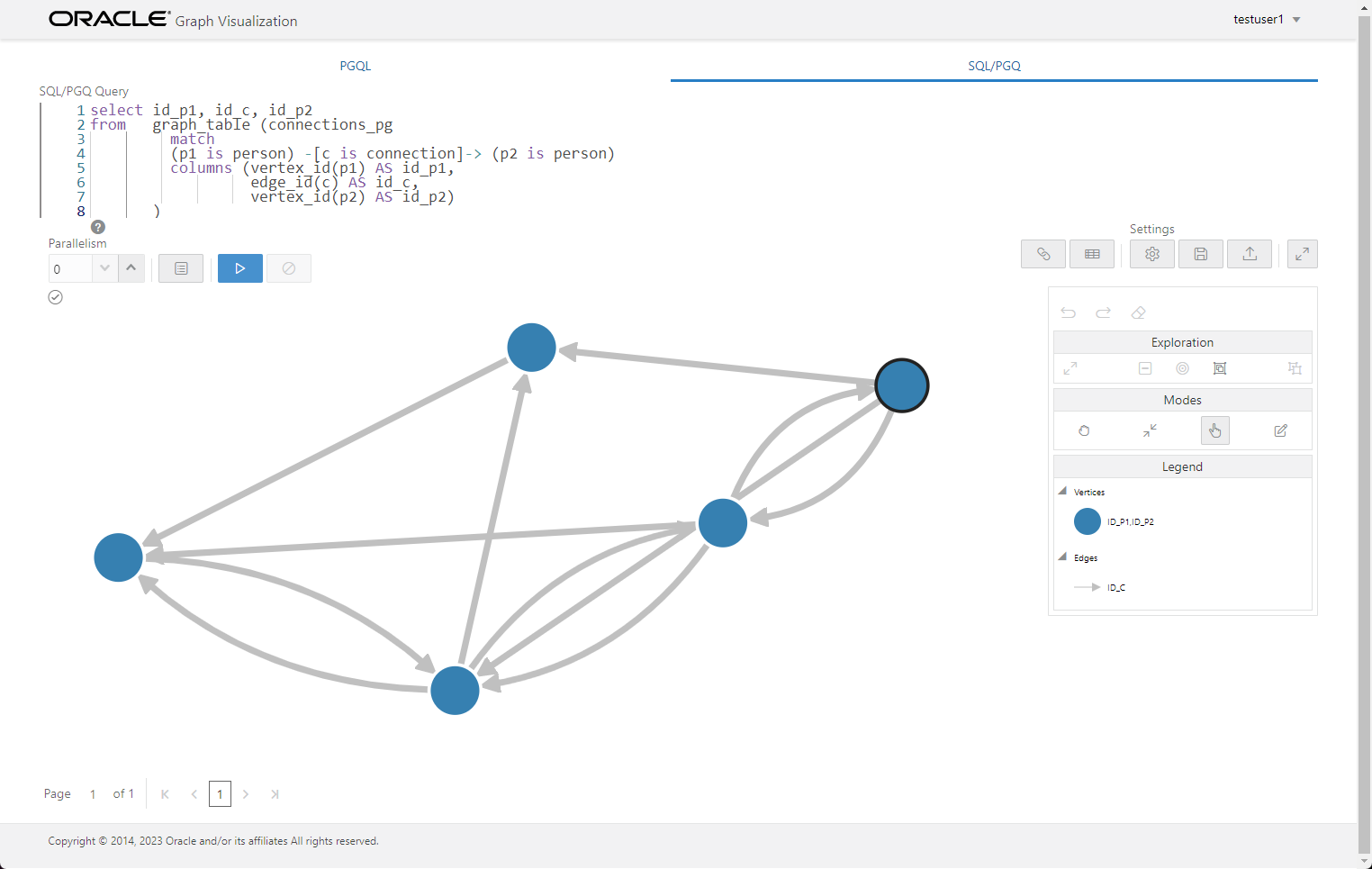
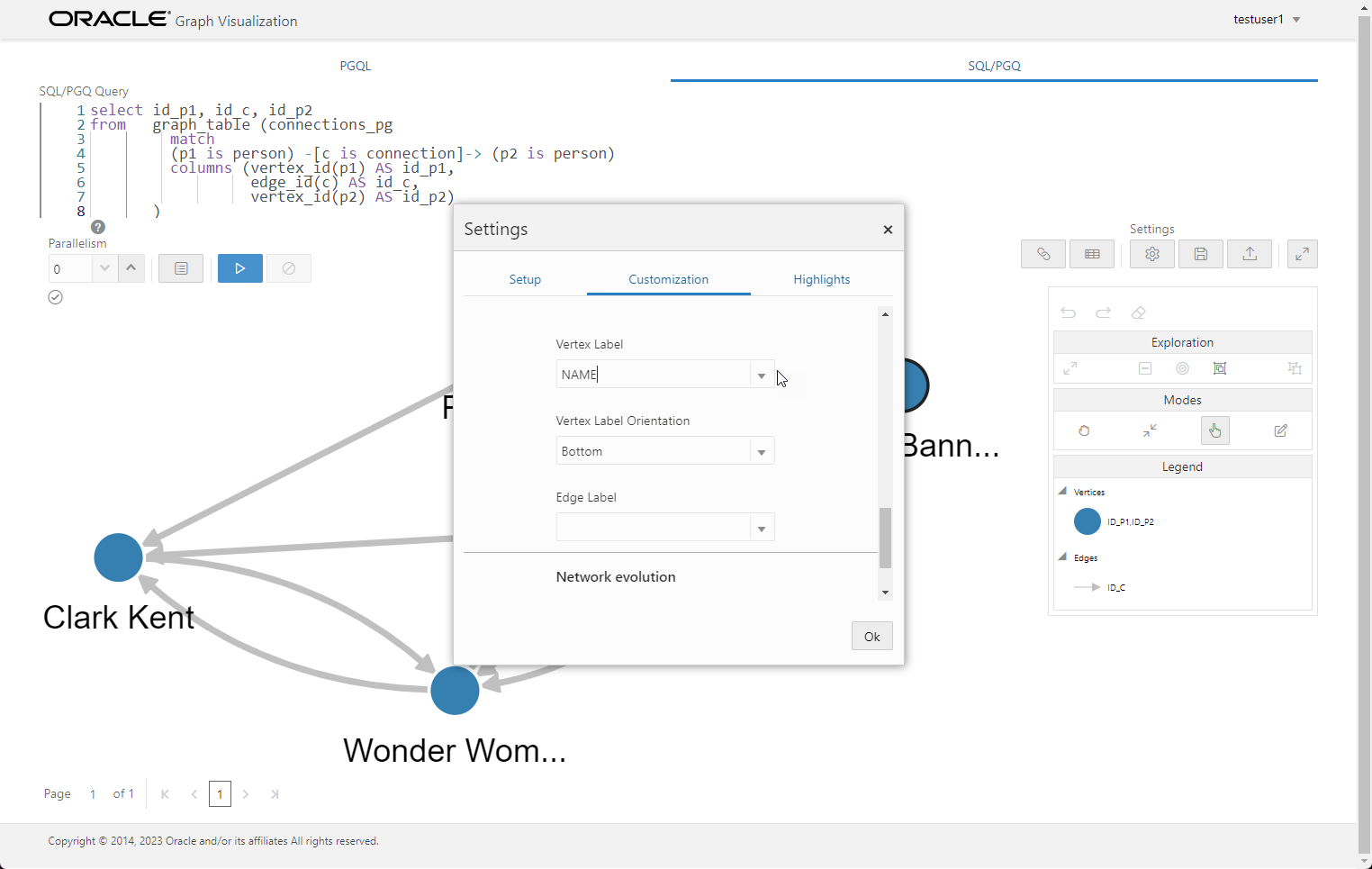
Oracle have had a Graph Server and Client product for some time, but in Oracle database 23ai/26ai some of the property graph functionality has been built directly into the database. This article focuses on new SQL property graph feature and ignores the previous Graph Server product and PGQL. - Setup - SQL Property Graphs - SQL/PGQ (GRAPH_TABLE) - Oracle Graph Visualization - Query Transformation - JSON Support We create a new test user. We add a couple of extra privileges that allow us to do some tracing and display execution plans, but these are not necessary when using SQL property graphs. We need to make sure our test user has the ability to create property graphs. This privilege is already part of the role, and will probably be added to the role in the future. We create a table to hold people, and a table to record the connections between those people. We create a table to hold products, and a table to hold sales, linked back to the people we defined earlier. We gather statistics on all the tables. A property graph is a model that describes nodes (vertices), and the relationships between them (edges). In the case of SQL property graphs introduced in Oracle database 23ai/26ai, the vertices and edges are schema objects such as tables, external tables, materialized views or synonyms to these objects. The property graph is stored in the database, and can be referenced by SQL/PGQ queries. There is no data materialized by the SQL property graph, it is just metadata. All the actual data comes from the references objects. We create a property graph where the table represents the vertices (the points) and the table represents the edges (the lines between the points). The keyword allows us to associate a meaningful name, which we can reference in queries. Notice the edge table has a and describing the connection between the vertices. We create a property graph for the sales of products to people. The vertex tables are and , and the edge table is . We display the current property graphs using the view. With the property graphs in place we can use the operator to query the property graphs using SQL/PGQ. We display people who are connected to each other. Let's break this query down. - We call passing the property graph. - We define the graph element pattern in the clause using the vertex and edge labels to show our relationship. - We define the that will be available in our select list. The clause elements can include a clause to limit the rows, and of course we can include a clause in the main body of the query. To display the graph using Oracle Graph Visualization we need to include the and functions to identify the IDs of the vertices and edges. These produce a fully qualified description of the element. In the following example we return a single row containing these values. This example uses our second property graph, and allows us to see people who are related by purchasing the same items. As before, we need to include the IDs of the vertices and edges if we want to visualize the graph. There are several ways to deploy the Oracle Graph Visualization tool. In this case we deployed it using Tomcat. Click on the "Oracle Graph Client" link here , and select the architecture you require. In this case we downloaded "Oracle Graph Webapps 23.2.0 for (Linux x86-64)". The SQL/PGQ support was added to the visualizer in version 23.1, so make sure you are not using an older version. On the Tomcat server we did the following. We were then able to access the visualizer on the following URL. We log in with the following details. Oracle Graph Visualization creates tables, materialized views and views when you run a query. They all have the prefix " ". Make sure the user you are connecting to has the privilege to do that. We click on the "SQL/PGQ" tab and place the following query into the visualizer. Notice it is missing the trailing ";". This query displays the connections between people. When we run it we get the following output. We click the settings (cog) button, click the "Customizations" tab, and set the "Vertex Label" to the column.
Step 1
2

Oracle Graph Visualization

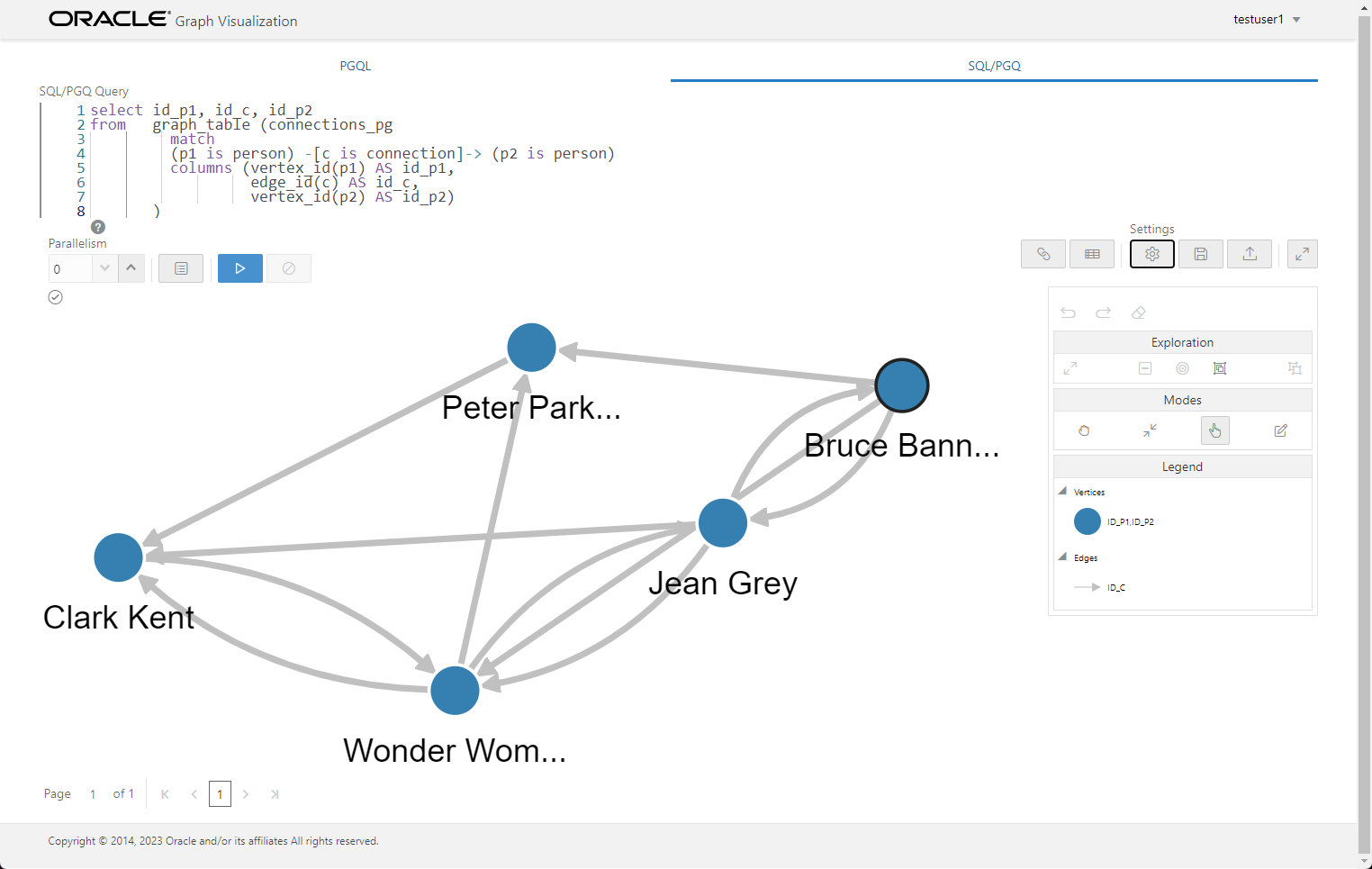
Once we click "OK" we see the graph with the labels.
Step 2
3

Oracle Graph Visualization

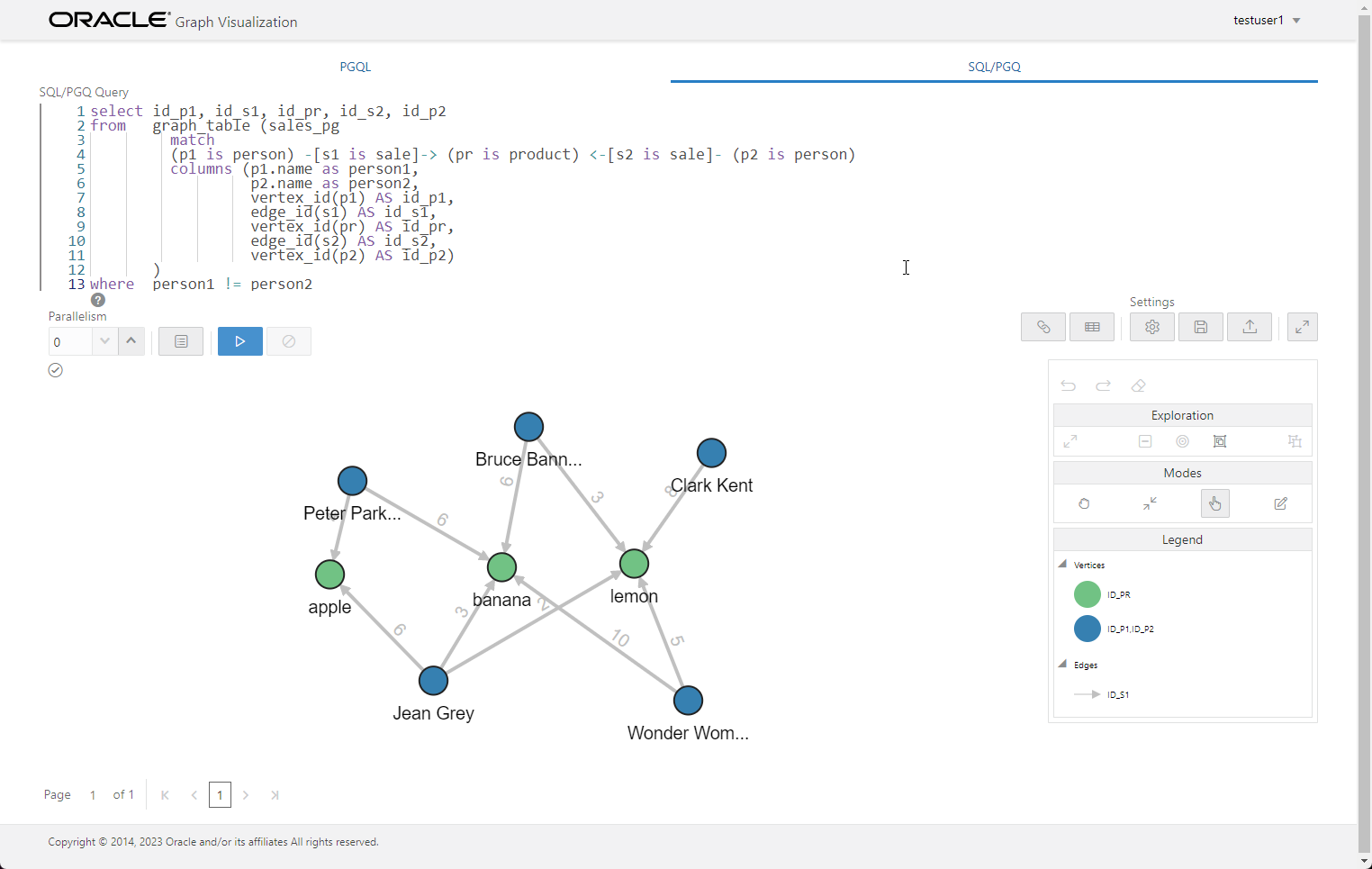
We use the following query against our second property graph to shows the people who have purchased the same products. We run the query. In the "Customizations" tab we set the "Vertex Label" to and the "Edge Label" to .
Step 3
4

JSON Support

Not only can we see the relationship between the people and the products, but we can also see the quantity of the products purchased on the edge labels. Let's see what happens behind the scenes when we use SQL/PGQ. First we flush the shared pool and identify the trace file that will be created for our new session. Now we do a 10053 trace of the statement. We check the resulting trace file, searching for the section beginning with "Final query after transformations", and we see the following statement. The statement has been transformed to convert the SQL/PGQ into regular joins. In this example there is not a great deal of difference in complexity between the SQL/PGQ and the transformed SQL statement, but in some scenarios the SQL/PGQ can massively simplify the joins and unions necessary to return the data. Since the SQL/PGQ is converted to regular SQL, it's possible to display the execution plan in the normal way. In the previous examples we used to keep things simple. We could have limited the properties to specific table columns using a comma-separated list, as shown below. Where we have columns containing JSON data, we can drill down into the JSON data using dot notation, or SQL/JSON function calls to define properties. We add a JSON column to the table and populate it with some JSON data. We recreate the property graph including the two new properties using an example of dot notation and a call. We project the new properties as columns and add them into our select list. For more information see: - SQL Property Graphs - Graph Developer's Guide for Property Graph - CREATE PROPERTY GRAPH Hope this helps. Regards Tim...
Step 4

Comments (0)

Please to add comments

No comments yet. Be the first to comment!