DBA Hub

📋Steps in this guide1/21

Upgrade Oracle Enterprise Manager Cloud Control 12c Release 4 (12cR4) to Release 5 (12cR5)

This article describes a simple upgrade of Enterprise Manager Cloud Control 12c Release 4 (12cR4) to Release 5 (12cR5).

oracle 12cconfigurationintermediate
by OracleDba
14 views
1

Cloud Control 12c Installation and Upgrade

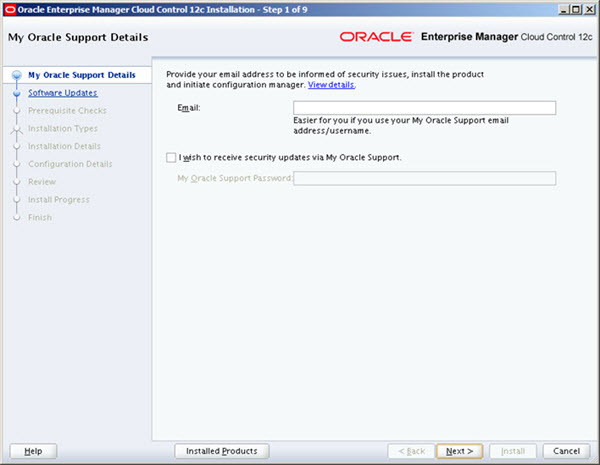
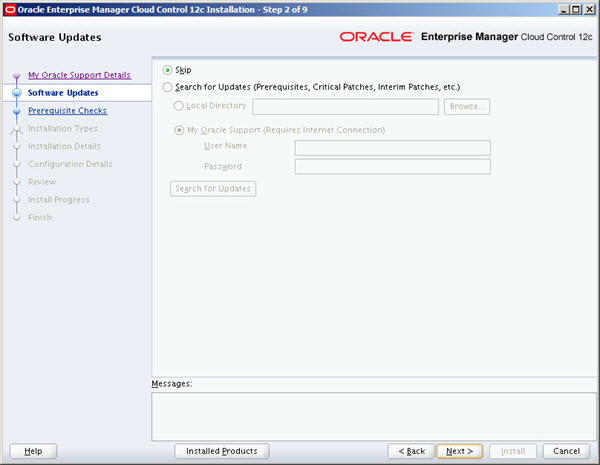
This article describes a simple upgrade of Enterprise Manager Cloud Control 12c Release 4 (12cR4) to Release 5 (12cR5). Each upgrade potentially requires additional steps, so this is not meant as a replacement for reading the documentation . Related articles. Download the following software: Additional patches are required for some versions of the database. See here . For clarity, my starting 12cR4 installation had the following details. There are specific patches for different versions of the database prior to 11.2.0.4, as described here . Make sure the privileges for the package are as described in the documentation. Make sure there are no invalid objects in the repository database. If you have any, recompile them using the following commands. Only pick the schemas that have invalid objects though. Edit the "/etc/security/limits.conf" file, increasing the following entry to 4096 if it is less than that. You will need to reboot after this. Backup your repository. In my case, Cloud Control runs on a VM, so a database backup was performed, as well as a whole VM backup. Copy the emkey using the following commands, adjust as required. You will have to enter the WebLogic console admin and sysman passwords. Stop the OMS. Create a directory for the new installation. Unzip the 12cR5 software. Run the installer. If you wish to receive support information, enter the required details, or uncheck the security updates checkbox and click the "Next" button. Click the "Yes" button the subsequent warning dialog. If you wish to check for updates, enter the required details, or check the "Skip" option and click the "Next" button.
Step 1
2

Cloud Control 12c Installation and Upgrade

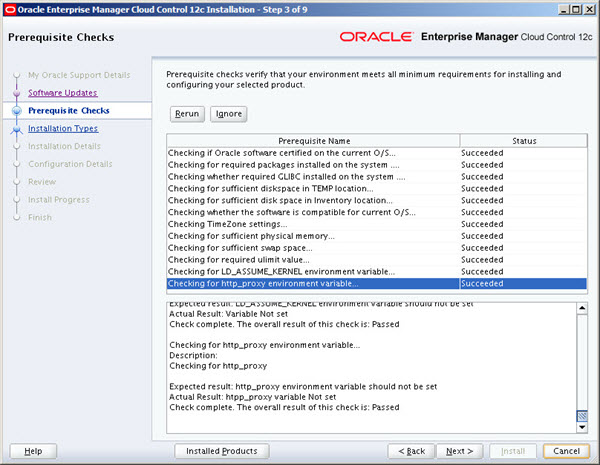
If you have performed the prerequisites as described, the installation should pass all prerequisite checks. Click the "Next" button.
Step 2
3

Cloud Control 12c Installation and Upgrade

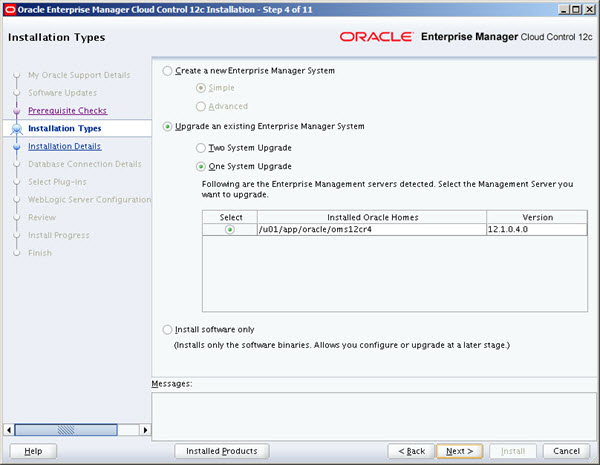
Select the "Upgrade an existing Enterprise Manager System" option. Select the "One System Upgrade" option. Select the OMS to be upgraded, then click the "Next" button.
Step 3
4

Cloud Control 12c Installation and Upgrade

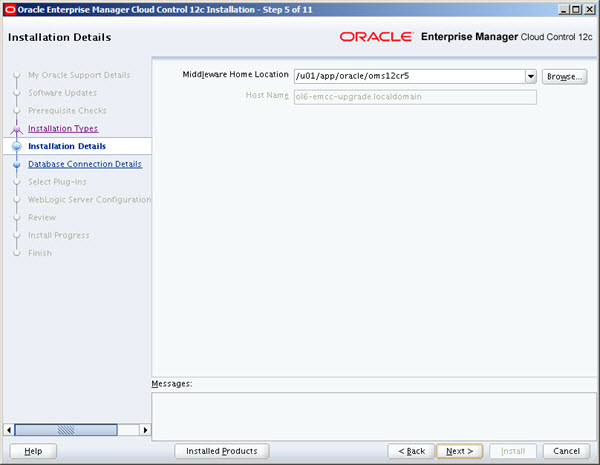
Enter the new middleware home locations, then click the "Next" button.
Step 4
5

Cloud Control 12c Installation and Upgrade

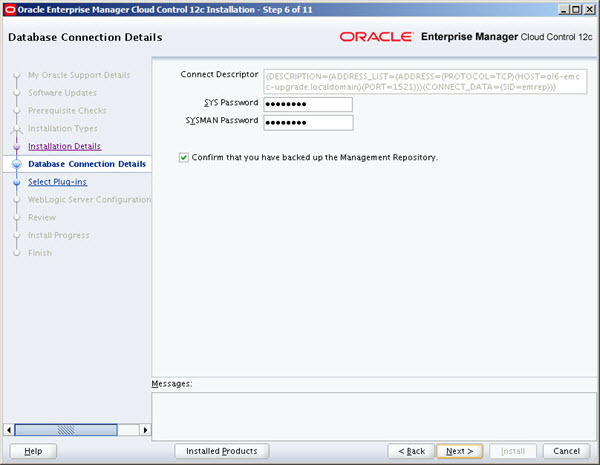
Enter the database connection details and confirm the repository has been backed up, then click the "Next" button.
Step 5
6

Cloud Control 12c Installation and Upgrade

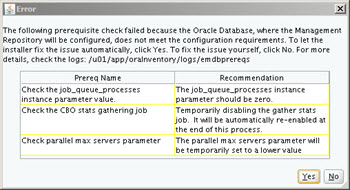
On the first warning dialog, click the "OK" button. The subsequent error screen should list things that can be fixed by by the installer.
Step 6
7

Cloud Control 12c Installation and Upgrade

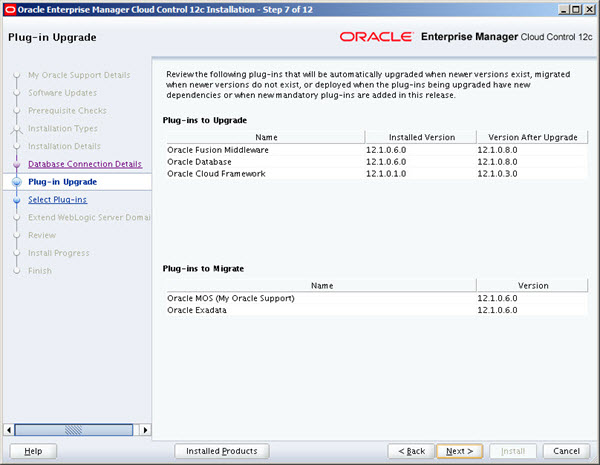
If you have any additional warnings, check they don't look like show-stoppers, then click the "OK" button to continue. If you are happy with the plug-in upgrade information, click the "Next" button.
Step 7
8

Cloud Control 12c Installation and Upgrade

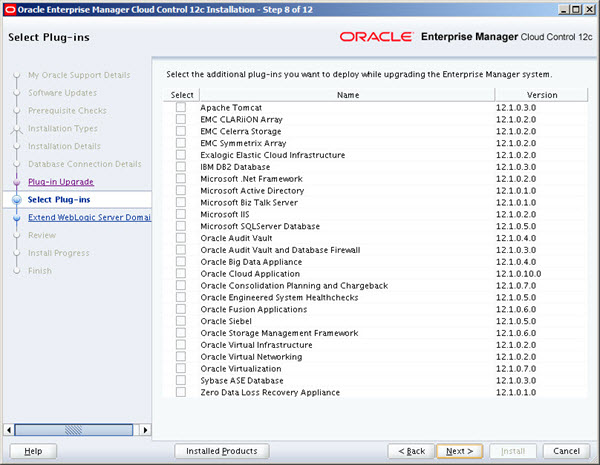
Select any additional plug-ins you want to deploy, then click the "Next" button.
Step 8
9

Cloud Control 12c Installation and Upgrade

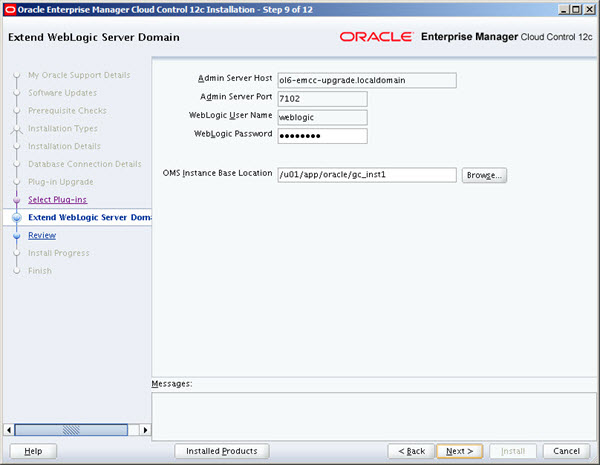
Enter the WebLogic details, then click the "Next" button.
Step 9
10

Cloud Control 12c Installation and Upgrade

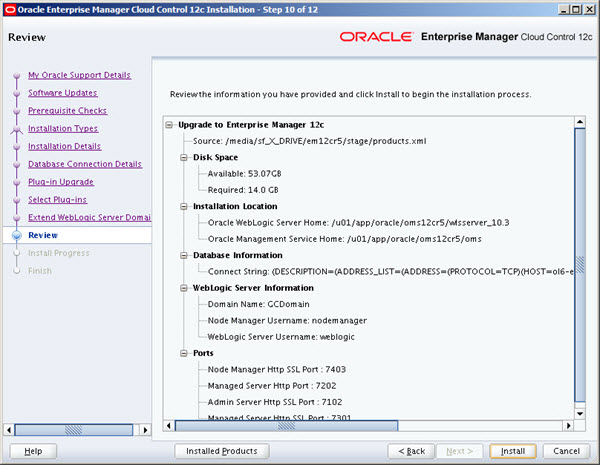
If you are happy with the review information, click the "Install" button.
Step 10
11

Cloud Control 12c Installation and Upgrade

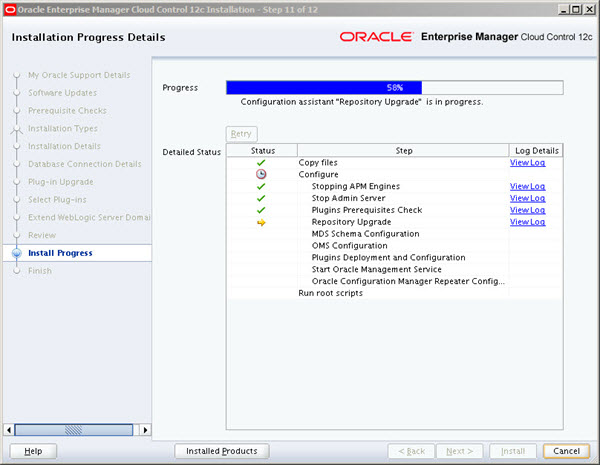
Wait while the installation and configuration take place.
Step 11
12

Cloud Control 12c Installation and Upgrade

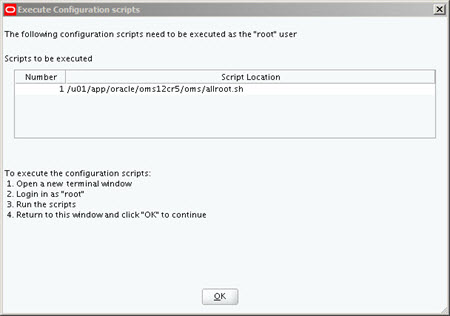
When prompted, run the root scripts, then click the "OK" button.
Step 12
13

Cloud Control 12c Installation and Upgrade

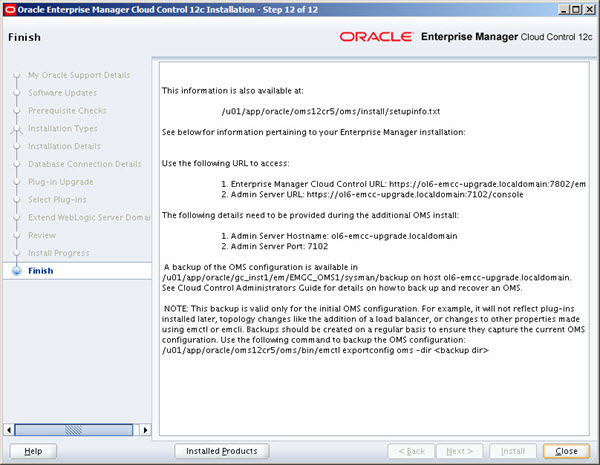
Make note of the URLs, then click the "Close" button to exit the installer. A copy of this information is available in the "/u01/app/oracle/oms12cr3/oms/install/setupinfo.txt" file.
Step 13
14

Cloud Control 12c Installation and Upgrade

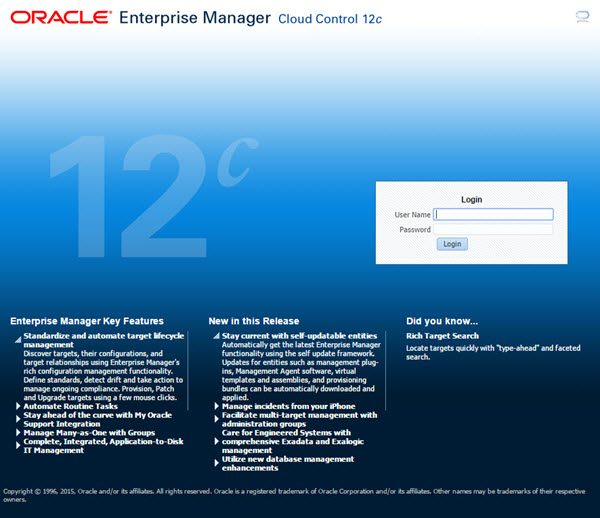
The login screen is available from a browser using the URL provided in the previous screen ("https://ol6-em12cr3.localdomain:7803/em"). Log in with the username "sysman" and the password you specified during your installation.
Step 14
15

Cloud Control 12c Installation and Upgrade

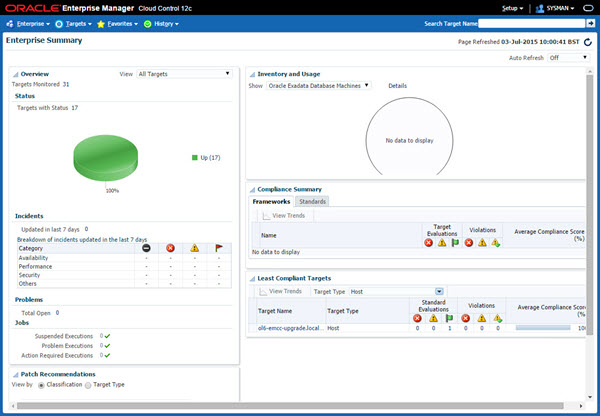
You are then presented with the startup screen you selected when the installed 12cR4.
Step 15
16

Agent Upgrade

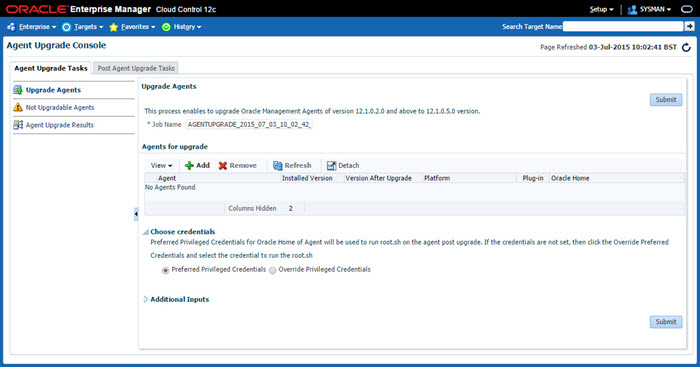
Navigate to "Setup > Manage Cloud Control > Upgrade Agents".
Step 16
17

Agent Upgrade

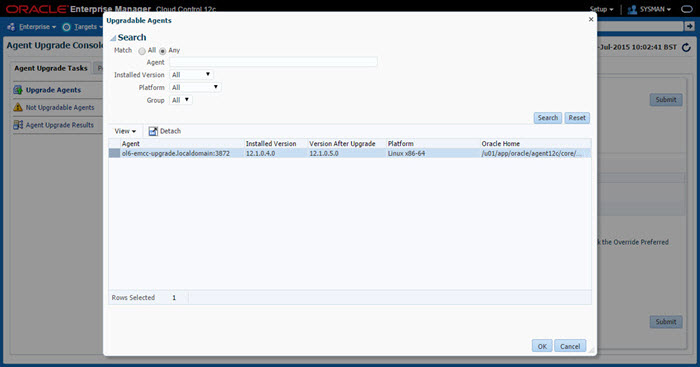
Click the "+ Add" button, highlight any agents to upgrade, then click the "OK" button.
Step 17
18

Agent Upgrade

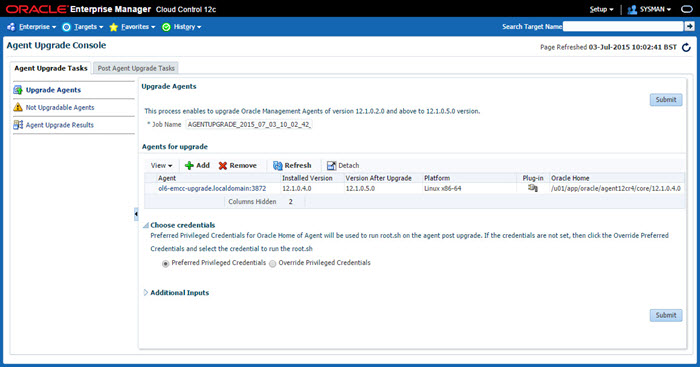
When you are happy with your selection, click the "Submit" button.
Step 18
19

Agent Upgrade

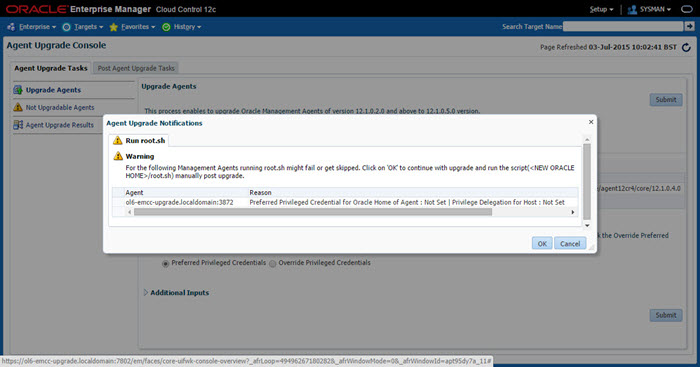
If you do not have "root" access or sudo configured to allow you to run the root scripts, click the OK on the warning message. The root scripts can be run after the installation completes.
Step 19
20

Agent Upgrade

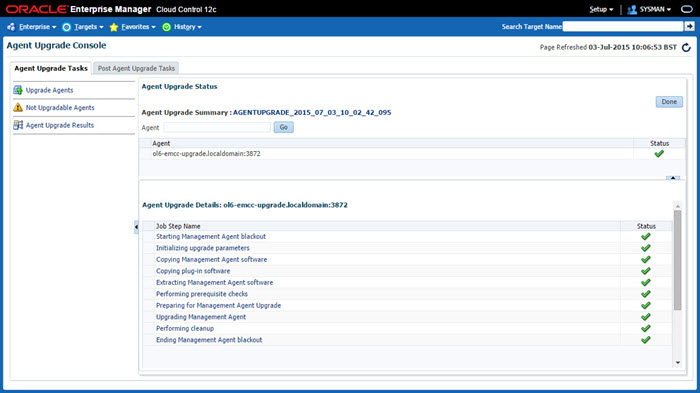
Wait while the upgrade takes place. Once complete, click the "Done" button.
Step 20
21

Startup/Shutdown

If you need to run any root scripts manually, do so now. They are located in the agent home on each monitored machines (AGENT_HOME/core/12.1.0.5.0/root.sh). The upgrade is now complete. Cloud Control is set to auto-start using the "gcstartup" service. The "/etc/oragchomelist" file contains the items that will be started by the system. After the upgrade, it may list both OMS installations. If you want to use this auto-start, you will need to amend the contents of the file to make sure it is consistent with the new installation. On a simple installation the default auto-start will cause a problem as Cloud Control will attempt to start before the database has started. The service can be disabled by commenting out (using #) all the contents of the "/etc/oragchomelist" file to prevent the auto-start and use start/stop scripts described below. If the start/stop needs to be automated, you can do it in the usual way using Linux service that calls your start/stop scripts that include the database management. Use the following commands to turn on all components installed by this article. If you have a startup/shutdown script, remember to amend it to take account of the new paths. Use the following commands to turn off all components installed by this article. For more information see: Hope this helps. Regards Tim...
Step 21

Comments (0)

Please to add comments

No comments yet. Be the first to comment!