DBA Hub

📋Steps in this guide1/16

WebLogic Server 12cR1 (12.1.2 and 12.1.3) : ADF Application Development Runtime Installation on Oracle Linux

This article describes the steps necessary to install the ADF Application Development Runtime on a WebLogic Server 12cR1 (12.1.2 and 12.1.3).

oracle 12cconfigurationintermediate
by OracleDba
11 views
1

Oracle ADF Runtime 12.1.2 Installation

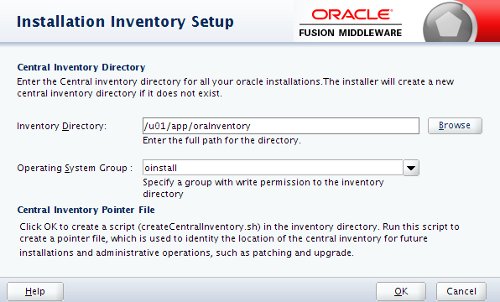
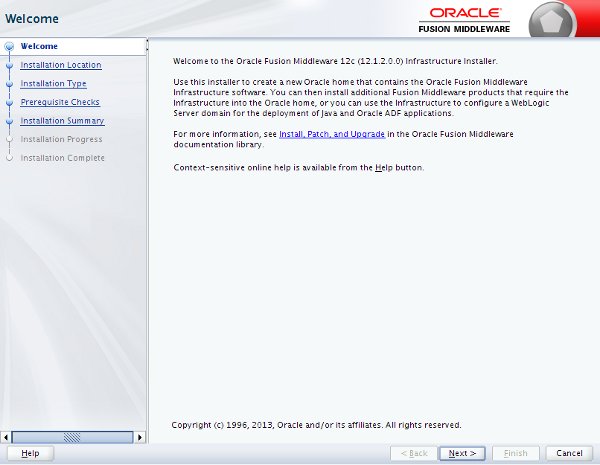
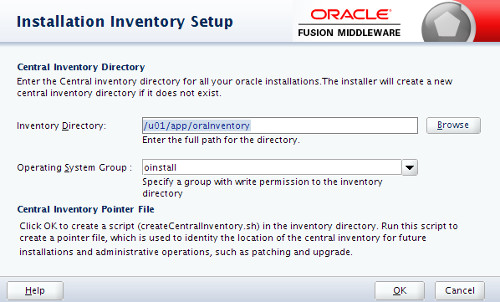
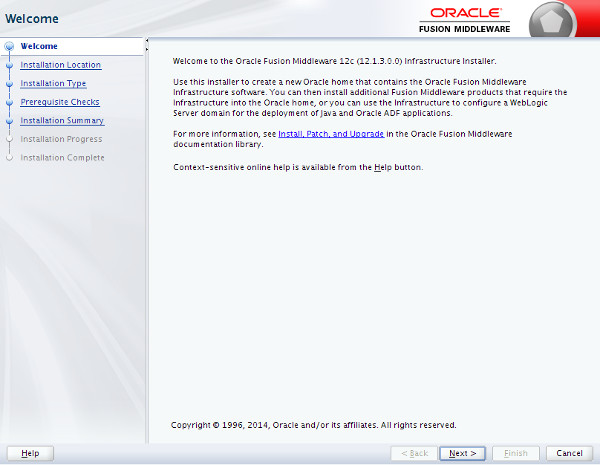
This article assumes you already have a working WebLogic 12cR1 (12.1.2 or 12.1.3) installation. The 12.1.2 and 12.1.3 runtimes are full installations applied directly over the application servers. - Download Software - Oracle ADF Runtime 12.1.2 Installation - Oracle ADF Runtime 12.1.3 Installation Related articles. Download the relevant ADF 12c Runtime version for your application server. - Downloads for Oracle ADF Make sure all WebLogic Server processes are shut down. Run the installer. Enter the inventory location and click the "OK" button. Click the "Next" button on the welcome screen.
Step 1
2

Oracle ADF Runtime 12.1.2 Installation

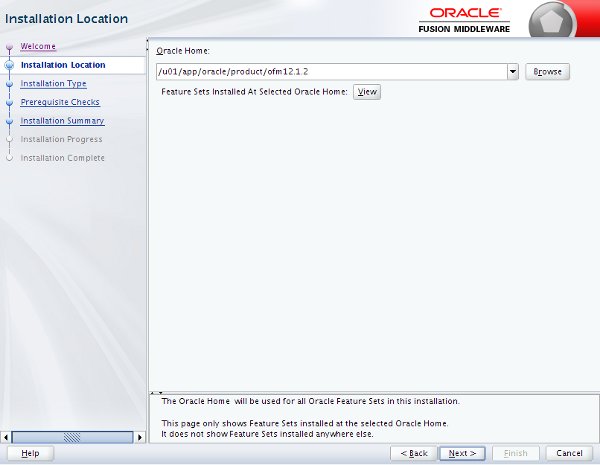
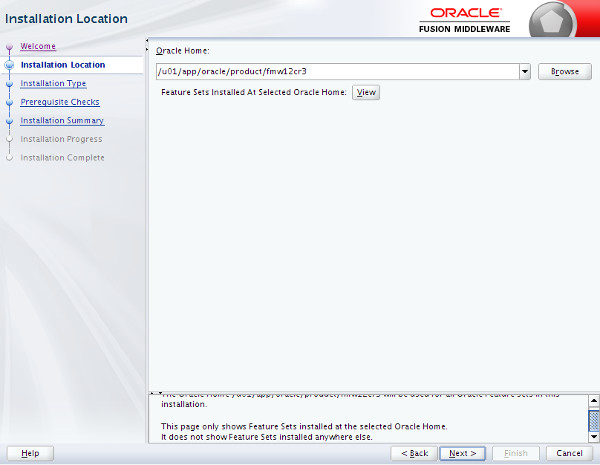
Enter the appropriate middleware home and click the "Next" button.
Step 2
3

Oracle ADF Runtime 12.1.2 Installation

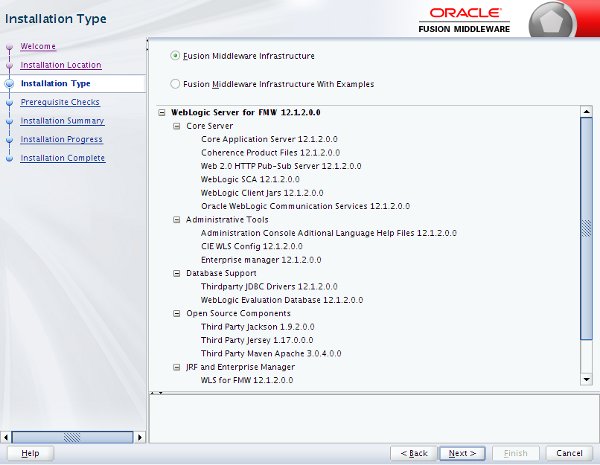
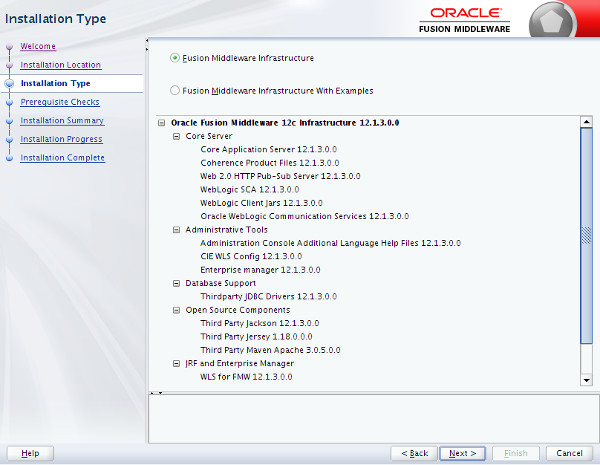
Accept the "Fusion Middlware Infrastructure" option by clicking the "Next" button.
Step 3
4

Oracle ADF Runtime 12.1.2 Installation

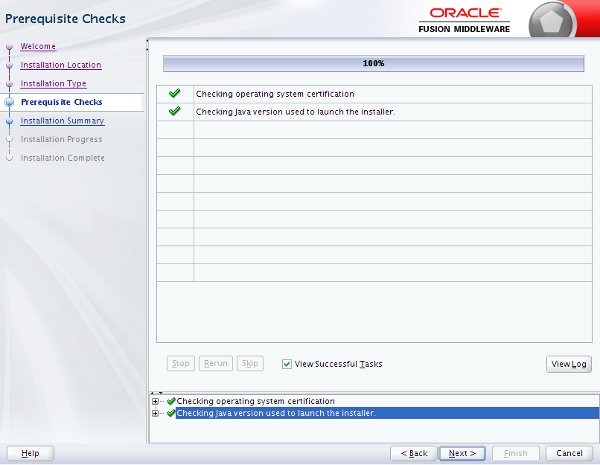
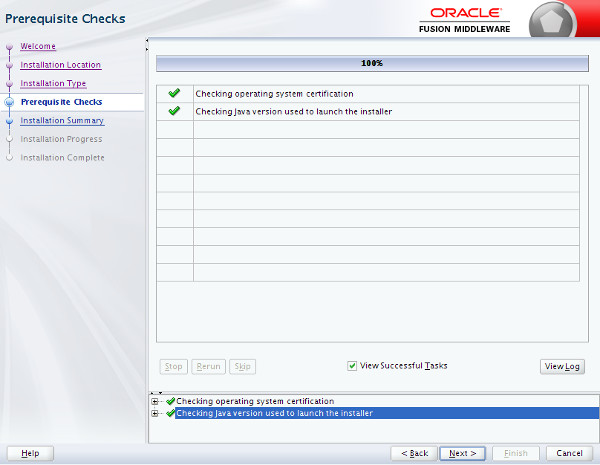
Wait for the prerequisite checks to complete. If there are failures, correct them and rerun the checks. If there are no failures, click the "Next" button.
Step 4
5

Oracle ADF Runtime 12.1.2 Installation

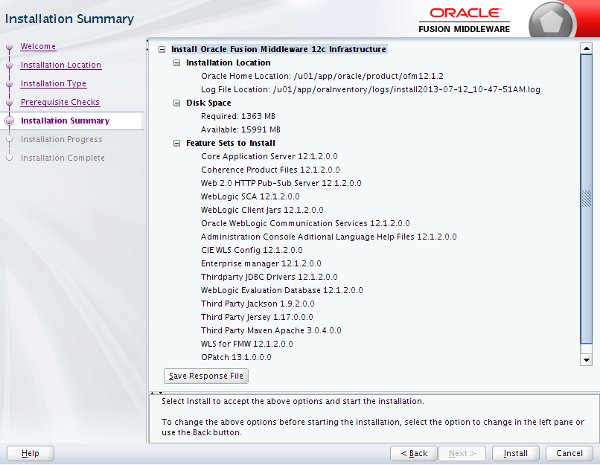
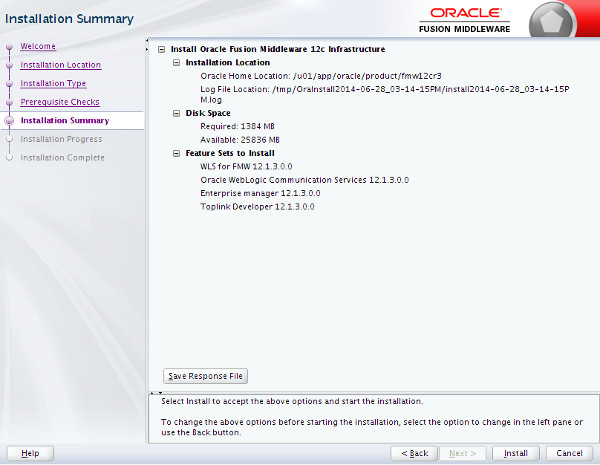
If you are happy with the summary information, click the "Install" button.
Step 5
6

Oracle ADF Runtime 12.1.2 Installation

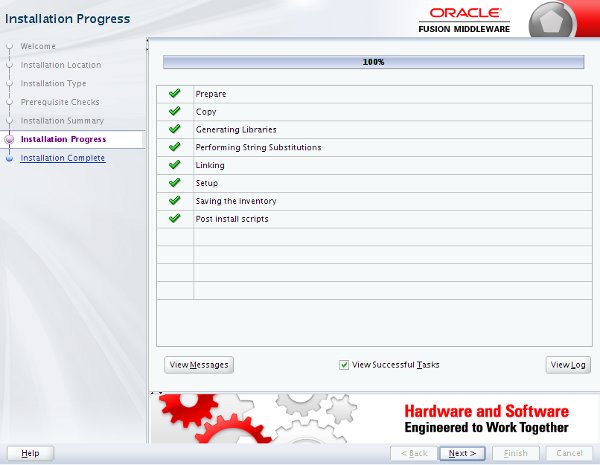
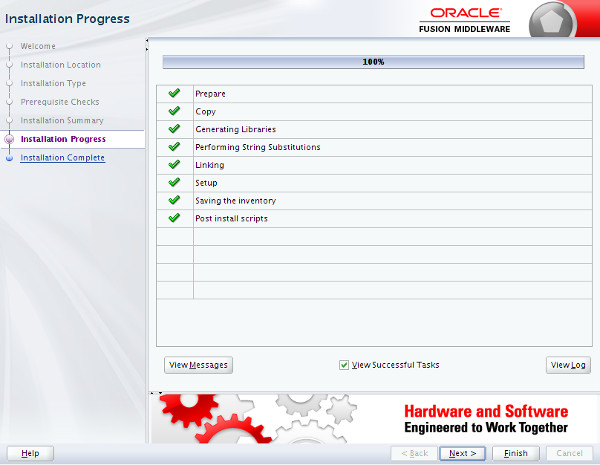
Wait for the installation to complete, then click the "Next" button.
Step 6
7

Oracle ADF Runtime 12.1.2 Installation

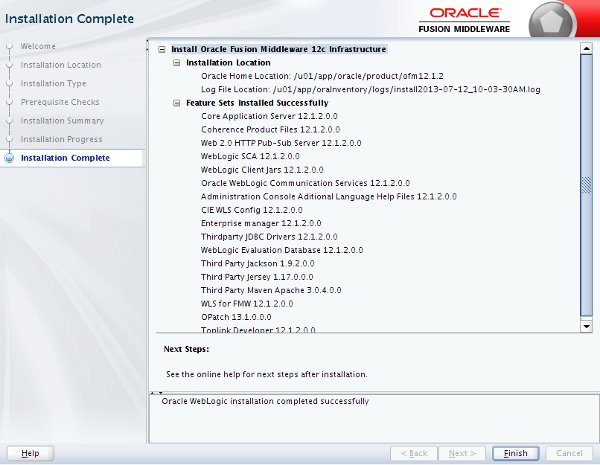
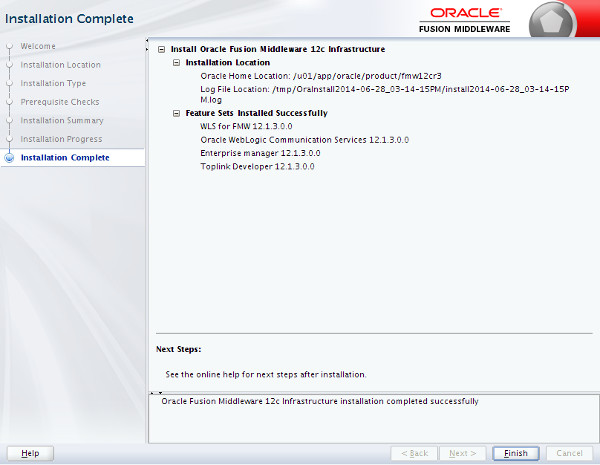
Click the "Finish" button to exit the installer.
Step 7
8

Oracle ADF Runtime 12.1.3 Installation

Restart all the WebLogic Server processes. Make sure all WebLogic Server processes are shut down. Run the installer. Enter the inventory location and click the "OK" button.
Step 8
9

Oracle ADF Runtime 12.1.3 Installation

Click the "Next" button on the welcome screen.
Step 9
10

Oracle ADF Runtime 12.1.3 Installation

Enter the appropriate middleware home and click the "Next" button.
Step 10
11

Oracle ADF Runtime 12.1.3 Installation

Accept the "Fusion Middlware Infrastructure" option by clicking the "Next" button.
Step 11
12

Oracle ADF Runtime 12.1.3 Installation

Wait for the prerequisite checks to complete. If there are failures, correct them and rerun the checks. If there are no failures, click the "Next" button.
Step 12
13

Oracle ADF Runtime 12.1.3 Installation

If you are happy with the summary information, click the "Install" button.
Step 13
14

Oracle ADF Runtime 12.1.3 Installation

Wait for the installation to complete, then click the "Next" button.
Step 14
15

Oracle ADF Runtime 12.1.3 Installation

Click the "Finish" button to exit the installer.
Step 15
16

Oracle ADF Runtime 12.1.3 Installation

Restart all the WebLogic Server processes. For more information see: Hope this helps. Regards Tim...
Step 16

Comments (0)

Please to add comments

No comments yet. Be the first to comment!