Switching Development/Production Startup Mode
The following scripts are created for the "testDomain" domain. You will need to create a Boot Identity File if you want to use the "&" to start the domain or and managed servers as background processes.
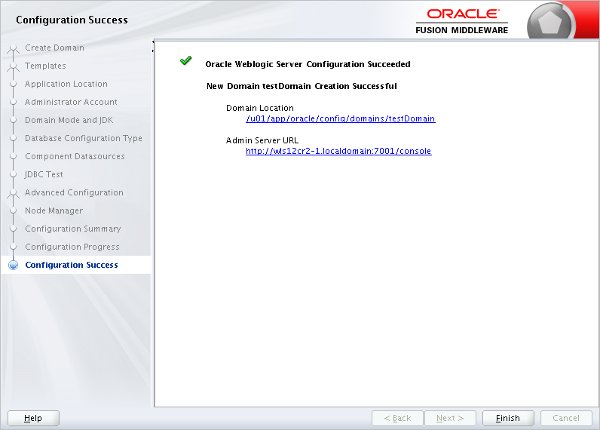
Once the domain is started, the administration console is available in a browser using a URL such as "http://machine:7001/console".
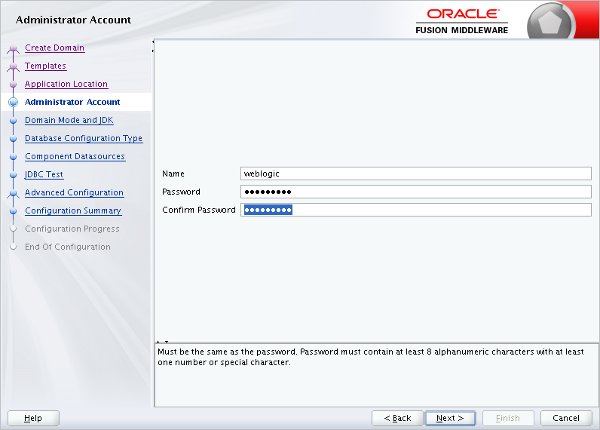
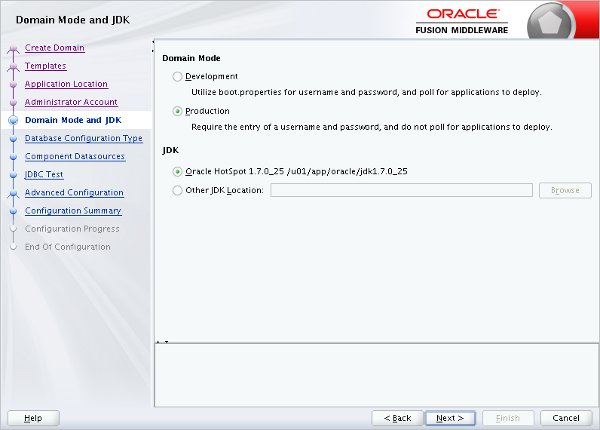
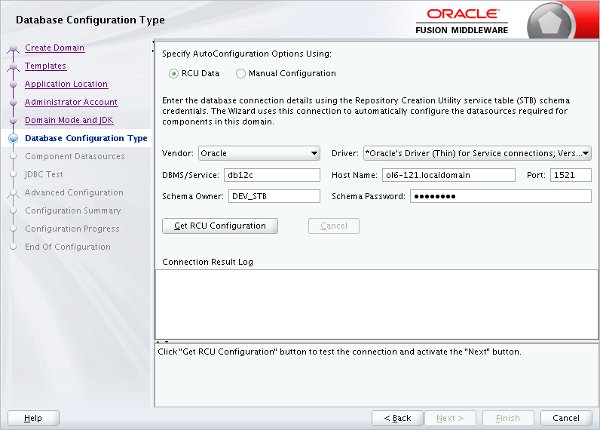
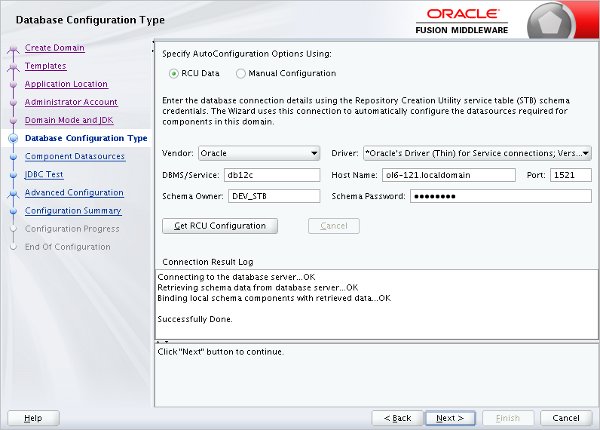
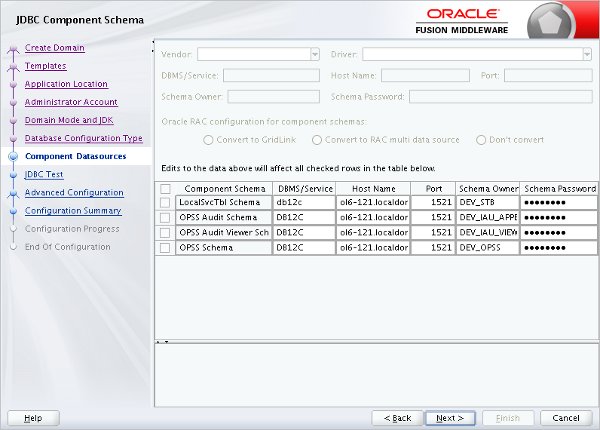
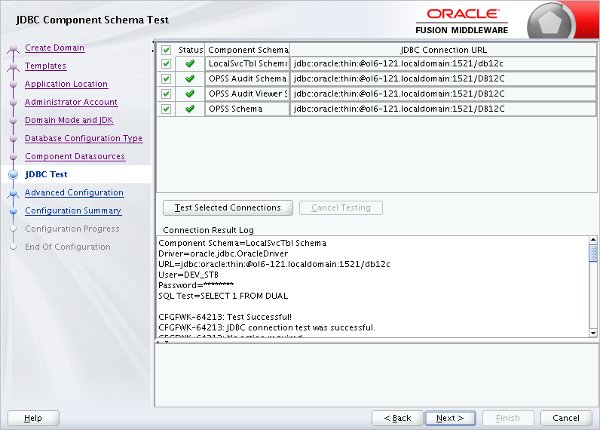
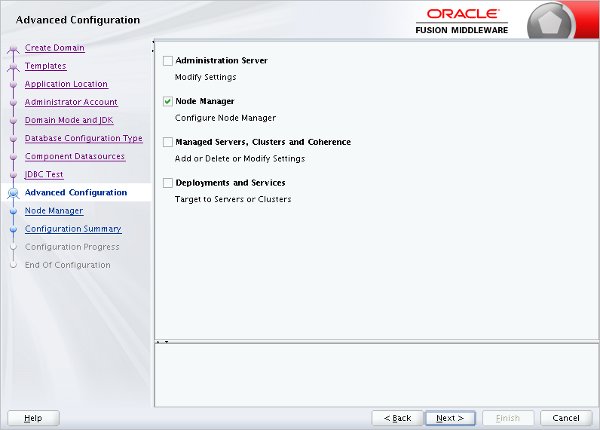
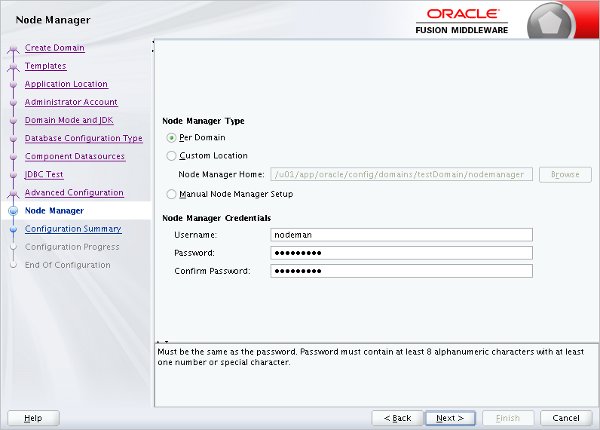
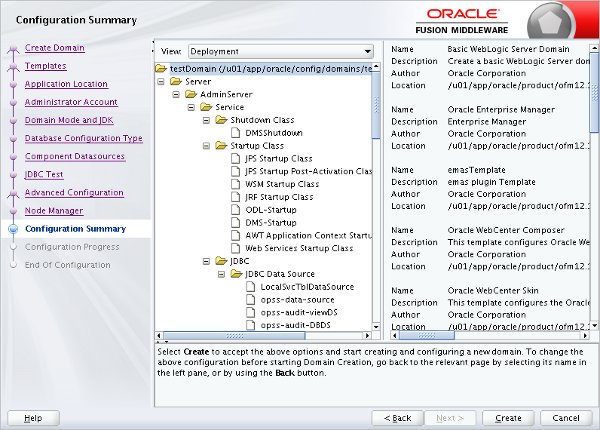
Updating a domain involves similar screens to those seen during the installation.
- Start the Configuration Wizard.
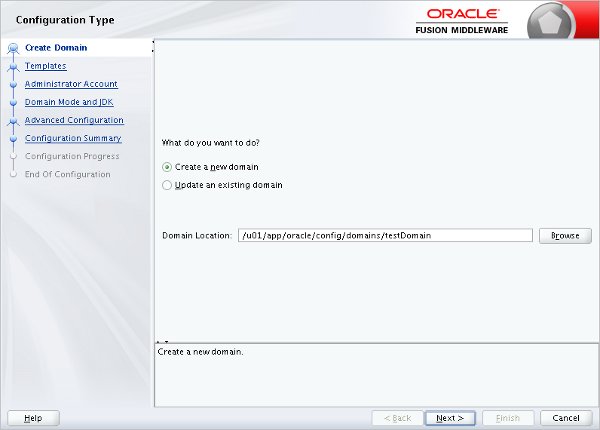
- Select the "Update an existing domain" option, select the required domain location and click the "Next" button.
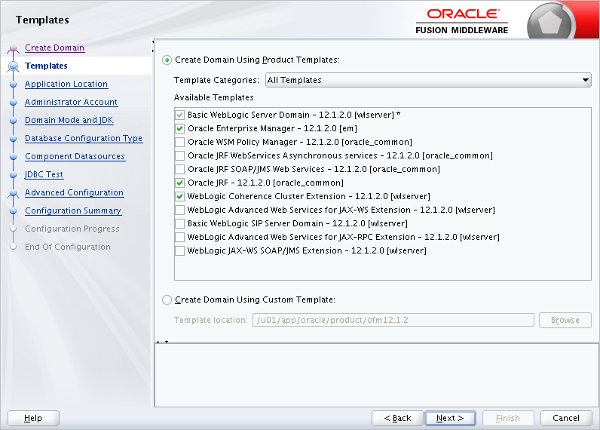
- Select the additional product templates and click the "Next" button.
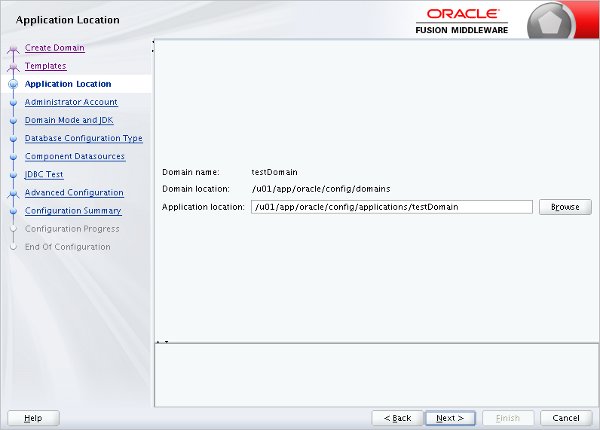
- Work through the additional configuration steps, as you did during the previous creation.
- If you are happy with the information in the configuration summary, click the "Update" button.
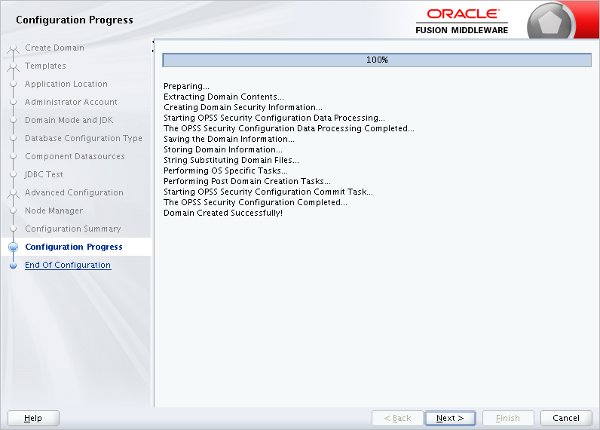
- Wait while the domain is update, then click the "Next" button.
- Click the "Finish" button to exit the Configuration Wizard.
To remove the "testDomain" domain we just created, do the following steps:
- Stop the processes associated with the domain.
Stop the processes associated with the domain.
- Remove the relevant domain entry from the "$MW_HOME/domain-registry.xml" file.
Remove the relevant domain entry from the "$MW_HOME/domain-registry.xml" file.
- If you are not using a per-domain node manager, remove the relevant domain entry from the "nodemanager.domains" file. When using a per-domain node manager, the relevant file will be cleaned up by the following step.
If you are not using a per-domain node manager, remove the relevant domain entry from the "nodemanager.domains" file.
When using a per-domain node manager, the relevant file will be cleaned up by the following step.
- Delete the "testDomain" application and domain directories.
Delete the "testDomain" application and domain directories.
Stop the processes associated with the domain.
Remove the relevant domain entry from the "$MW_HOME/domain-registry.xml" file.
If you are not using a per-domain node manager, remove the relevant domain entry from the "nodemanager.domains" file.
When using a per-domain node manager, the relevant file will be cleaned up by the following step.
Delete the "testDomain" application and domain directories.
When running in production mode, starting a server requires the credentials you provided while creating the domain. Using a boot identity file prevents you from having to type in the username/password each time the server is started.
Create a file called "boot.properties" with the following contents.
Save the file under the "$DOMAIN_HOME/servers/<server-name>/security" directory. The managed server will now start and stop without needing credentials. This should be done for the AdminServer, as well as all managed servers.
Alternatively, modify the in the "setDomainEnv.sh" file to point to the location of the file. For example, if the "boot.properties" file is in the domain's home directory, you could place the following lines after the definition. This method works fine for startup, but shutdown will still require credentials, so it is not as convenient.
The first time the server starts using a boot identity file, it will encrypt the credentials in the file and use them when starting in future.
When you create a domain you will automatically create an AdminServer that listens on port 7001 by default. To change this, edit the "$DOMAIN_HOME/config/config.xml" file, adding or amending the "listen-port" entry, shown in bold.
There are two locations where the startup mode can be set. If you are using the Java based controls the mode is picked up from the "$DOMAIN_HOME/config/config.xml" file. Set the "production-mode-enabled" tag to the appropriate value.
If you are starting the domain using the generated startup scripts, you should edit the "$DOMAIN_HOME/bin/setDomainEnv.sh" file. Set the "PRODUCTION_MODE" parameter to the appropriate value.
To prevent confusion, it makes sense to keep both files set to the same value.
For more information see:
Hope this helps. Regards Tim...